
How to Set Up Mirc: A Step-by-step Guide
Are you curious about mIRC? Do you want to learn how to set up this popular program for connecting to the Internet Relay Chat (IRC) network on your Windows system? Look no further! In this article, we will guide you through the process of setting up mIRC and provide some tips on how to use it.
What is Mirc?
MIRC is a popular IRC client that allows users to connect to the IRC network, chat with others, and download files from the internet. It’s available exclusively for Windows systems and has been a staple in the IRC community since its development in 1988.
Downloading And Installing Mirc
To get started, you’ll need to download and install mIRC on your Windows system. Here’s how:
- Visit the official mIRC website and click on the “Download” button.
- Choose the correct version of mIRC for your operating system (32-bit or 64-bit).
- Once downloaded, run the installation file and follow the prompts to install mIRC.
Connecting to The Irc Network
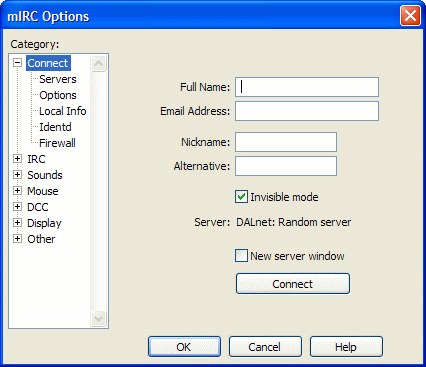
After installing mIRC, you’ll need to connect to the IRC network using a server address. Here’s how:
- Launch mIRC by clicking on its icon in your system tray.
- In the “Servers” window, click on the “Add” button and enter the address of an IRC server (e.G., Irc.Serveritaliano.Org).
- Select the server from the list and click on the “Connect” button to establish a connection.
Setting Up Your Server
To configure your server settings in mIRC, follow these steps:
- In the “Servers” window, select the server you just added.
- Click on the “Options” button and navigate to the “Settings” tab.
- In the “Server Settings” section, choose the desired settings for your server (e.G., Nickname, real name, and email address).
Downloading Files With Mirc
To download files using mIRC, follow these steps:
- Open a channel in mIRC by clicking on the “Join Channel” button.
- Type the command
/listto view a list of available files in the channel. - Use the
@findcommand to search for specific files or use the!*listcommand to get a list of available files. - Once you’ve found the file you want, type the command
/msg [username] xdcc send [filename]to initiate the download.
Tips And Tricks
Here are some additional tips and tricks to help you get the most out of mIRC:
- Use the
DCC(Direct Client-to-Client) protocol to download files directly from users or bots. - Configure your server settings to optimize file downloads.
- Use the
Resumefeature to resume downloads that were interrupted due to disconnections or program closures. - Mute sounds and notifications to avoid distractions.
Alternatives to Mirc
If you’re looking for alternative solutions to downloading files using mIRC, consider the following:
- XdccDownloader: A free program for Windows, macOS, and Linux that allows you to search and download files from IRC channels with ease.
- XChat Azure: A client IRC for macOS that uses textual commands to request file downloads.
Conclusion
In this article, we’ve provided a step-by-step guide on how to set up mIRC and use it to connect to the IRC network, chat with others, and download files. We’ve also shared some tips and tricks to help you get the most out of mIRC and explored alternative solutions for downloading files.
Faqs
Q: What is mIRC?
A: MIRC is a popular IRC client that allows users to connect to the IRC network, chat with others, and download files from the internet.
Q: How do I set up mIRC?
A: To set up mIRC, visit the official website, download and install the software, and follow the prompts to configure your server settings.
Q: What is the DCC protocol?
A: The DCC (Direct Client-to-Client) protocol allows users to download files directly from other users or bots in IRC channels.
Q: Can I resume downloads if they are interrupted?
A: Yes, you can use the Resume feature in mIRC to resume downloads that were interrupted due to disconnections or program closures.
Q: Are there alternative solutions to downloading files with mIRC?
A: Yes, consider using XdccDownloader or XChat Azure as alternative solutions for downloading files from IRC channels.
Q: How do I configure my server settings in mIRC?
A: To configure your server settings in mIRC, navigate to the “Options” window and select the “Settings” tab.
Q: Can I mute sounds and notifications in mIRC?
A: Yes, you can mute sounds and notifications in mIRC by selecting the “Sounds” option in the “Options” window.


