
How to Set Mp3 as Ringtone on Android: A Step-by-step Guide
Are you tired of using the same old ringtone on your Android smartphone? Do you want to personalize your device with a unique sound that reflects your personality? Look no further! In this article, we will guide you through the process of setting an MP3 file as your ringtone on Android.
Why Choose Mp3 as Your Ringtone?
MP3 files offer a wide range of benefits when used as ringtones. For one, they provide high-quality sound that is clear and crisp, making them perfect for those who value audio fidelity. Additionally, MP3s can be easily customized to fit your needs, allowing you to trim or edit the file to create a unique ringtone that suits your style.
Requirements
Before we begin, make sure you have the following:
- An Android smartphone
- A computer with internet access
- A USB cable for connecting your phone to your PC
- The MP3 file you want to use as your ringtone
Step 1: Download And Prepare Your Mp3 File
To start, download the MP3 file you want to use as your ringtone. You can do this by searching for the song online or using a music streaming service like Spotify.
Next, ensure that the MP3 file is in the correct format for Android devices. Typically, this means that the file should be encoded in MP3 format and have a sample rate of 44.1 KHz.
Step 2: Transfer The Mp3 File to Your Android Device
Now it’s time to transfer the MP3 file from your computer to your Android device. You can do this using a USB cable or wirelessly through Bluetooth.
If you’re using a USB cable, follow these steps:
- Connect your phone to your PC using a USB cable
- Open the File Explorer (Windows) or Finder (Mac)
- Navigate to the folder where your MP3 file is located and select it
- Drag and drop the file into the “Music” folder on your phone
Alternatively, if you’re using Bluetooth, follow these steps:
- Enable Bluetooth on both devices
- Search for available devices on your PC and pair them with your phone
- Transfer the MP3 file to your phone using the Bluetooth transfer feature
Step 3: Install Ringtone Maker App
To convert your MP3 file into a ringtone, you’ll need to install the Ringtone Maker app. This app is available for download from the Google Play Store.
Here’s how to do it:
- Open the Google Play Store on your phone
- Search for “Ringtone Maker” and select the app from the search results
- Tap the “Install” button to download and install the app
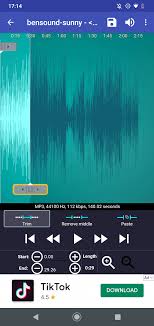
Step 4: Trim And Edit Your Mp3 File
Now that you have the Ringtone Maker app installed, it’s time to trim and edit your MP3 file.
Here’s how:
- Open the Ringtone Maker app on your phone
- Select the MP3 file from your music library
- Use the app’s built-in editor to trim or edit the file as needed
Step 5: Save Your Edited Mp3 File
Once you’ve edited your MP3 file, save it for future use.
Here’s how:
- Tap the “Save” button in the Ringtone Maker app
- Select a location on your phone where you’d like to save the file (e.G. Music > Ringtones)
Step 6: Set Your Edited Mp3 File as Your Ringtone
Finally, it’s time to set your edited MP3 file as your ringtone.
Here’s how:
- Go to Settings > Sounds and vibration on your phone
- Select “Ringtone” and choose the edited MP3 file from your music library
That’s it! With these steps, you should now have a unique MP3 file set as your ringtone on Android.
Alternative Methods: Setting Mp3 File as Ringtone on Samsung, Huawei, And Xiaomi Devices
While the above steps work for most Android devices, there are some slight variations depending on your device model. Here’s how to set an MP3 file as your ringtone on popular devices:
- Samsung: Open Settings > Sound and vibration > Ringtone > Choose a local sound > Music. Select the edited MP3 file from your music library.
- Huawei: Open Settings > Sounds and vibration > Ringtone > Choose a new sound. Select the edited MP3 file from your music library.
- Xiaomi: Open Settings > Sounds and vibration > Ringtone > Choose a ringtone. Select the edited MP3 file from your music library.
Conclusion
Setting an MP3 file as your ringtone on Android is a simple process that can add a touch of personality to your device. With these steps, you should now be able to customize your phone’s sound with ease.
Remember, you can always experiment with different editing software or apps to create the perfect ringtone for your taste.
Bonus Tips And Tricks:
- Experiment with different trim lengths and edits to find the perfect version of your MP3 file.
- Use online tools like Audacity or Adobe Audition to edit your MP3 file before transferring it to your phone.
- Consider using a ringtone maker app that allows you to create custom ringtones directly from within the app.


