
How to Set Mp3 as Iphone Ringtone Without Itunes
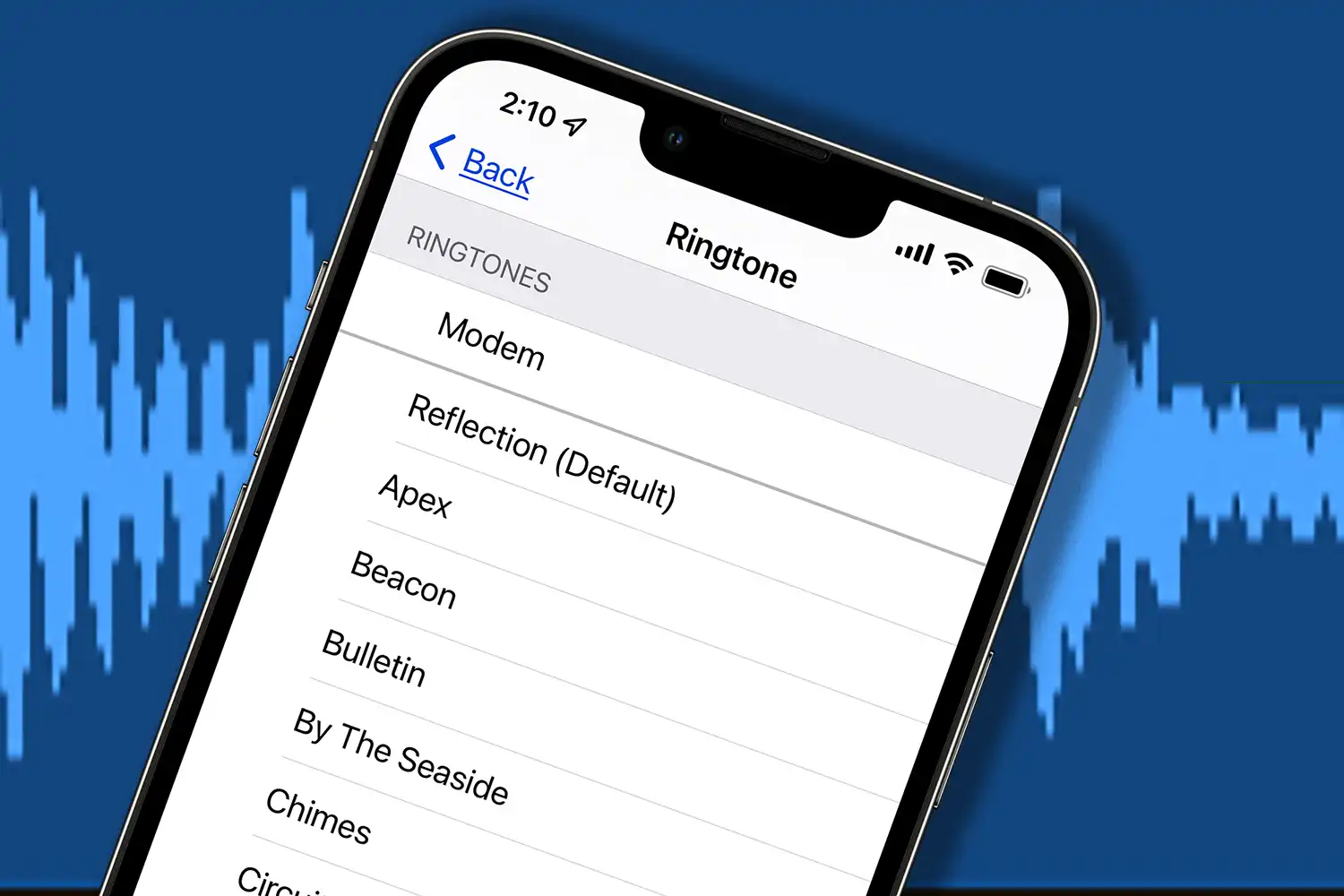
Are you tired of using default ring tones on your iPhone? Do you want to personalize your phone with a song that’s meaningful to you? Well, you’re in luck! In this article, we’ll show you how to set an MP3 as your iPhone ring tone without using iTunes.
Why Use Garageband?
GarageBand is a free app developed by Apple that allows you to create and edit music, podcasts, and even ring tones for your iPhone. It’s a user-friendly app that makes it easy to manipulate audio files and create custom sounds. And the best part? You don’t need any prior knowledge of music production to use GarageBand!
Step 1: Download Garageband
If you haven’t already, download GarageBand from the App Store. This app is pre-installed on your iPhone, so you can access it directly.
Step 2: Find Your Mp3 File
Locate the MP3 file that you want to use as your ring tone. You can find this file on your computer or on your iPhone. If you have the MP3 file on your computer, you’ll need to transfer it to your iPhone using a USB cable.
Step 3: Open Garageband And Create a New Project
Open GarageBand and create a new project by tapping the “Continuous” button and selecting an instrument from the list of available options. This will take you to a new screen where you can start creating your ring tone.
Step 4: Add Your Mp3 File to Garageband
Tap on the icon that looks like a square with lines, then tap on the “Loop” button to access your music library. Scroll through the list of available files until you find your MP3 file, and tap on it to add it to GarageBand.
Step 5: Trim Your Mp3 File
Drag the left and right cursors to trim your MP3 file to the desired length. You can only use a maximum of 40 seconds for your ring tone.
Step 6: Share Your Ring Tone
Tap on the “Share” button, select “Ringtone,” and enter a name for your new ring tone. Then, tap on the “Export” button to save it to your iPhone.
How to Set Mp3 as Iphone Ringtone With Itunes
If you prefer using iTunes to GarageBand, don’t worry! We’ve got you covered. Here’s how to set an MP3 as your iPhone ring tone using iTunes:
Step 1: Open Itunes And Add Your Mp3 File
Open iTunes on your computer and add the MP3 file that you want to use as your ring tone.
Step 2: Convert Your Mp3 File to Aac Format
Select the MP3 file, go to the “File” menu, and select “Convert” > “Create AAC Version.” This will convert your MP3 file to an AAC format that’s compatible with your iPhone.
Step 3: Connect Your Iphone to Itunes
Connect your iPhone to your computer using a USB cable. Select your iPhone in the top navigation bar of iTunes.
Step 4: Add Your Ring Tone to Your Iphone
Drag and drop the converted MP3 file from iTunes into the “Ringtones” section on the left side of the iTunes window.
Step 5: Sync Your Iphone With Itunes
Click on the “Sync” button to sync your iPhone with iTunes. This will transfer the ring tone to your iPhone.
Tips And Variations
If you’re using a Mac running macOS Catalina or later, you can use the Music app instead of GarageBand or iTunes. Simply locate the converted MP3 file in the Finder, right-click on it, and select “Show in Music.”
Also, keep in mind that if you have an iPhone running iOS 14 or later, you might need to follow a slightly different process to set your ring tone.
Conclusion
Setting an MP3 as your iPhone ring tone is easier than ever! With GarageBand or iTunes, you can personalize your phone with a song that’s meaningful to you. Remember to follow the steps carefully, and don’t hesitate to reach out if you need further assistance.


