
Setting Up Automatic Replies in Outlook: A Step-by-step Guide
Are you tired of constantly having to respond to emails when you’re out of the office? Do you wish there was a way to set up automatic replies that would notify your clients and colleagues that you’ll be unavailable during certain periods? Look no further! In this article, we’ll show you how to set up automatic replies in Outlook on both PC and Mac.
Why Set Up Automatic Replies in Outlook?
Setting up automatic replies in Outlook can save you a lot of time and effort. When you’re out of the office or unavailable, you want to make sure that your clients and colleagues know that you won’t be able to respond to their emails right away. By setting up automatic replies, you can:
- Notify your clients and colleagues that you’ll be unavailable during certain periods
- Provide them with a contact person who can assist them while you’re away
- Save time by not having to constantly respond to emails when you’re out of the office
Setting Up Automatic Replies in Outlook on PC
To set up automatic replies in Outlook on PC, follow these steps:
- Open Outlook: Open your Outlook application and click on the “File” tab.
- Go to Settings: Click on the “Settings” icon (represented by a gear) located at the top right corner of the window.
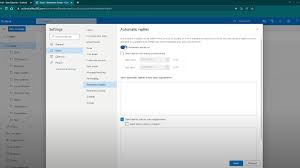
- Select Automatic Replies: In the settings menu, select “Automatic replies”.
- Turn On Automatic Replies: Toggle the switch next to “Automatic replies” to turn it ON.
- Set Up Your Reply Message: Enter your reply message in the “Message text” field. You can personalize the message by adding your name and company details.
- Schedule Your Automatic Replies: Set up a schedule for when you want the automatic replies to be sent out. You can choose specific dates and times or set it to send automatically during certain periods.
Setting Up Automatic Replies in Outlook on Mac
To set up automatic replies in Outlook on Mac, follow these steps:
- Open Outlook: Open your Outlook application and click on the “Mail” tab.
- Go to Settings: Click on the “Outlook” menu at the top left corner of the window and select “Preferences”.
- Select Automatic Replies: In the preferences menu, select “Automatic replies”.
- Turn On Automatic Replies: Toggle the switch next to “Automatic replies” to turn it ON.
- Set Up Your Reply Message: Enter your reply message in the “Message text” field. You can personalize the message by adding your name and company details.
- Schedule Your Automatic Replies: Set up a schedule for when you want the automatic replies to be sent out. You can choose specific dates and times or set it to send automatically during certain periods.
Setting Up Automatic Replies in Outlook Web
To set up automatic replies in Outlook web, follow these steps:
- Log In to Your Outlook Account: Log in to your Outlook account using your email address and password.
- Go to Settings: Click on the “gear” icon at the top right corner of the window to access the settings menu.
- Select Automatic Replies: Select “Automatic replies” from the settings menu.
- Turn On Automatic Replies: Toggle the switch next to “Automatic replies” to turn it ON.
- Set Up Your Reply Message: Enter your reply message in the “Message text” field. You can personalize the message by adding your name and company details.
- Schedule Your Automatic Replies: Set up a schedule for when you want the automatic replies to be sent out. You can choose specific dates and times or set it to send automatically during certain periods.
Tips And Variations
Here are some additional tips and variations to consider:
- Personalize Your Reply Message: Make sure to personalize your reply message by adding your name and company details.
- Schedule Your Automatic Replies: Schedule your automatic replies to go out at specific dates and times or set it to send automatically during certain periods.
- Choose The Right Time Zone: Choose the right time zone for your automatic replies to ensure that they are sent out at the correct time.
- Test Your Automatic Replies: Test your automatic replies to make sure they are working correctly.
Frequently Asked Questions (FAQs)
Here are some frequently asked questions and answers:
Q: Can I set up automatic replies in Outlook on my smartphone or tablet?
A: Yes, you can set up automatic replies in Outlook on your smartphone or tablet using the mobile app.
Q: How do I turn off automatic replies in Outlook?
A: To turn off automatic replies in Outlook, simply toggle the switch next to “Automatic replies” to OFF.
Q: Can I schedule my automatic replies for specific dates and times?
A: Yes, you can schedule your automatic replies for specific dates and times or set it to send automatically during certain periods.
Conclusion
Setting up automatic replies in Outlook is a simple process that can save you a lot of time and effort. By following the steps outlined in this article, you can set up automatic replies on both PC and Mac, as well as in Outlook web. Remember to personalize your reply message, schedule your automatic replies, and test them to make sure they are working correctly. Happy emailing!


