
How to Set a Password on Mac: A Step-by-step Guide
Are you tired of worrying about the security of your Mac account? Do you want to protect your folders with passwords? Look no further! In this article, we will guide you through the process of setting a password on your Mac and protecting your folders.
Why Set a Password on Mac?
Setting a password on your Mac is an essential step in securing your computer. With a password-protected account, you can prevent unauthorized access to your files, emails, and other sensitive information. Moreover, setting a password will also help you to comply with the security policies of your organization or school.
How to Set a Password on Mac
Setting a password on Mac is a straightforward process that can be completed in a few steps. Here’s how:
Step 1: Access System Settings
To set a password on your Mac, you need to access the System Settings. To do this:
- Click on the Apple logo at the top-left corner of the screen.
- Select “System Preferences” from the dropdown menu.
Alternatively, you can click on the “Apple” logo and select “System Preferences” from the resulting menu.
Step 2: Access Password & Touch ID
Once you have accessed System Settings, look for the “Password & Touch ID” option. Click on it to proceed.
- If you have a Mac with Touch ID support, you will see an additional section called “Touch ID.” You can skip this step and move on to the next one.
- Click on the “Unlock with password” button at the bottom of the window.
Step 3: Create a Password
Now it’s time to create a password. Make sure to choose a strong and unique password that includes:
- A minimum of four characters
- A combination of uppercase and lowercase letters, numbers, and special characters
To create a password:
- Click on the “Create a password” button.
- Enter your desired password in the “New passwords” field.
- Check the strength of your password by clicking on the “Check” button.
Step 4: Set Password Suggestion
If you want to set a password suggestion, click on the “Suggest a password” checkbox. This will provide a suggested password that meets the minimum requirements.
Step 5: Save Changes
Once you have created and saved your password, click on the “Save changes” button to apply the settings.
How to Set Password on Folder Mac
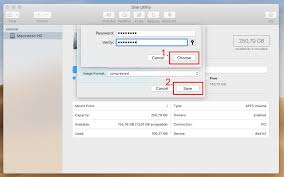
If you want to protect specific folders on your Mac with passwords, you can use a third-party tool called Utility Disc. Here’s how:
- Download and install Utility Disc from the App Store.
- Open Utility Disc and click on the “Rows” menu at the top of the window.
- Select the “New image” option and choose the folder you want to protect.
- Click on the “Choose” button and enter a name for the protected folder.
- Choose the encryption method (AES 128-bit or AES 256-bit) and select a password.
- Click on the “Save” button to create the encrypted folder.
Alternatively, you can use other third-party tools like Encrypto to protect your folders with passwords.
Conclusion
Setting a password on Mac is an essential step in securing your computer. By following these steps, you can set a password on your account and protect specific folders with passwords. Remember to choose strong and unique passwords that meet the minimum requirements.
Frequently Asked Questions (FAQs)
- What Happens if I Forget my Password?
If you forget your password, click on the “Forgot Password” button in System Settings. You will be asked to provide some security questions to verify your identity. If you answer these questions correctly, you can reset your password.
- Can I Change my Password?
Yes, you can change your password at any time by accessing System Settings and clicking on the “Password & Touch ID” option.
- How Secure is my Mac Account?
Your Mac account is secure as long as you use a strong and unique password that meets the minimum requirements. Additionally, make sure to enable two-factor authentication (2FA) whenever possible.
- Can I Protect Multiple Folders With Passwords?
Yes, you can protect multiple folders with passwords using third-party tools like Utility Disc or Encrypto.
- What is The Best Encryption Method For Protecting Folders?
The AES 256-bit encryption method is considered more secure than the AES 128-bit method. However, both methods are suitable for protecting folders on your Mac.
- Can I Use a Password Manager to Store my Passwords?
Yes, you can use a password manager like LastPass or 1Password to store and manage your passwords securely.
- What Happens if Someone Tries to Access my Account Without The Correct Password?
If someone tries to access your account without the correct password, they will be denied access and an alert message will be displayed on your screen.


