
Configuring Alexa: A Step-by-step Guide
Are you excited to experience the world of voice-controlled assistants? Look no further! In this article, we’ll take you through a comprehensive guide on how to configure Alexa on various devices, including Amazon Echo, Echo with display, and other compatible speakers.
Why Configure Alexa?
Before diving into the configuration process, let’s quickly explore why configuring Alexa is essential. With Alexa integrated into your device, you can enjoy a range of features such as:
- Controlling smart home devices
- Playing music and podcasts
- Getting news updates and weather forecasts
- Setting reminders and alarms
- Making hands-free calls and sending messages
Configuring Alexa on Amazon Echo
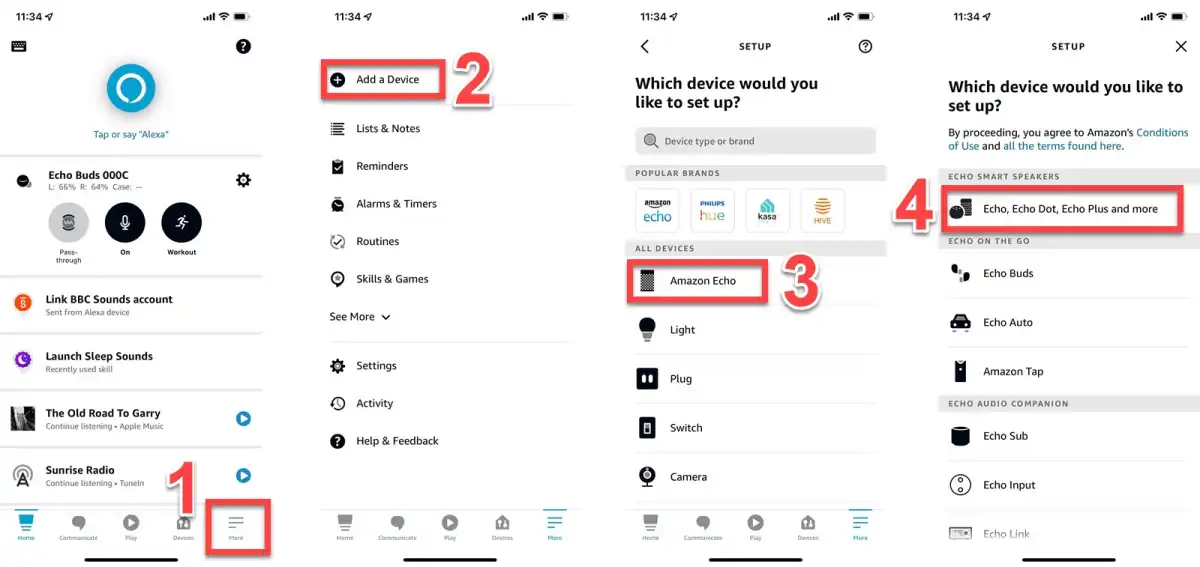
The Amazon Echo is one of the most popular devices to use with Alexa. To configure it, follow these steps:
- Connect Your Echo to Power: Plug in your Echo device and let it boot up.
- Download The Alexa App: On your smartphone or tablet, download the Alexa app from the App Store (for iOS) or Google Play Store (for Android).
- Open The App And Log in: Open the Alexa app and sign in with your Amazon account credentials.
- Configure Your Echo: Follow the on-screen instructions to link your Echo device to your account. This may involve entering a verification code sent to your phone.
Configuring Alexa Without an App
If you don’t have a smartphone or tablet, fear not! You can still configure Alexa using your computer:
- Open a Web Browser: Use your preferred web browser to access the Amazon website.
- Sign in With Your Account: Log in with your Amazon account credentials.
- Find And Select Your Echo Device: Click on “Devices” and then select your Echo device from the list.
- Configure Your Echo: Follow the on-screen instructions to link your Echo device to your account.
Configuring Alexa on Other Devices
If you have other devices such as a TV, speaker, or router with Alexa built-in, follow these steps:
- Check if It’s Compatible: Verify that your device is compatible with Alexa and has an app available for download.
- Download The Alexa App: Download the Alexa app from the App Store (for iOS) or Google Play Store (for Android).
- Configure Your Device: Follow the on-screen instructions to link your device to your Amazon account.
Tips And Tricks
Here are some additional tips to help you get the most out of your Alexa experience:
- Give Commands Clearly: When giving voice commands, speak clearly and concisely.
- Use Specific Keywords: Use specific keywords like “Alexa” or “Echo” to initiate a command.
- Customize Your Settings: Experiment with different settings and preferences to tailor your Alexa experience.
Conclusion
Configuring Alexa is a straightforward process that can enhance your smart home experience. By following these step-by-step guides, you’ll be able to enjoy the benefits of voice-controlled assistants on various devices. Happy configuring!
Frequently Asked Questions (FAQs)
- Q: What Devices Are Compatible With Alexa?
A: Amazon Echo, Echo with display, other speakers, TVs, and routers. - Q: Do I Need an App to Configure Alexa?
A: Yes, you’ll need the Alexa app on your smartphone or tablet to configure your device. - Q: Can I Configure Alexa Using my Computer?
A: Yes, you can use your computer’s web browser to access and configure your Echo device. - Q: How do I Customize my Alexa Settings?
A: Experiment with different settings and preferences within the Alexa app. - Q: What if I Have Issues During Configuration?
A: Contact Amazon customer support for assistance or visit their website for troubleshooting guides. - Q: Can I Use Alexa on Devices Other Than Echo?
A: Yes, you can use Alexa on various compatible devices such as TVs, speakers, and routers. - Q: How do I Update my Alexa Skills?
A: Open the Alexa app, tap on “More” (three horizontal lines), then select “Skills & Games”. - Q: Can I Disable or Delete an Alexa Skill?
A: Yes, you can disable or delete a skill by going to Settings > Skills & Games and selecting the unwanted skill.
I hope this guide has been helpful in configuring your Alexa experience!


