
How to Install Avast Antivirus on Windows 10: A Step-by-step Guide
Are you tired of dealing with malware and viruses on your Windows 10 computer? Look no further than Avast antivirus! In this article, we’ll show you how to install Avast antivirus on your Windows 10 device and configure it to protect your system from various threats.
What is Avast Antivirus?
Avast antivirus is a popular and highly-rated security software that provides comprehensive protection against malware, viruses, and other online threats. Its intuitive interface makes it easy to use, even for those who are not tech-savvy.
Types of Avast Versions
There are three main versions of Avast antivirus:
- Avast Free Antivirus: This is the free version of Avast antivirus that offers basic protection against malware and viruses.
- Avast Premium Security: This paid version includes all the features of the free version, plus additional protection against ransomware, website counterfeiting, and more.
- Avast Ultimate: This premium version includes all the features of the previous versions, plus advanced instruments for safety, privacy, and performance.
How to Install Avast Antivirus on Windows 10
Installing Avast antivirus on your Windows 10 device is a straightforward process that requires only a few clicks:
- Go to the official Avast website and download the installation package.
- Run the downloaded file and follow the instructions to install Avast antivirus.
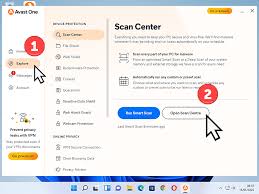
- Once installed, launch Avast antivirus and click on “Scan” to initiate a full system scan.
How to Configure Avast Antivirus
Configuring Avast antivirus is also easy:
- Launch Avast antivirus and click on the settings icon (☰) in the top-right corner of the screen.
- Select “Settings” from the dropdown menu.
- In the Settings window, select the tab that corresponds to the type of protection you want to configure (e.G., Virus scanning, firewall, etc.).
How to Set Avast Antivirus as The Default
If you have a Windows 10 computer, you may have Windows Defender installed as your default antivirus software. To set Avast antivirus as your default:
- Open the Windows Security app and select “Virus & threat protection” from the menu.
- Click on “Manage settings” and toggle off the switch next to “Windows Defender Antivirus”.
- Restart your computer for the changes to take effect.
How to Install Avast Antivirus on Mac
If you have a Mac, installing Avast antivirus is also easy:
- Download the free version of Avast Security from the official website.
- Open the downloaded file and follow the instructions to install Avast antivirus.
- Once installed, launch Avast antivirus and click on “Scan” to initiate a full system scan.
How to Install Avast Antivirus on Android
Installing Avast antivirus on your Android device is also easy:
- Download the official Avast app from the Google Play Store.
- Launch the app and follow the instructions to install Avast antivirus.
- Once installed, launch Avast antivirus and click on “Scan” to initiate a full system scan.
Frequently Asked Questions (FAQs)
Q: What are the benefits of using Avast antivirus?
A: Avast antivirus offers comprehensive protection against malware, viruses, and other online threats, making it an ideal choice for individuals who want to protect their devices from cyber threats.
Q: Is Avast antivirus compatible with Windows 10?
A: Yes, Avast antivirus is fully compatible with Windows 10 and can be installed as your default antivirus software.
Q: Does Avast antivirus have a free version?
A: Yes, Avast antivirus has a free version that offers basic protection against malware and viruses.
Q: Is Avast antivirus easy to use?
A: Yes, Avast antivirus has an intuitive interface that makes it easy to use, even for those who are not tech-savvy.
Q: Can I install Avast antivirus on multiple devices?
A: Yes, you can install Avast antivirus on multiple devices, including Windows 10 computers, Macs, and Android devices.
Conclusion
In this article, we’ve shown you how to install Avast antivirus on your Windows 10 computer and configure it to protect your system from various threats. We’ve also covered the benefits of using Avast antivirus, its compatibility with Windows 10, and its free version. Whether you’re a tech-savvy individual or not, installing Avast antivirus is easy and can provide comprehensive protection against malware and viruses.
Additional Faqs
Q: How do I update my Avast antivirus software?
A: To update your Avast antivirus software, launch the app and click on “Update” from the menu.
Q: Can I use Avast antivirus with other security software?
A: Yes, you can use Avast antivirus in conjunction with other security software to provide additional protection against malware and viruses.
Q: Does Avast antivirus have a VPN feature?
A: No, Avast antivirus does not have a built-in VPN feature. However, it does offer a firewall feature that can help protect your device from unauthorized access.
Q: Can I customize the settings of my Avast antivirus software?
A: Yes, you can customize the settings of your Avast antivirus software to suit your specific needs and preferences.
Q: Does Avast antivirus have a customer support team?
A: Yes, Avast antivirus has a dedicated customer support team that can assist with any questions or issues related to the software.


