
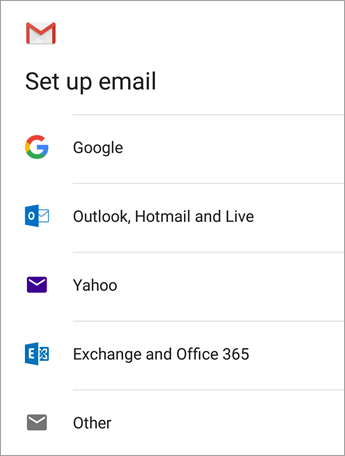
How to Configure Email on Android: A Step-by-step Guide
Are you tired of juggling multiple devices to check your emails? Do you want to be able to access your email accounts directly from your Android smartphone? If so, this guide is for you!
In this article, we will walk you through the process of configuring email on your Android device. We will cover various email providers, including Gmail, Outlook, Free, iCloud, Aruba, Tiscali, Register, Virgil, and business email accounts.
Why Configure Email on Your Android Device?
Configuring email on your Android device allows you to:
- Access your email accounts directly from your phone
- Check emails without needing a computer
- Respond to emails quickly and efficiently
- Stay connected with friends, family, and colleagues
How to Configure Gmail on Android
To configure Gmail on your Android device, follow these steps:
- Open the Gmail app (if you don’t have it installed, download it from the Play Store)
- Tap on the menu icon (three horizontal lines) at the top left corner
- Select “Settings”
- Tap on “Add account” and select “Gmail”
- Enter your email address and password
- Tap on “Next” and follow the prompts to complete the setup process
How to Configure Outlook on Android
To configure Outlook on your Android device, follow these steps:
- Download and install the Outlook app from the Play Store
- Open the app and tap on “Add account”
- Select “Outlook.Com” and enter your email address and password
- Tap on “Next” and follow the prompts to complete the setup process
How to Configure Free Mail on Android
To configure Free Mail on your Android device, follow these steps:
- Download and install the Free app from the Play Store
- Open the app and tap on “Add account”
- Select “Free.Fr” and enter your email address and password
- Tap on “Next” and follow the prompts to complete the setup process
How to Configure Icloud Mail on Android
To configure iCloud Mail on your Android device, follow these steps:
- Download and install the iCloud app from the Play Store
- Open the app and tap on “Add account”
- Select “iCloud.Com” and enter your email address and password
- Tap on “Next” and follow the prompts to complete the setup process
How to Configure Aruba Mail on Android
To configure Aruba Mail on your Android device, follow these steps:
- Download and install the Aruba app from the Play Store
- Open the app and tap on “Add account”
- Select “Aruba.It” and enter your email address and password
- Tap on “Next” and follow the prompts to complete the setup process
How to Configure Tiscali Mail on Android
To configure Tiscali Mail on your Android device, follow these steps:
- Download and install the Tiscali app from the Play Store
- Open the app and tap on “Add account”
- Select “Tiscali.It” and enter your email address and password
- Tap on “Next” and follow the prompts to complete the setup process
How to Configure Register Mail on Android
To configure Register Mail on your Android device, follow these steps:
- Download and install the Register app from the Play Store
- Open the app and tap on “Add account”
- Select “Register.It” and enter your email address and password
- Tap on “Next” and follow the prompts to complete the setup process
How to Configure Virgil Mail on Android
To configure Virgil Mail on your Android device, follow these steps:
- Download and install the Virgil app from the Play Store
- Open the app and tap on “Add account”
- Select “Virgilio.It” and enter your email address and password
- Tap on “Next” and follow the prompts to complete the setup process
How to Configure Business Email Account on Android
To configure a business email account on your Android device, follow these steps:
- Download and install the Gmail app (if you don’t have it installed, download it from the Play Store)
- Open the app and tap on the menu icon (three horizontal lines) at the top left corner
- Select “Settings”
- Tap on “Add account” and select “Other”
- Enter your email address and password
- Tap on “Next” and follow the prompts to complete the setup process
Troubleshooting Tips
If you’re having trouble configuring your email account, try these troubleshooting tips:
- Check that your internet connection is stable
- Ensure that you have entered the correct email address and password
- Try restarting your device or clearing the app cache
Conclusion
Configuring email on your Android device allows you to access your email accounts directly from your phone. In this guide, we covered various email providers, including Gmail, Outlook, Free, iCloud, Aruba, Tiscali, Register, Virgil, and business email accounts.
By following these step-by-step instructions, you should be able to configure your email account on your Android device. If you encounter any issues, try the troubleshooting tips provided above.
Frequently Asked Questions (FAQs)
- What is Imap?
IMAP (Internet Message Access Protocol) is a protocol used to access and manage email messages on a remote server.
- What is Smtp?
SMTP (Simple Mail Transfer Protocol) is a protocol used to send and receive email messages between servers.
- How do I Configure my Email Account if I Have Multiple Accounts?
You can configure multiple email accounts by following the same steps as above, but selecting “Add another account” instead of “Add account”.
- What if I Forget my Password or Username?
If you forget your password or username, try using the password reset feature provided by your email provider.
- Can I Use a Third-party Email Client to Access my Email Account?
Yes, you can use a third-party email client to access your email account, but make sure it supports IMAP and SMTP protocols.
- What if I Encounter Issues During Setup?
If you encounter issues during setup, try restarting your device or clearing the app cache. If the issue persists, contact the email provider’s support team for assistance.
- Can I Sync my Contacts And Calendar With my Email Account?
Yes, most email providers allow you to sync your contacts and calendar with your email account.
- What if I Want to Change my Email Password or Username?
You can change your email password or username by following the instructions provided by your email provider.


