
How to Set Up Email on Pc: A Step-by-step Guide
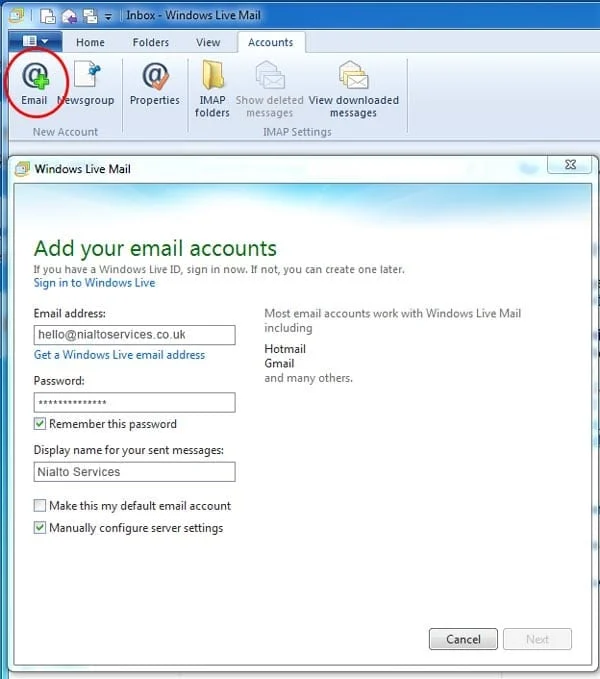
Are you tired of constantly opening your browser to check your email? Do you wish there was a more comfortable way to access your inbox? Look no further! In this article, we will guide you through the process of setting up email on your PC using various popular email services.
Why Set Up Email on Pc?
Setting up email on your PC can be beneficial in several ways. Firstly, it allows you to access your email without having to constantly open your browser. This can save you time and increase productivity. Secondly, many email services offer advanced features and customization options when used with a desktop client.
Choosing The Right Email Service
There are numerous email services available, each with its own unique features and advantages. Some of the most popular email services include:
- Google (Gmail)
- Outlook
- ICloud
- Alice
- Aruba
In this article, we will focus on setting up email using these services.
Step-by-step Guide: Setting Up Email on PC
Google (Gmail)
To set up Gmail on your PC, follow these steps:
- Open the Google account settings by clicking on the gear icon in the top right corner of the Gmail window.
- Click on “Add account” and select “Google account.”
- Enter your email address and password to log in.
- Click on “Next” and then click on “Connect” to complete the setup process.
Outlook
To set up Outlook on your PC, follow these steps:
- Open the Microsoft Outlook application.
- Click on the “File” tab and select “Add Account.”
- Select “Manually configure server settings or additional server types.”
- Select “IMAP” as the account type.
- Enter your email address, password, and other required information.
- Click on “OK” to complete the setup process.
Icloud
To set up iCloud on your PC, follow these steps:
- Open the Apple Mail application.
- Click on the “Mail” menu and select “Preferences.”
- Select the “Accounts” tab.
- Click on the “+” button to add a new account.
- Enter your email address and password to log in.
- Click on “OK” to complete the setup process.
Alice
To set up Alice on your PC, follow these steps:
- Open the Alice application.
- Click on the “Setup” button.
- Select the “IMAP” account type.
- Enter your email address and password to log in.
- Click on “OK” to complete the setup process.
Aruba
To set up Aruba on your PC, follow these steps:
- Open the Aruba application.
- Click on the “Setup” button.
- Select the “IMAP” account type.
- Enter your email address and password to log in.
- Click on “OK” to complete the setup process.
Common Parameters For Email Setup
The following are common parameters that may be required when setting up email:
- Server Imap: Imap.Gmail.Com (for Gmail)
- Server Smtp: Smtp.Gmail.Com (for Gmail)
- Port Imap: 993
- Port Smtp: 587
- Ssl/tls: Yes
Setting Up Email on Various Programs
In addition to the above steps, you may need to set up email on other programs such as Microsoft Outlook, Apple Mail, and Thunderbird. Here are some general guidelines for setting up email on these programs:
Microsoft Outlook
To set up Outlook, follow the same steps outlined above.
Apple Mail
To set up Apple Mail, open the application and click on the “Mail” menu. Select “Preferences” and then select the “Accounts” tab. Click on the “+” button to add a new account and enter your email address and password to log in.
Thunderbird
To set up Thunderbird, download and install the program from the official website. Open the application and click on the “File” menu. Select “New Account” and select “IMAP.” Enter your email address and password to log in and follow the prompts to complete the setup process.
Conclusion
Setting up email on your PC can be a simple and straightforward process when using popular email services such as Google, Outlook, iCloud, Alice, and Aruba. By following the steps outlined above, you can access your email without having to constantly open your browser. Remember to keep track of common parameters such as server IMAP and SMTP ports to ensure a smooth setup process.
Faqs
- Q: How do I Set up Email on my Pc?
A: To set up email on your PC, follow the steps outlined in this article for each respective email service. - Q: What Are The Common Parameters Required When Setting up Email?
A: The common parameters required when setting up email include server IMAP and SMTP ports, as well as SSL/TLS settings. - Q: How do I Set up Email on Microsoft Outlook?
A: To set up email on Outlook, follow the same steps outlined in this article for Google (Gmail). - Q: How do I Set up Email on Apple Mail?
A: To set up email on Apple Mail, open the application and click on the “Mail” menu. Select “Preferences” and then select the “Accounts” tab. Click on the “+” button to add a new account and enter your email address and password to log in. - Q: How do I Set up Email on Thunderbird?
A: To set up email on Thunderbird, download and install the program from the official website. Open the application and click on the “File” menu. Select “New Account” and select “IMAP.” Enter your email address and password to log in and follow the prompts to complete the setup process.
References
- Google (Gmail) support
- Microsoft Outlook support
- Apple Mail support
- Thunderbird support


