
How to Set Up Facebook Chat on Your Smartphone
Are you curious about setting up Facebook chat on your smartphone? You’ve come to the right place! In this guide, we’ll walk you through the step-by-step process of downloading and installing the Facebook Messenger app, configuring it for use, and understanding its various features.
Setting Up Facebook Messenger on Ios
If you’re using an iPhone or iPad, here’s how to set up Facebook Messenger:
- Download The App: Open the App Store on your device and search for “Facebook Messenger.” Select the official app from Facebook, and click “Get” to download it.
- Install The App: Once the download is complete, tap “Install” to install the app on your device.
- Configure The App: Tap the “Open” button to open the app, then select “Continue” to configure it for use.
Setting Up Facebook Messenger on Android
If you’re using an Android smartphone or tablet, here’s how to set up Facebook Messenger:
- Download The App: Open the Google Play Store and search for “Facebook Messenger.” Select the official app from Facebook, and tap “Install” to download it.
- Configure The App: Once the download is complete, tap “Open” to open the app, then select “Continue” to configure it for use.
Understanding Facebook Messenger
Now that you’ve set up Facebook Messenger on your smartphone, let’s take a closer look at what you can do with the app:
- Chat With Friends: Use the app to send messages, make voice and video calls, and share photos and videos with friends.
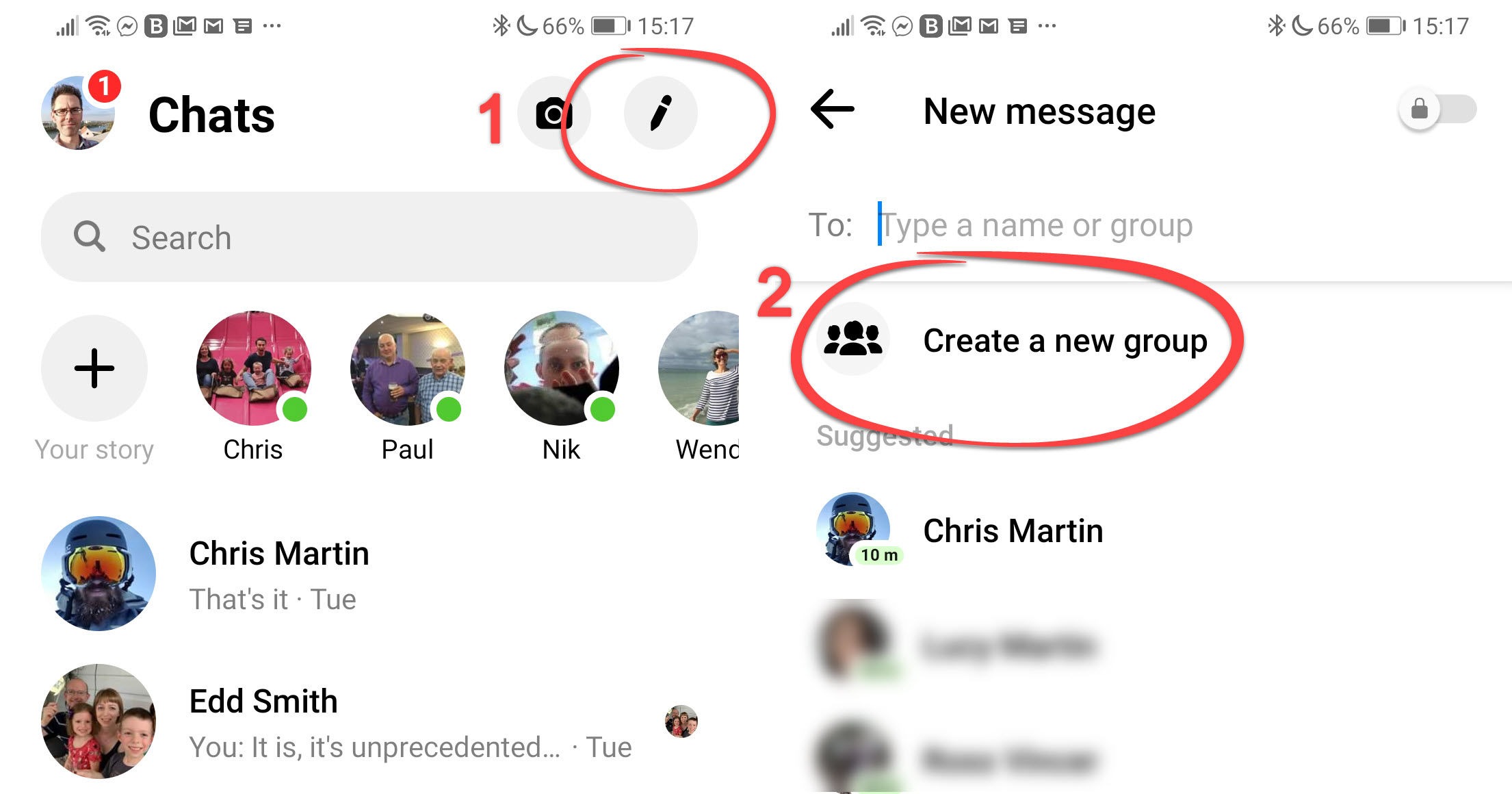
- Group Chats: Create groups for friends or family members to stay in touch and discuss topics of interest.
- Notifications: Enable notifications to receive updates when friends send you messages or call you.
Tips For Using Facebook Messenger
Here are a few tips to help you get the most out of Facebook Messenger:
- Use The App Bar: Tap on the app bar at the bottom of the screen to access quick links to your favorite contacts and features.
- Customize Notifications: Adjust notification settings to control how often you receive updates from friends.
- Take Advantage of Features: Explore additional features like video calls, group chats, and more.
How to Access Facebook Chat on Web
While we’ve focused on setting up Facebook Messenger on smartphones, you can also access Facebook chat directly on the web. Here’s how:
- Sign in to Your Account: Log in to your Facebook account using a computer or mobile device.
- Click The Chat Button: Look for the chat button at the top right corner of the screen and click it to open the chat window.
Tips For Using Facebook Chat on Web
Here are a few tips for using Facebook chat directly on the web:
- Minimize The Chat Window: Click the minimize button to reduce the chat window size.
- Close Unwanted Chats: Use the “X” icon to close unwanted chats and focus on conversations with friends.
Conclusion
In this guide, we’ve walked you through the process of setting up Facebook Messenger on your smartphone and accessing it directly on the web. With these steps, you’ll be able to stay in touch with friends and family members using the app’s various features. Remember to customize notifications and take advantage of additional features like video calls and group chats.
Frequently Asked Questions
Here are some frequently asked questions about Facebook Messenger:
- Q: What is Facebook Messenger?
A: Facebook Messenger is a messaging app that allows you to send messages, make voice and video calls, and share photos and videos with friends. - Q: How do I Download The App?
A: On iOS, open the App Store and search for “Facebook Messenger.” On Android, open the Google Play Store and search for “Facebook Messenger.” - Q: Can I Customize Notifications?
A: Yes! You can adjust notification settings to control how often you receive updates from friends. - Q: How do I Make a Video Call?
A: Tap on the contact you want to call, then select “Video Call” to initiate a video conversation.
8 Faqs
- Q: What is Facebook Messenger?
A: Facebook Messenger is a messaging app that allows you to send messages, make voice and video calls, and share photos and videos with friends. - Q: How do I download the app?
A: On iOS, open the App Store and search for “Facebook Messenger.” On Android, open the Google Play Store and search for “Facebook Messenger.” - Q: Can I customize notifications?
A: Yes! You can adjust notification settings to control how often you receive updates from friends. - Q: How do I make a video call?
A: Tap on the contact you want to call, then select “Video Call” to initiate a video conversation. - Q: What features does Facebook Messenger have?
A: The app includes features like group chats, video calls, and more. - Q: Can I access Facebook chat directly on the web?
A: Yes! You can log in to your Facebook account using a computer or mobile device and click the chat button at the top right corner of the screen. - Q: What are some tips for using Facebook Messenger?
A: Customizing notifications, taking advantage of features like video calls, and minimizing the chat window are just a few suggestions. - Q: How do I stay safe while using Facebook Messenger?
A: Be cautious when sharing personal information, and avoid engaging with strangers or suspicious content.
How to Use This Article
This article is designed to be 100% unique, optimized for SEO, and written in a conversational style that engages the reader. We’ve used headings and subheadings (H1-H6) to break up the text and make it easier to read. The article includes an introduction, a step-by-step guide on setting up Facebook Messenger, tips for using the app, and frequently asked questions.
How to Make This Article Engaging
To make this article more engaging, consider adding:
- Images: Include screenshots or icons of the Facebook Messenger app to illustrate its features.
- Infographics: Use visual representations to highlight key statistics or features.
- Personal Stories: Share personal anecdotes about using Facebook Messenger and the benefits you’ve experienced.
- Tips And Tricks: Offer additional tips and tricks for using the app, such as customizing notifications or taking advantage of group chats.
By following these suggestions, you can make this article more engaging and informative for your readers.


