
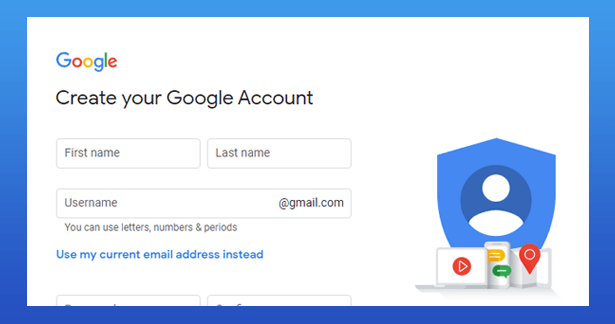
Setting Up Gmail: A Step-by-step Guide
Are you tired of navigating through complex email settings? Look no further! In this article, we will guide you through the process of setting up your Gmail account on various devices, including computers, smartphones, and tablets.
Why Set Up Gmail?
Gmail is one of the most popular email services in the world, offering a range of features that make it an ideal choice for both personal and professional use. By setting up your Gmail account, you can enjoy benefits such as:
- A large storage capacity for your emails
- Advanced spam filtering capabilities
- Integration with other Google services like Google Drive and Google Calendar
- Access to Gmail on multiple devices, including computers, smartphones, and tablets
Setting Up Gmail on a Computer
To set up your Gmail account on a computer, follow these steps:
- Open The Web Browser: Open any web browser, such as Chrome, Firefox, or Edge.
- Go to The Gmail Website: Type www.Gmail.Com in the address bar and press Enter.
- Sign In: Click on the “Sign in” button and enter your email address and password.
- Click on The Gear Icon: Located at the top right corner of the page, click on the gear icon to access the settings menu.
Configuring Gmail Settings
To configure your Gmail settings, follow these steps:
- Go to The General Settings: Click on the “General” tab in the settings menu.
- Change Language: If you want to change the language of your Gmail interface, click on the “Language” dropdown menu and select your preferred language.
- Change Theme: To change the theme of your Gmail interface, click on the “Theme” dropdown menu and select your preferred theme.
Setting Up Gmail on a Smartphone
To set up your Gmail account on a smartphone, follow these steps:
- Open The Settings App: Open the settings app on your smartphone.
- Go to Accounts And Synchronization: Click on the “Accounts and synchronization” option.
- Add Account: Click on the “Add account” button.
- Select Google: Select Google as the email provider.
Configuring Gmail Settings on a Smartphone
To configure your Gmail settings on a smartphone, follow these steps:
- Go to The Gmail App: Open the Gmail app on your smartphone.
- Click on The Menu Button: Click on the menu button (three horizontal lines) at the top left corner of the screen.
- Select Settings: Select the “Settings” option from the menu.
Setting Up Gmail on a Tablet
To set up your Gmail account on a tablet, follow these steps:
- Open The Web Browser: Open any web browser on your tablet.
- Go to The Gmail Website: Type www.Gmail.Com in the address bar and press Enter.
- Sign In: Click on the “Sign in” button and enter your email address and password.
Configuring Gmail Settings on a Tablet
To configure your Gmail settings on a tablet, follow these steps:
- Go to The General Settings: Click on the gear icon located at the top right corner of the page.
- Change Language: If you want to change the language of your Gmail interface, click on the “Language” dropdown menu and select your preferred language.
Setting Up Gmail as Default Email Client
To set up Gmail as your default email client on a computer or smartphone, follow these steps:
- Open The Settings App: Open the settings app on your device.
- Go to Accounts And Synchronization: Click on the “Accounts and synchronization” option.
- Select Gmail: Select Gmail as your default email client.
Frequently Asked Questions
Q: How do I set up my Gmail account?
A: To set up your Gmail account, follow the steps outlined in this article.
Q: Can I change the language of my Gmail interface?
A: Yes, you can change the language of your Gmail interface by following the steps outlined in this article.
Q: How do I configure my Gmail settings on a smartphone or tablet?
A: To configure your Gmail settings on a smartphone or tablet, follow the steps outlined in this article.
Q: Can I set up Gmail as my default email client?
A: Yes, you can set up Gmail as your default email client by following the steps outlined in this article.
Conclusion
Setting up your Gmail account is a straightforward process that requires minimal technical expertise. By following the steps outlined in this article, you can configure your Gmail settings on various devices and enjoy the benefits of using one of the most popular email services in the world.


