
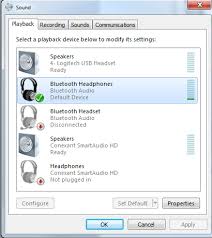
How to Configure Headphones on Windows 10: A Step-by-step Guide
Are you tired of using your speakers or headphones without disturbing the entire neighborhood? Look no further! In this article, we’ll show you how to configure your headphones on Windows 10, including wired, wireless, and Bluetooth devices.
Configuring Wired Headphones on Windows 10
If you have a pair of wired headphones with a 3.5Mm jack, configuring them on Windows 10 is a breeze. Here’s what you need to do:
- Identify The Jack: Locate the 3.5Mm jack on your PC or laptop, usually found on the front or back panel.
- Insert The Cable: Plug the cable from your headphones into the jack.
- Windows Will Detect it Automatically: Windows 10 should automatically detect the headphones and direct audio to them.
Configuring Bluetooth Headphones on Windows 10
If you have Bluetooth-enabled headphones, here’s how to configure them:
- Enable Bluetooth on Your PC: Go to Settings > Devices > Bluetooth & other devices.
- Make Sure Bluetooth is Turned On: Toggle the switch next to “Bluetooth” to turn it on.
- Search For Available Devices: Windows will search for available devices, including your headphones.
Configuring Wireless Headphones to Radio Frequency (RF)
If you have wireless headphones that use radio frequency (RF) technology, here’s how to configure them:
- Insert The Battery: Insert the battery into the speaker.
- Charge The Transmitter: Connect the transmitter to a power source and charge it.
- Connect The Headphones: Put on the headphones and press the pairing button.
How to Configure Microphone on Windows 10
If you want to use your headphones’ microphone, here’s how to configure it:
- Go to Settings > System > Audio: Click on the “Audio” tab.
- Choose Device: Select your headphones as the input device.
- Test The Microphone: Click on the “Test” button and speak into the mic.
Troubleshooting Tips
If you’re experiencing issues with configuring your headphones, here are some troubleshooting tips:
- Restart your PC or laptop to ensure that Windows 10 is running properly.
- Check that the cable or Bluetooth connection is secure.
- Try updating your drivers to the latest version.
Conclusion
Configuring your headphones on Windows 10 is a straightforward process. By following these steps, you can enjoy clear and immersive audio from your wired, wireless, or Bluetooth-enabled headphones. Remember to troubleshoot any issues that may arise by restarting your device, checking connections, and updating your drivers.
Frequently Asked Questions (FAQs)
- Q: How do I Know if my Headphones Are Compatible With Windows 10?
A: Check the manufacturer’s website for compatibility information. - Q: Can I Use Both Speakers And Headphones at The Same Time?
A: Yes, you can, but it may not be recommended as it could cause audio conflicts. - Q: Why Won’t my Bluetooth Headphones Connect to my Pc?
A: Try restarting your device or updating your drivers. - Q: How do I Adjust The Volume on my Headphones?
A: Check the manufacturer’s instructions for specific volume control methods. - Q: Can I Use my Headphones’ Microphone With Windows 10?
A: Yes, you can configure your headphones’ microphone as an input device. - Q: Why is my Audio Not Playing Through my Headphones?
A: Try restarting your PC or laptop, or check that the cable or Bluetooth connection is secure. - Q: Can I Connect Multiple Devices to my Wireless Headphones?
A: Check with the manufacturer for compatibility information. - Q: How do I Troubleshoot Issues With my Headphones on Windows 10?
A: Try restarting your device, checking connections, and updating your drivers.
Recommended Products
- TP-Link Ub400 Adapter Bluetooth USB Dongle
- ASUS USB-BT400, Adapter USB Bluetooth 4.0


