
Configuring Hotmail on Iphone: A Step-by-step Guide
Are you struggling to set up your Hotmail account on your iPhone? Look no further! In this article, we’ll guide you through the process of configuring Hotmail on your iPhone using Mail and Microsoft Outlook.
Understanding Your Options
Before we dive into the steps, let’s take a moment to understand our options. We can configure Hotmail on our iPhone using either Mail or Microsoft Outlook. Both options are viable, but they offer slightly different features and functionalities.
Configuring Hotmail on Iphone With Mail
To start, let’s focus on configuring Hotmail on your iPhone using the built-in Mail app. This method is straightforward and requires minimal setup.
Step 1: Access Settings on Your Iphone
Open the Settings app on your iPhone and tap on “Mail” to access the mail settings.
Step 2: Add a New Account
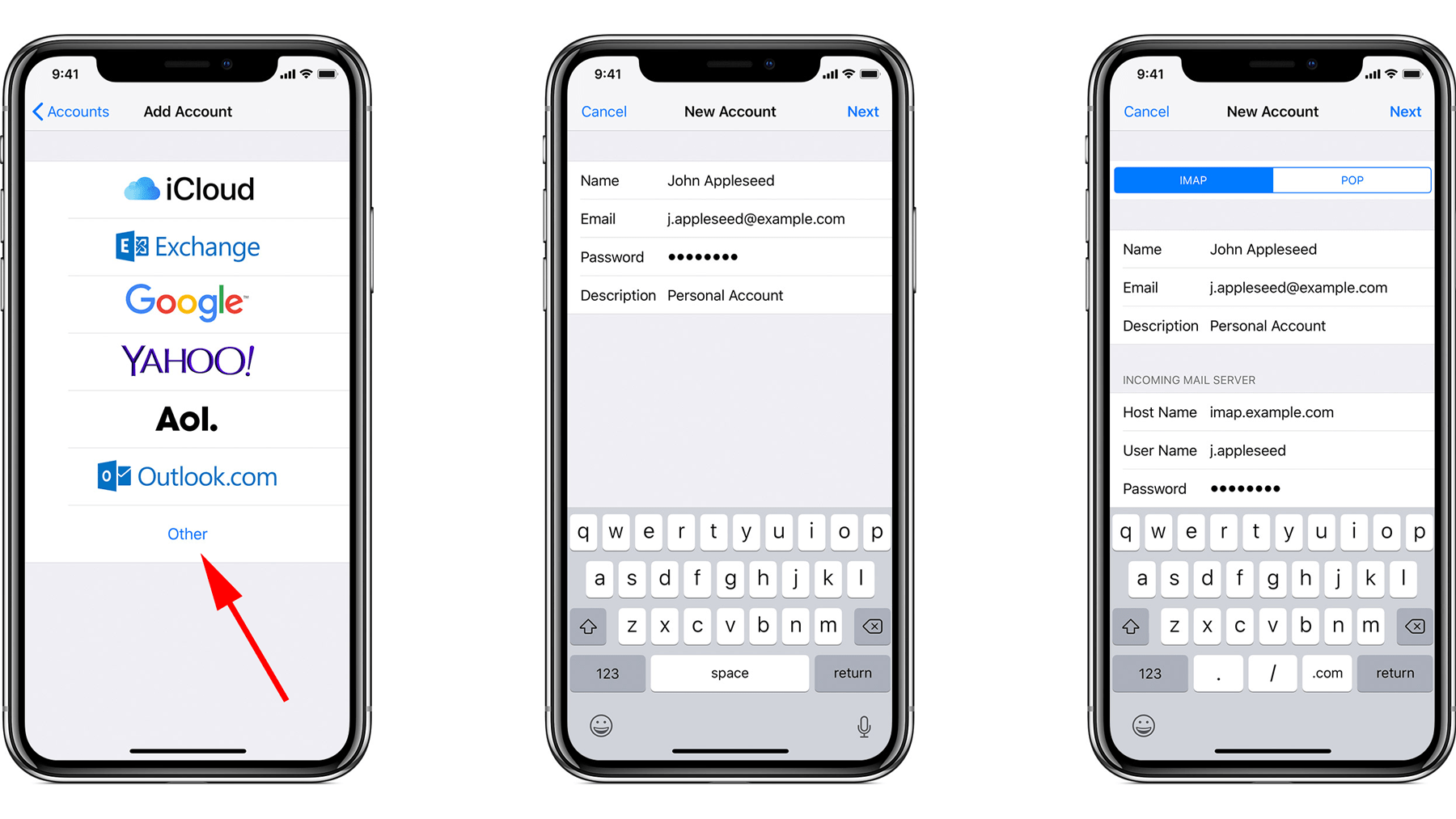
In the Mail settings, tap on “Accounts” and then select “Add Account.”
Step 3: Select Outlook.com as The Email Provider
Choose Outlook.Com as the email provider for Hotmail.
Step 4: Enter Your Hotmail Address And Password
Enter your Hotmail address in the designated field and enter your password to access your account.
Step 5: Confirm Your Account
Tap on “Next” to confirm your account details. Mail will automatically configure your account, including synchronization with your iPhone contacts, calendar, reminders, and grades.
Step 6: Adjust Synchronization Settings (Optional)
If you wish to adjust the frequency of email synchronization or change any other settings, you can do so in the Account settings section.
Configuring Hotmail on Iphone With Microsoft Outlook
Alternatively, we can configure Hotmail on our iPhone using Microsoft Outlook. This app offers more features and functionalities than the built-in Mail app.
Step 1: Download And Install Microsoft Outlook
Download and install Microsoft Outlook from the App Store.
Step 2: Open Microsoft Outlook And Add a New Account
Open Microsoft Outlook and tap on “Add Account” to add your Hotmail account.
Step 3: Enter Your Hotmail Address And Password
Enter your Hotmail address in the designated field and enter your password to access your account.
Step 4: Configure Other Settings (Optional)
You can configure additional settings, such as notifications, calendar synchronization, or signature customization, within Microsoft Outlook.
Other Apps For Configuring Hotmail on Iphone
While Mail and Microsoft Outlook are the most popular options, there are other apps available that can help you configure your Hotmail account on your iPhone. Some of these apps include:
- Gmail: The official Gmail app supports various email providers, including Hotmail.
- Spark Mail: A free, feature-rich app for managing multiple email accounts, including Hotmail.
- Airmail: Another popular email client that allows you to configure your Hotmail account.
Configuring Hotmail on Iphone Manually (Optional)
If the automatic setup fails or if you prefer a more manual approach, you can configure your Hotmail account on your iPhone manually. This involves adding the POP/IMAP settings for your Hotmail account in the Mail settings section.
Troubleshooting Common Issues
If you encounter any issues during the configuration process, don’t worry! We’ve got some troubleshooting tips to help you resolve common problems:
- Check Your Email Address And Password: Ensure that your email address and password are accurate.
- Disable Any Vpn or Proxy Connections: If you’re using a VPN or proxy, try disabling it temporarily to see if the issue resolves itself.
- Clear Safari’s Cache: Clearing your browser cache can sometimes resolve issues related to cookie storage.
Conclusion
Configuring Hotmail on your iPhone is a relatively straightforward process. By following these steps and understanding your options, you should be able to set up your account without any major issues. If you encounter problems, don’t hesitate to reach out for help.
Frequently Asked Questions (FAQs)
Here are some frequently asked questions that might help clarify things:
- Q: Why Can’t I Find my Hotmail Account in The Mail Settings?
A: Make sure your email address and password are correct. If you’re still having trouble, try using the “Other” option to manually add your account. - Q: Can I Use Multiple Email Accounts With Microsoft Outlook?
A: Yes! You can configure multiple email accounts in Microsoft Outlook, including Hotmail, Gmail, or any other provider. - Q: Why do I Need to Allow Notifications For my Hotmail Account?
A: Notifications help keep you informed about new emails and updates. You can adjust notification settings within the Mail app or through your iPhone’s general settings.
Hope this helps!


