
How to Configure Your Iphone Like a Pro
Are you struggling to configure your new iPhone? Don’t worry, we’ve got you covered! This article will guide you through the process of setting up your iPhone like a pro.
Introduction
Congratulations on acquiring your brand-new iPhone! You’re probably excited to dive into the world of Apple’s latest technology. However, if you’re not tech-savvy or have never used an iPhone before, it can be overwhelming. In this article, we’ll walk you through the step-by-step process of configuring your iPhone like a pro.
Initial Configuration
- Sim Insertion: First things first, insert the SIM card into your iPhone. If you’re using an older model or have a physical SIM card, make sure to follow the instructions provided.
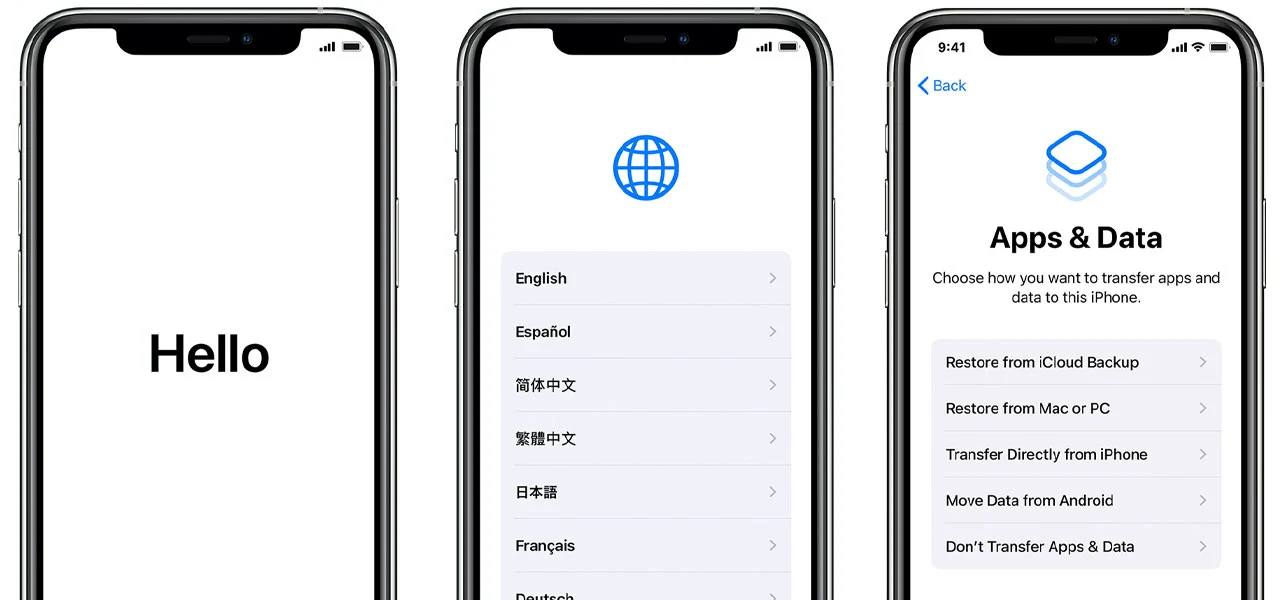
- Initial Setup: Once the SIM is inserted, follow the on-screen instructions to set up your iPhone. This includes choosing your language, country or region, and Wi-Fi network.
Fast Configuration
If you’ve previously used an iPhone or iPad with iOS 11 or later versions, you can take advantage of the fast configuration feature. This will transfer data from another device (iPhone, iPad, or iPod touch) to your new iPhone. To do this:
- Connect Devices: Connect both devices to the same Wi-Fi network.
- Follow Instructions: Follow the on-screen instructions to complete the setup process.
Manual Configuration
If you prefer a more manual approach, follow these steps:
- Connect to Wi-fi: Connect your iPhone to a Wi-Fi network.
- Face ID or Touch ID: Set up Face ID or Touch ID for biometric authentication.
- Language And Region: Choose your language and region.
- Icloud Setup: Set up iCloud by creating an Apple ID or using an existing one.
Configuring Internet
To configure internet on your iPhone:
- Connect to Wi-fi: Connect to a Wi-Fi network.
- Configure Network: Go to Settings > Wi-Fi and select the desired network.
- Enter Password: Enter the password to access the network.
- Configure Hotspot: To use your iPhone as a hotspot, go to Settings > Personal Hotspot.
Configuring Icloud
To configure iCloud on your iPhone:
- Go to Settings: Go to Settings > [Your Name] > iCloud.
- Enable Icloud: Enable iCloud and choose the options you want to sync.
- Icloud Photo Library: Set up iCloud Photo Library to store photos and videos in iCloud.
Configuring Mail And Contacts
To configure mail and contacts on your iPhone:
- Go to Settings: Go to Settings > Mail or Settings > Contacts.
- Add Account: Add a new email account by selecting the desired provider (e.G., Gmail, Outlook).
- Configure Account: Configure the account settings, such as password and synchronization options.
Configuring Unblock Iphone
To configure unblock iPhone:
- Go to Settings: Go to Settings > Face ID & Code or Settings > Touch ID & Passcode.
- Enter Password: Enter the password to unlock your iPhone.
- Set Up Face ID or Touch ID: Set up Face ID or Touch ID for biometric authentication.
Configuring Siri
To configure Siri on your iPhone:
- Go to Settings: Go to Settings > Siri & Search.
- Enable Siri: Enable Siri and choose the options you want to use (e.G., “Hey Siri”).
- Configure Siri Settings: Configure Siri settings, such as voice commands and language.
Personalizing Your Iphone
To personalize your iPhone:
- Change Wallpaper: Change the wallpaper by going to Settings > Wallpapers.
- Customize Home Screen: Customize the home screen by rearranging icons or creating folders.
- Create Custom Icons: Create custom icons for apps using the built-in icon editor.
Configuring Iphone For Kids
To configure iPhone for kids:
- Set Up Family Sharing: Set up family sharing to create a separate Apple ID for your child.
- Configure Parental Controls: Configure parental controls, such as limits on screen time and app usage.
- Set Up Ask to Buy: Set up Ask to Buy to require permission before making purchases.
Conclusion
Configuring your iPhone is easier than you think! With these step-by-step guides, you’ll be able to set up your iPhone like a pro. Remember to follow the on-screen instructions and take advantage of the fast configuration feature if possible. If you have any doubts or issues, don’t hesitate to contact Apple’s support team.
Frequently Asked Questions
- Q: How do I Configure my Iphone For Internet?
A: Connect to a Wi-Fi network, select the desired network, enter the password, and configure hotspot settings. - Q: How do I Configure Icloud on my Iphone?
A: Go to Settings > [Your Name] > iCloud, enable iCloud, choose the options you want to sync, and set up iCloud Photo Library. - Q: How do I Configure Mail And Contacts on my Iphone?
A: Go to Settings > Mail or Settings > Contacts, add a new email account, configure account settings, and synchronize data. - Q: How do I Configure Unblock Iphone?
A: Go to Settings > Face ID & Code or Settings > Touch ID & Passcode, enter the password, set up Face ID or Touch ID, and configure biometric authentication. - Q: How do I Configure Siri on my Iphone?
A: Go to Settings > Siri & Search, enable Siri, choose the options you want to use, and configure Siri settings. - Q: How do I Personalize my Iphone?
A: Change the wallpaper, customize the home screen, create custom icons, and explore other personalization options. - Q: How do I Configure Iphone For Kids?
A: Set up family sharing, configure parental controls, set up Ask to Buy, and establish limits on screen time and app usage.
We hope this article has helped you configure your iPhone like a pro! If you have any further questions or concerns, feel free to ask.


