
How to Configure Your Iphone: A Step-by-step Guide
As soon as you’ve acquired your brand new iPhone, you might be wondering how to configure it to suit your needs. If you’re switching from an Android device, you might find some settings that were helpful on your old phone are missing on your new iPhone. Don’t worry, I’m here to help! In this article, we’ll explore the various ways to personalize and configure your iPhone to make it more functional for you.
Initial Configuration of Your Iphone
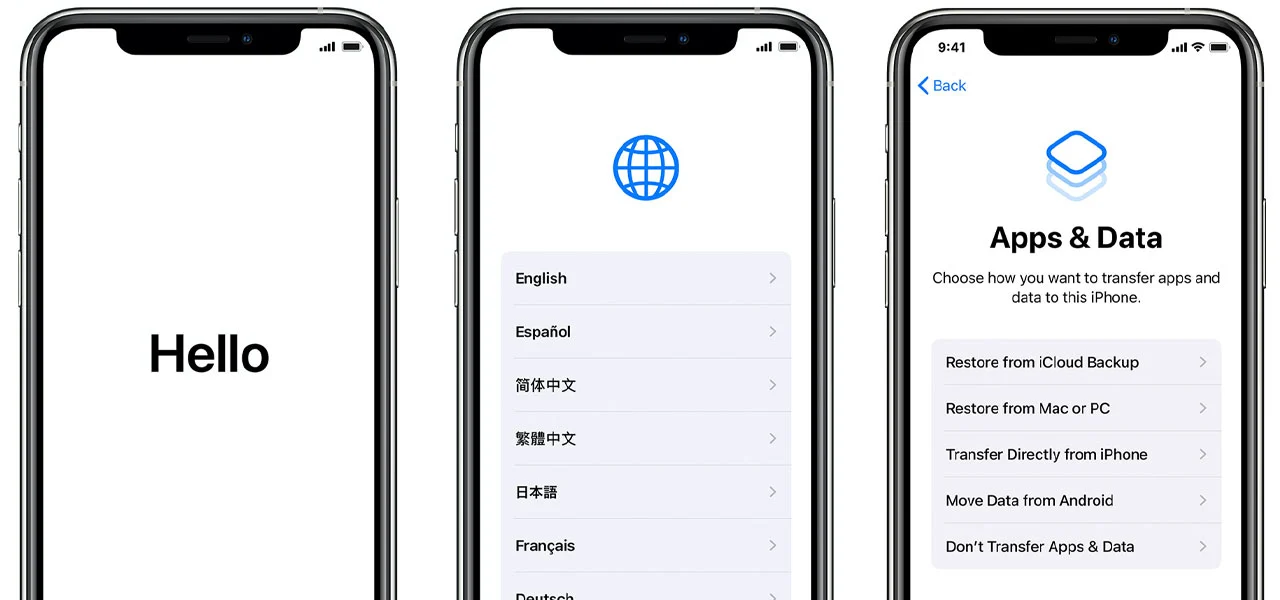
To start configuring your iPhone, insert a Nano-SIM card into the device’s SIM slot. Follow the simple procedure guided by iOS, which will prompt you to select your country, language, and other settings.
If your SIM card is in a different format than what’s required for your iPhone, you can visit a mobile operator center to have it changed or you can cut it yourself (if you’re feeling adventurous!). Don’t worry; I’ve got a tutorial on how to adapt a SIM for your iPhone if you need help.
Configuring Your Imessage And Facetime
To activate iMessage and FaceTime, go to Settings > Messages and toggle the switch next to “iMessage” to ON. You can also choose whether to use Wi-Fi or cellular data for these services.
Next, navigate to Settings > Facetime and select your preferred option (either Wi-Fi or cellular data).
Configuring Siri
If you plan to use Siri, go to Settings > Siri & Search and toggle the switch next to “Siri” to ON. You can also customize Siri’s settings as per your preferences.
Other Important Settings
Here are some other important settings to consider:
- Accessibility: Go to Settings > Accessibility and explore the various features that can help you with visual, hearing, or motor disabilities.
- Location Services: Navigate to Settings > Location Services and toggle the switch next to “Location Services” to ON. This will allow your iPhone to use location services for various apps and functions.
- Icloud Backup: Go to Settings > [Your Name] > iCloud > iCloud Backup and enable this feature to automatically back up your iPhone data to iCloud.
Configuring Your Home Screen
To customize your home screen, go to Settings > Home Screen and select the “Edit” option. You can rearrange icons, add or remove widgets, and even create folders for your apps.
Adding Widgets to Your Home Screen
You can add widgets to your home screen by going to Settings > Home Screen & Dock > Add Widget. Select a widget that interests you and customize it as per your preferences.
Configuring Notifications on Your Iphone
If you find certain apps disturbing with excessive notifications, go to Settings > Notifications and select the app in question. You can toggle the switch next to “Allow Notifications” to OFF or customize notification settings for each app.
Customizing Notification Styles
On newer iOS versions, you can also customize notification styles by going to Settings > Notifications > Style and selecting your preferred option (either “Default”, “Proportional”, or “Compact”).
Configuring Find My Iphone
To configure Find My iPhone, go to Settings > [Your Name] > iCloud > Find My iPhone and toggle the switch next to “Find My” to ON. This will enable remote location services for your iPhone.
Other Useful Features
Here are some other useful features you might want to explore:
- Emergency Sos: Go to Settings > Emergency SOS and toggle the switch next to “Medical ID” to ON.
- Do Not Disturb: Navigate to Settings > Do Not Disturb and customize this feature as per your preferences.
- Accessibility Features: Explore the various accessibility features available in Settings > Accessibility.
Conclusion
Configuring your iPhone is a straightforward process that can be completed within minutes. By following these steps, you’ll be able to personalize your iPhone and make it more functional for you.
Frequently Asked Questions (FAQs)
- Q: How do I Configure my Iphone’s Sim Card?
A: Insert the Nano-SIM card into the device’s SIM slot and follow the simple procedure guided by iOS. - Q: How do I Enable Imessage And Facetime on my Iphone?
A: Go to Settings > Messages and toggle the switch next to “iMessage” to ON, then navigate to Settings > Facetime and select your preferred option (either Wi-Fi or cellular data). - Q: How do I Configure Siri on my Iphone?
A: Go to Settings > Siri & Search and toggle the switch next to “Siri” to ON. - Q: How do I Customize my Home Screen on my Iphone?
A: Go to Settings > Home Screen and select the “Edit” option, then rearrange icons, add or remove widgets, and create folders for your apps. - Q: How do I Configure Notifications on my Iphone?
A: Go to Settings > Notifications and customize notification settings for each app. - Q: How do I Configure Find My Iphone on my Iphone?
A: Go to Settings > [Your Name] > iCloud > Find My iPhone and toggle the switch next to “Find My” to ON.


