
How to Configure Kodi on Your Device
Are you looking to transform your computer, smartphone, tablet, or TV box into a multimedia center? Look no further than Kodi! This powerful program can turn any device into a hub for all your favorite media content. In this article, we will guide you through the process of configuring Kodi on various devices.
What is Kodi And Why Do I Need It?
Kodi is an open-source media player that allows users to stream their favorite movies, TV shows, music, and other multimedia content from a variety of sources. With its user-friendly interface and extensive customization options, Kodi has become a popular choice among tech-savvy individuals.
How to Configure Kodi on Your PC
To get started with configuring Kodi on your PC, follow these steps:
- Download And Install Kodi: Download the latest version of Kodi from their official website and install it on your computer.
- Configure Language Settings: Once installed, click on the cog icon in the top-left corner of the screen and select “Settings.” From there, go to “Regional” and change the language to Italian if desired.
- Create a Personal Profile: To create a personal profile, click on the cog icon again and select “Profiles.” Then, click on the “+” button to add a new profile and assign it a name.
How to Configure Add-ons And Repositories
Add-ons are third-party plugins that can enhance Kodi’s functionality. To configure add-ons and repositories, follow these steps:
- Access The Add-on Section: Click on the “Add-ons” icon in the left-hand menu.
- Install a New Add-on: Browse through the available add-ons and select one to install.
- Configure an Add-on: Once installed, click on the cog icon next to the add-on’s name to configure it.
How to Configure The Multimedia Library
The multimedia library is where you can store and organize your media content. To configure the library, follow these steps:
- Access The Library Section: Click on the “Library” icon in the left-hand menu.
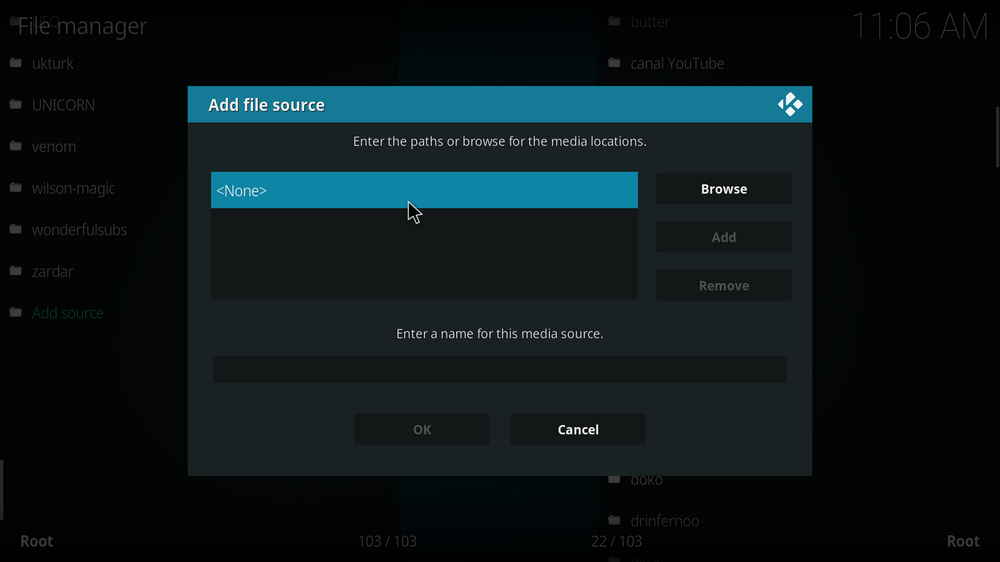
- Add a New Media Source: Browse through the available media sources and select one to add.
- Configure a Media Source: Once added, click on the cog icon next to the source’s name to configure it.
How to Configure Kodi to Watch Live TV
Kodi can also be used to watch live TV by installing an add-on that allows you to stream online broadcasts. To do this:
- Access The Add-on Section: Click on the “Add-ons” icon in the left-hand menu.
- Install a New Add-on: Browse through the available add-ons and select one that supports live TV streaming.
- Configure The Add-on: Once installed, click on the cog icon next to the add-on’s name to configure it.
Other Settings in Kodi
Kodi has many other settings that can be configured to suit your needs. These include:
- Rows: Access a browser within Kodi to browse through files online or on the device.
- Add-ons: Install, uninstall, and configure add-ons from various repositories.
- System Information: View information about the system, such as operating system, memory usage, and processor state.
- Log Events: View recorded events from the program (if logging has been enabled in Settings System > Logging).
- Player: Configure options for the multimedia player within Kodi.
Configuring Kodi on Smart TV
If you have a smart TV, you can install Kodi on it using various methods:
- Android TV: Find Kodi directly in the Play Store and download/install.
- Amazon Fire TV Stick/cube: Download the Kodi APK file from their website or find it in the Amazon store (if available).
- TV Box With Android/other OS: Follow similar steps to installing on a PC.
Configuring Kodi on Fire TV
To configure Kodi on your Fire TV, follow these steps:
- Download And Install The Downloader App: Download and install the Downloader app from the Amazon store.
- Open The Downloader App: Open the Downloader app and type in the URL
https://Kodi.Tv/download. - Select The Correct Version: Select the correct version of Kodi for your device (ARMV7A or ARMV8A).
- Install Kodi: Install Kodi by following the on-screen instructions.
Configuring Kodi on Android
To configure Kodi on your Android device:
- Download And Install Kodi From The Play Store: Download and install Kodi from the Google Play Store.
- Configure Kodi Settings: Configure Kodi settings as desired using the same steps outlined for PC configuration.
Conclusion
In conclusion, configuring Kodi on various devices can be a bit tricky but with these step-by-step guides, you should be able to get started in no time. Remember to explore and discover more features within Kodi to enhance your multimedia experience.
Here are 8 FAQs:
- Q: What is the purpose of Kodi?
- A: The primary function of Kodi is to transform any device into a multimedia center for streaming movies, TV shows, music, and other content.
- Q: Can I configure Kodi on various devices?
-
A: Yes, you can configure Kodi on PCs (Windows and macOS), Smart TVs, Fire TV, Android devices, and more.
-
Q: How do I create a personal profile in Kodi?
A: To create a personal profile in Kodi, follow the steps outlined above to access the Profiles section and click on the “+” button to add a new profile.
6.Q:How do I configure an add-on in Kodi?
A:To configure an add-on in Kodi, browse through the available add-ons and select one to install. Once installed, click on the cog icon next to the add-on’s name to configure it.
7.Q:Can I watch live TV with Kodi?
A:Yes,you can watch live TV using Kodi by installing an add-on that supports live TV streaming.
8.Q:Is Kodi available for various devices?
A:Yes,Kodi is available for various devices, including PCs (Windows and macOS), Smart TVs, Fire TV, Android devices, and more.


