
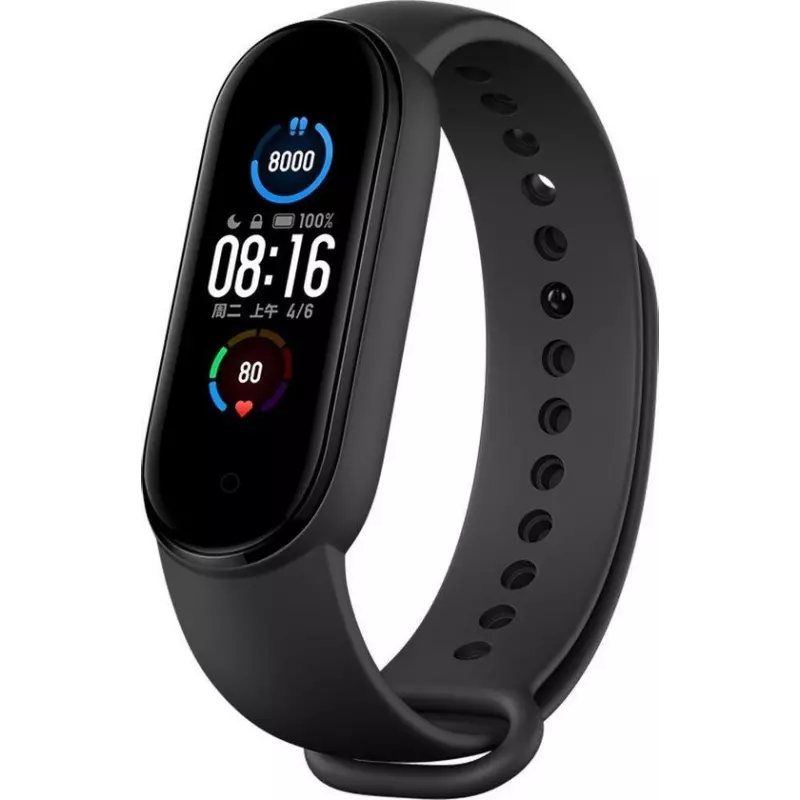
Configuring Your Mi Band: A Step-by-step Guide
Are you one of the many people who have recently acquired a Xiaomi Mi Band, but aren’t sure how to configure it? Look no further! In this article, we will walk you through the process of setting up your Mi Band, configuring its various features, and making the most out of this fantastic smartband.
What You Need to Know Before Starting
Before we dive into the nitty-gritty details, make sure you have the following:
- A Xiaomi Mi Band (any model will do)
- A smartphone with Android or iOS operating system
- The Zepp Life app downloaded on your phone
Initial Configuration: Connecting Your Mi Band to Your Phone
The first step in configuring your Mi Band is to connect it to your phone. Here’s how:
- Download the Zepp Life app from the Google Play Store (for Android) or App Store (for iOS).
- Launch the app and follow the on-screen instructions to set up your account.
- If you already have a Mi Fit account, you can log in using that. Otherwise, create a new account.
- Once logged in, tap on the “Bracelet” option and select “Mi Band”.
- Follow the prompts to pair your Mi Band with your phone.
Configuring Your Mi Band’s Language
If you’re not comfortable with English or prefer to use Italian as your primary language, don’t worry! Here’s how to configure your Mi Band’s language:
- Open the Zepp Life app and go to the “Profile” section.
- Tap on the “Mi Smart Band” option (or the version number of your device).
- Scroll down to the “Settings” section and select “Display”.
- Choose Italian as your preferred language.
Configuring Notifications on Your Mi Band
Want to stay informed about important notifications without having to reach for your phone? Here’s how:
- Open the Zepp Life app and go to the “Notifications” section.
- Select the type of notification you want to receive (e.G., WhatsApp, Facebook, Instagram).
- Tap on the toggle button to turn notifications ON or OFF.
Configuring Your Mi Band’s Monitor Settings
Now that your Mi Band is connected and language set, let’s configure its monitor settings:
- Open the Zepp Life app and go to the “Profile” section.
- Tap on the “Mi Smart Band” option (or the version number of your device).
- Scroll down to the “Settings” section and select “Monitor”.
- Configure the display settings, such as brightness, timeout, and watchface.
Configuring Your Mi Band’s Watchface
Want to personalize your Mi Band’s look? Here’s how:
- Open the Zepp Life app and go to the “Shop” section.
- Browse through the available watchfaces and select one that suits your taste.
- Tap on the “+” button to add the watchface to your Mi Band.
Configuring Your Mi Band’s Notifications Tools
Finally, let’s configure some additional features using the Mi Band Tools app:
- Download the Mi Band Tools app from the Google Play Store (for Android).
- Launch the app and follow the prompts to pair it with your Mi Band.
- Configure the notifications settings for specific apps.
Conclusion
Configuring your Xiaomi Mi Band is a straightforward process that requires some basic steps. By following this guide, you should now have a better understanding of how to set up your Mi Band, configure its various features, and make the most out of this fantastic smartband. Happy pairing!
Frequently Asked Questions (FAQs)
- Q: How do I Update my Mi Band’s Firmware?
A: You can check for updates within the Zepp Life app. - Q: Can I Use Multiple Watchfaces on my Mi Band?
A: Yes, you can add multiple watchfaces to your Mi Band using the Zepp Life app. - Q: How do I Configure Notifications For Specific Apps?
A: Go to the Notifications section within the Zepp Life app and follow the prompts. - Q: Can I Use The Mi Band Tools App on Ios Devices?
A: No, the Mi Band Tools app is only available for Android devices. - Q: How do I Reset my Mi Band’s Settings to Default?
A: Go to the Settings section within the Zepp Life app and select “Reset” to restore factory settings. - Q: Can I Use my Mi Band With a Windows Phone?
A: Unfortunately, the Mi Band is not compatible with Windows phones. - Q: How do I Customize my Mi Band’s Notifications Delay?
A: Go to the Notifications section within the Zepp Life app and adjust the delay settings. - Q: Can I Use Multiple Accounts on my Mi Band?
A: Yes, you can add multiple accounts to your Mi Band using the Zepp Life app.


