
How to Install Opendns on Your Device: A Step-by-step Guide
Are you tired of dealing with slow internet speeds or pesky malware? Do you want to take control of your online experience? Look no further than OpenDNS, a powerful DNS service that can help you filter out unwanted content and improve your overall browsing experience.
In this article, we’ll show you how to install OpenDNS on your device, including Windows, macOS, Android, and iOS/iPadOS. We’ll also cover the basics of what DNS is and how it works, so you can understand why OpenDNS is such a game-changer.
What is Dns?
DNS stands for Domain Name System, which is essentially a phonebook for the internet. When you type in a website’s URL, your device uses DNS to translate that address into an IP address that your device can understand. This process happens behind the scenes, so you don’t even notice it’s happening.
How Does Opendns Work?
OpenDNS is a third-party DNS service that offers several benefits over traditional DNS systems. With OpenDNS, you can:
- Filter out unwanted content, such as malware or adult sites
- Improve your browsing experience by blocking slow or unreliable websites
- Take control of your online experience with customizable settings
How to Install Opendns on Windows
To install OpenDNS on Windows, follow these steps:
- Click on the Start button and select Settings.
- Click on Network & Internet.
- Select Wi-Fi (or Ethernet) from the left-hand menu.
- Click on Advanced options.
- Click on DNS tab.
- Click on Manual.
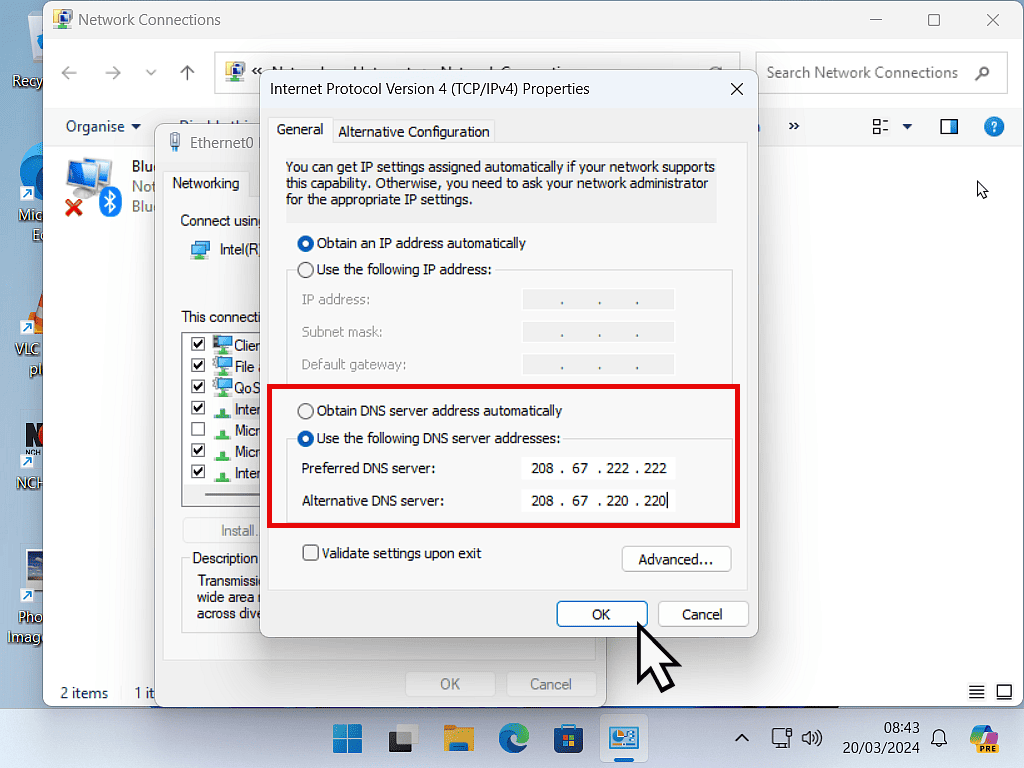
- Enter the following addresses for OpenDNS:
- Primary DNS: 208.67.222.222
- Secondary DNS: 208.67.220.220
How to Install Opendns on Macos
To install OpenDNS on macOS, follow these steps:
- Click on the Apple logo in the top-left corner of your screen.
- Select System Preferences.
- Click on Network.
- Select Wi-Fi (or Ethernet) from the left-hand menu.
- Click on Advanced options.
- Click on DNS tab.
- Click on + (plus sign) to add a new DNS entry.
- Enter the following addresses for OpenDNS:
- Primary DNS: 208.67.222.222
- Secondary DNS: 208.67.220.220
How to Install Opendns on Android
To install OpenDNS on Android, follow these steps:
- Go to Settings.
- Scroll down and select Wi-Fi.
- Select the network you’re currently connected to.
- Click on Advanced options.
- Select DNS.
- Select Manual.
- Enter the following addresses for OpenDNS:
- Primary DNS: 208.67.222.222
- Secondary DNS: 208.67.220.220
How to Install Opendns on Ios/ipados
To install OpenDNS on iOS/iPadOS, follow these steps:
- Go to Settings.
- Select Wi-Fi.
- Select the network you’re currently connected to.
- Click on Configure DNS.
- Select Manual.
- Enter the following addresses for OpenDNS:
- Primary DNS: 208.67.222.222
- Secondary DNS: 208.67.220.220
Conclusion
Installing OpenDNS on your device is a simple and effective way to take control of your online experience. By filtering out unwanted content and improving your browsing speeds, you can enjoy a safer and more enjoyable internet experience.
Whether you’re using Windows, macOS, Android, or iOS/iPadOS, we’ve got you covered with our step-by-step guides. So why wait? Install OpenDNS today and start experiencing the power of a better internet!
Frequently Asked Questions
-
What is Dns, And How Does it Work?
DNS stands for Domain Name System, which is essentially a phonebook for the internet. When you type in a website’s URL, your device uses DNS to translate that address into an IP address that your device can understand. -
How Does Opendns Improve my Browsing Experience?
OpenDNS offers several benefits over traditional DNS systems, including filtering out unwanted content, improving browsing speeds, and taking control of your online experience with customizable settings. -
Can I Use Opendns on Multiple Devices?
Yes! You can install OpenDNS on any device that supports DNS changes, including Windows, macOS, Android, and iOS/iPadOS. -
Is Opendns Free to Use?
OpenDNS offers a free version of their service, which includes basic features such as filtering out malware and adult content. However, they also offer paid upgrades for additional features. -
How do I Reset my Dns Settings if I Want to go Back to my Original Provider?
To reset your DNS settings, simply follow the same steps you used to install OpenDNS in the first place. This will remove any changes you made and revert back to your original provider’s DNS settings. -
Can I Use Opendns on a Modem/router?
Yes! You can install OpenDNS directly on your modem/router by accessing its control panel via a web browser. -
What is Familyshield, And How Does it Work?
FamilyShield is a feature of OpenDNS that allows you to filter out adult content and other unwanted material from your browsing experience. It works by using custom DNS settings to block access to known adult sites and other suspicious content. -
Is Opendns Compatible With All Devices And Browsers?
Yes! OpenDNS is designed to work seamlessly with any device or browser, including Windows, macOS, Android, iOS/iPadOS, Chrome, Firefox, Safari, and more.


