
How to Set Up Siri on Your Iphone: A Step-by-step Guide
Are you tired of using Siri only for simple tasks like sending messages or making calls? Do you want to unlock its full potential and make it an integral part of your daily life? Look no further! In this comprehensive guide, we will walk you through the steps to set up Siri on your iPhone and explore its various features.
What is Siri?
Siri is a virtual assistant developed by Apple that uses natural language processing to understand voice commands. It can perform a wide range of tasks, from sending messages and making calls to setting reminders and providing information on various topics.
Setting Up Siri on Your Iphone
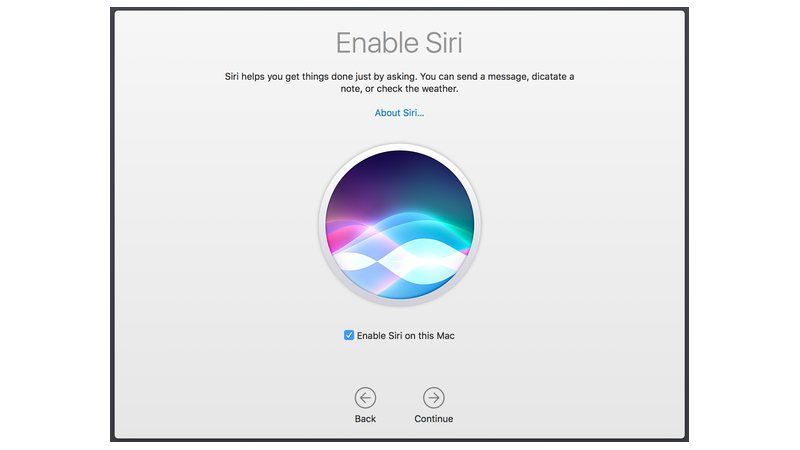
To set up Siri on your iPhone, follow these steps:
- Unlock Your Iphone: Make sure your iPhone is unlocked and you are on the home screen.
- Tap on Settings: Tap on the Settings app icon on your home screen.
- Scroll Down to Siri & Search: Scroll down to the “Siri & Search” section.
- Toggle ON “Listen For ‘Hey Siri'”: Toggle the switch next to “Listen for ‘Hey Siri'” to turn it ON.
- Set Up Voice Command: Set up your voice command by tapping on “Turn On Siri” and following the prompts.
Using Siri on Your Iphone
Now that you have set up Siri, here are some ways to use it:
- Say “Hey Siri”: Say “Hey Siri” followed by your command or question.
- Tap on The Siri Icon: Tap on the Siri icon in the bottom right corner of your screen to activate Siri.
- Type a Command: Type a command in the Siri field at the top of your screen.
Siri Features
Siri offers many features that can make your life easier:
- Making Calls And Sending Messages: Use Siri to make calls, send messages, or dictate messages to friends and family.
- Setting Reminders: Set reminders for upcoming events or tasks using Siri.
- Providing Information: Ask Siri for information on various topics, such as weather, news, or sports.
- Controlling Your Iphone: Use Siri to control your iPhone’s features, such as setting alarms, adjusting brightness, or turning on Bluetooth.
Using Siri in Different Scenarios
Siri can be used in different scenarios:
- Waking Up With Siri: Set up Siri to wake you up at a specific time using the “Wake Up” feature.
- Making Calls With Siri: Use Siri to make calls by saying “Hey Siri, call [name]”.
- Sending Messages With Siri: Send messages using Siri by saying “Hey Siri, send a message to [name]”.
Using Siri With Airpods
AirPods can be used to activate Siri without having to physically touch your iPhone:
- Put Your Airpods On: Put on your AirPods and say “Hey Siri” to activate it.
- Double Tap: Double tap on one of the earbuds to activate Siri.
Using Siri With Android
Unfortunately, Siri is only available for Apple devices and cannot be used with Android devices. However, there are many other virtual assistants that can be used with Android devices, such as Google Assistant or Bixby.
Troubleshooting Siri Issues
If you experience any issues with Siri, try the following:
- Restart Your Iphone: Restart your iPhone to resolve any connectivity issues.
- Check Your Settings: Check your settings to ensure that Siri is enabled and set up correctly.
- Reach Out For Help: Reach out to Apple Support or visit an Apple Store for assistance.
Conclusion
Siri is a powerful virtual assistant that can make your life easier by performing various tasks with just your voice command. By following the steps outlined in this guide, you can unlock Siri’s full potential and experience its many features. Remember to troubleshoot any issues that may arise and don’t hesitate to reach out for help.
Frequently Asked Questions (FAQs)
- Q: How do I Set up Siri on my Iphone?
A: To set up Siri, go to Settings > Siri & Search and toggle ON “Listen for ‘Hey Siri'”. - Q: What Can I Use Siri For?
A: You can use Siri to make calls, send messages, set reminders, provide information, control your iPhone’s features, and more. - Q: Can I Use Siri With Android Devices?
A: Unfortunately, no. Siri is only available for Apple devices. - Q: How do I Troubleshoot Siri Issues?
A: Restart your iPhone, check your settings, or reach out to Apple Support for assistance.


