
How to Use Whatsapp: A Complete Guide
Are you new to the world of WhatsApp? Do you want to know how to use this popular messaging app like a pro? Look no further! In this article, we’ll guide you through every step of the way, from installing WhatsApp on your smartphone to customizing its settings and features.
Why Use Whatsapp?
Before we dive into the nitty-gritty details, let’s talk about why WhatsApp is such a popular messaging app. With over 2 billion monthly active users, WhatsApp has become an essential tool for communication in today’s digital age. Whether you want to stay in touch with friends and family, join group chats, or even run a business, WhatsApp has got you covered.
Installing Whatsapp on Your Smartphone
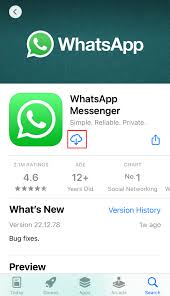
To start using WhatsApp, you’ll need to download and install the app on your smartphone. Here are the steps:
- Go to the Google Play Store (for Android devices) or the App Store (for iOS devices).
- Search for “WhatsApp” in the search bar.
- Click on the WhatsApp icon and select “Install” or “Get.”
- Wait for the installation process to complete.
Configuring Whatsapp on Your Smartphone
Once you’ve installed WhatsApp, it’s time to configure its settings. Here are the steps:
- Launch the WhatsApp app and choose a language from the dropdown menu.
- Enter your phone number and select “Next.”
- Verify your phone number by receiving an SMS code or using a VoIP (Voice over Internet Protocol) method.
- Create a profile picture and add some basic information about yourself.
Whatsapp Settings: A Deep Dive
Now that you’ve configured WhatsApp, let’s talk about its various settings and features. Here are some of the most important ones:
Initial Configuration of Whatsapp
- Tongue: Change your language preferences by going to Settings > Language.
- Profile Picture: Upload a profile picture from your camera roll or take a new photo using the app’s camera feature.
Privacy Settings
- Last Access And Online: Set who can see when you were last active on WhatsApp, either everyone, my contacts, or nobody.
- Image of The Profile: Choose who can see your profile picture, either everyone, my contacts, or nobody.
Notification Settings
- Sounds For Chat Messages: Enable or disable sounds for incoming chat messages.
- Vibration For Notifications: Set a vibration pattern for incoming notifications.
- Display Notifications: Show or hide notifications in the status bar.
Modifying Your Profile on Whatsapp
Want to personalize your profile? Here’s how:
- Go to Settings > Profile Picture.
- Tap on the pencil icon to edit your name and profile picture.
- Choose a new photo from your camera roll or take a new one using the app’s camera feature.
Backing Up Your Whatsapp Conversations
Don’t lose your precious conversations! Here’s how to back them up:
- Go to Settings > Chat Backup.
- Set a backup frequency, either daily, weekly, or monthly.
- Choose whether to include videos and GIFs in your backups.
How to Use Whatsapp on PC
Want to use WhatsApp on your computer? Here are the steps:
- Download and install WhatsApp from the Microsoft Store (for Windows devices) or the App Store (for macOS devices).
- Launch WhatsApp and sign in with your phone number.
- Start chatting, making calls, and sharing files like you would on your smartphone.
How to Use Whatsapp on Smartwatch
Want to receive notifications and control your WhatsApp conversations from your smartwatch? Here are the steps:
- Download and install WhatsApp on your Apple Watch or Wear OS device.
- Pair your watch with your phone using Bluetooth.
- Start receiving notifications, making calls, and sending messages from your wrist.
How to Use Whatsapp Business
Want to manage your business communications using WhatsApp? Here’s how:
- Download and install WhatsApp Business from the Google Play Store (for Android devices) or the App Store (for iOS devices).
- Sign in with your phone number.
- Start managing your contacts, sending messages, and making calls.
Frequently Asked Questions
Here are some frequently asked questions about using WhatsApp:
- How do I Transfer my Whatsapp Conversations to a New Device?
Answer: Go to Settings > Chat Backup on your old device, then follow the instructions to restore your backups on your new device. - Can I Use Multiple Whatsapp Accounts on One Phone?
Answer: Yes, you can use up to four different WhatsApp accounts on one phone by going to Settings > Add account. - How do I Report a Problem or Bug in Whatsapp?
Answer: Go to Settings > Help > Report a problem. - Can I Change The Language of Whatsapp?
Answer: Yes, go to Settings > Language to change your preferred language. - How do I Make a Video Call on Whatsapp?
Answer: Tap on the contact you want to call and select “Video Call.” - Can I Use Whatsapp Without an Internet Connection?
Answer: No, WhatsApp requires an internet connection to function properly. - How do I Delete my Whatsapp Account?
Answer: Go to Settings > Account > Delete my account.
Conclusion
In conclusion, using WhatsApp is a breeze once you’ve configured its settings and features. Whether you want to stay in touch with friends and family or run a business, WhatsApp has got you covered. By following the steps outlined in this article, you’ll be well on your way to becoming a WhatsApp expert!


