
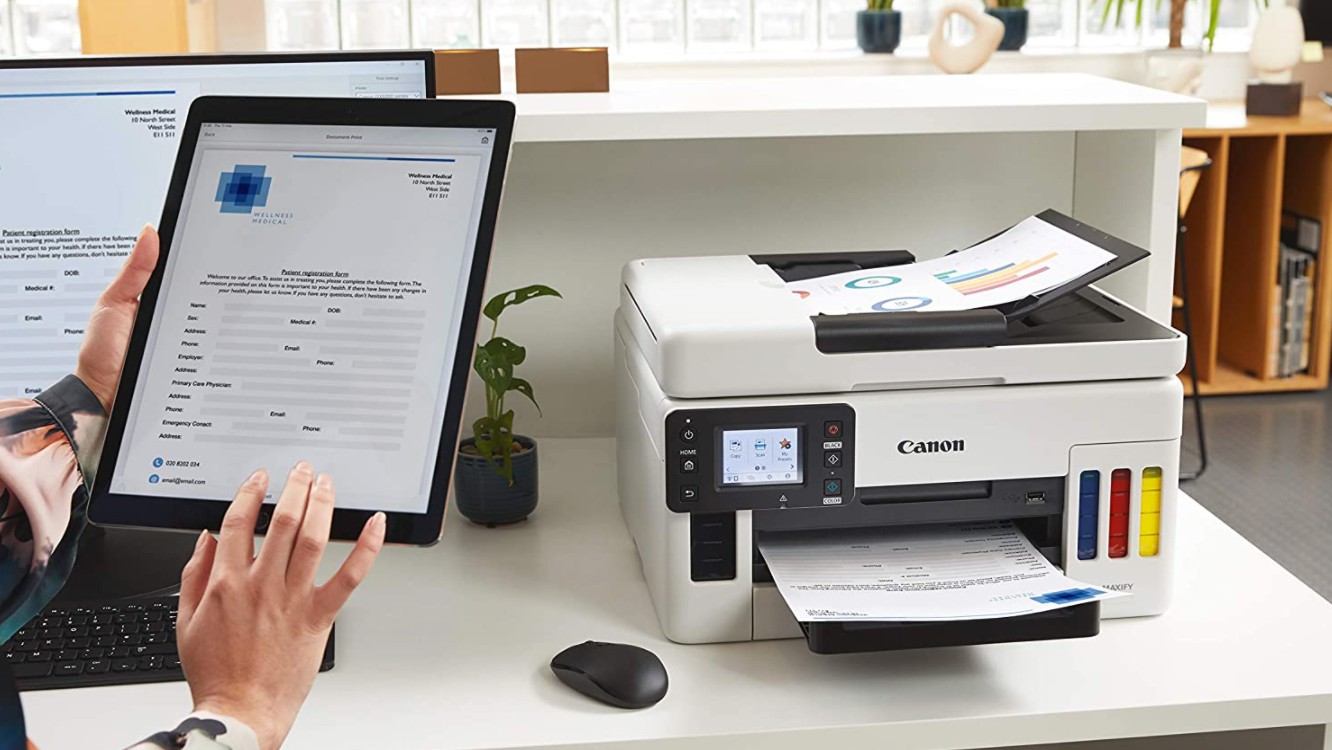
How to Configure a Printer Wifi: A Step-by-step Guide
Are you tired of being tied to your computer with a USB cable every time you want to print something? Do you wish you could use your new printer WiFi without any hassle? Look no further! In this article, we will guide you through the process of configuring a printer WiFi on your PC, smartphone, or tablet.
Understanding Printer Configuration
Before we dive into the step-by-step instructions, let’s understand what configuration means. Configuring a printer involves setting up the device to connect to your network and computer. This allows you to print documents and photos wirelessly without the need for a USB cable.
Preparing Your Printer
To configure your printer WiFi, follow these preliminary steps:
- Make sure your printer is turned on and connected to the same network as your computer or smartphone.
- If your printer has a monitor, use it to connect to the internet. Open the settings menu and select “Network” or “Wireless Settings.” Follow the prompts to connect to your network and enter the password.
Configuring Printer Wifi: Computer
If you’re using a PC with Windows, follow these steps:
- Connect your printer to the same network as your computer.
- Make sure your computer is connected to the same network.
- Open the Device Manager and select “Printers and Devices.”
- Click on “Add a device” and select “Add a printer or scanner.”
- Select the printer from the list of available devices.
If you don’t see your printer in the list, click on “The printer that I want isn’t listed.”
- Select “Add a printer using a name or address (host name)”
- Enter the IP address of your printer and select “Next.”
- Follow the prompts to complete the installation process.
Configuring Printer Wifi: Smartphone
If you’re using a smartphone, follow these steps:
- Open the Settings app.
- Select “Printers” or “Printing.”
- Tap on “Add a printer” or “Configure printer.”
- Select your printer from the list of available devices.
- Follow the prompts to complete the configuration process.
Configuring Printer Wifi: Tablet
The steps for configuring a printer WiFi on a tablet are similar to those for a smartphone.
- Open the Settings app.
- Select “Printers” or “Printing.”
- Tap on “Add a printer” or “Configure printer.”
- Select your printer from the list of available devices.
- Follow the prompts to complete the configuration process.
Tips And Variations
Keep in mind that each device has its own settings and configurations. If you’re having trouble configuring your printer WiFi, consult the user manual for specific instructions. Some printers may require additional software or drivers to function properly.
Wi-fi Direct
If you don’t have a router or are experiencing issues with connectivity, consider using Wi-Fi Direct. This feature allows your printer to connect directly to your device without the need for a router. To use Wi-Fi Direct, follow these steps:
- Actuate the Wi-Fi Direct functionality on your printer.
- Select “Wi-Fi Direct” from the settings menu.
- Enter the password or PIN provided by your printer.
Conclusion
Configuring a printer WiFi is a straightforward process that can save you time and hassle in the long run. By following these steps, you can enjoy wireless printing from your PC, smartphone, or tablet. Remember to consult your user manual for specific instructions, and don’t hesitate to reach out if you have any questions.
Frequently Asked Questions
- Q: How do I Configure my Printer Wifi?
A: Follow the step-by-step guide provided in this article. - Q: What is Wi-fi Direct?
A: Wi-Fi Direct allows your printer to connect directly to your device without the need for a router. - Q: Can I Use my Smartphone or Tablet to Configure my Printer Wifi?
A: Yes, follow the steps provided for configuring a printer WiFi on a smartphone or tablet. - Q: What if my Printer Doesn’t Have a Monitor?
A: Use the software provided by your printer manufacturer to connect and configure your device. - Q: Can I Use Wi-fi Direct With Multiple Devices?
A: No, you can only connect one device to your printer using Wi-Fi Direct at a time. - Q: What if I’m Having Trouble Configuring my Printer Wifi?
A: Consult the user manual or contact the manufacturer’s support team for assistance. - Q: Can I Use my Printer Wifi With Multiple Networks?
A: Yes, but you’ll need to configure your printer to connect to each network separately. - Q: How do I Troubleshoot Issues With my Printer Wifi Connection?
A: Consult the user manual or contact the manufacturer’s support team for assistance.
Recommended Resources


