
How to Set Up Vlc as The Default Media Player on Your Device
Are you tired of constantly opening videos and audio files in different players? Look no further! In this article, we will guide you through the simple steps of setting up VLC as your default media player on various devices, including Windows, Mac, Ubuntu, smartphone, and tablet.
Why Choose Vlc?
Before diving into the setup process, let’s briefly discuss why VLC is an excellent choice for a default media player. With its robust features, user-friendly interface, and wide compatibility with various file formats, VLC is an ideal option for anyone looking to simplify their media playback experience.
Windows: Setting Up Vlc as Default Media Player
If you use a PC equipped with the Windows operating system, follow these steps to set up VLC as your default media player:
Step 1: Modify Extensions in Windows 11
To render VLC as the default media player on Windows 11, you need to modify the extensions that this software can handle by default. To do so:
- Initiate the panel Settings of your operating system.
- Select the icon of the gear and proceed to the App section.
- Choose VLC Media Player from the list.
- Modify extension for extension by clicking on the different software of VLC and setting it as the default option.
Alternatively, you can right-click on a video file in File Explorer, select “Open with,” and choose VLC media player.
Step 2: Configure Vlc on Windows 10
If you use Windows 10, follow these steps to configure VLC:
- Click on the Start button (the Windows logo located at the bottom left of your screen).
- Select the Settings icon.
- Proceed to the Apps section and select VLC Media Player from the list.
- Set VLC as the default media player for video files.
To use VLC to open audio files, set VLC Media Player from the Music menu.
Step 3: Configure Vlc on Windows 8.x And Earlier
If you’re using an older version of Windows (Windows 7 or Windows 8.X), follow these steps:
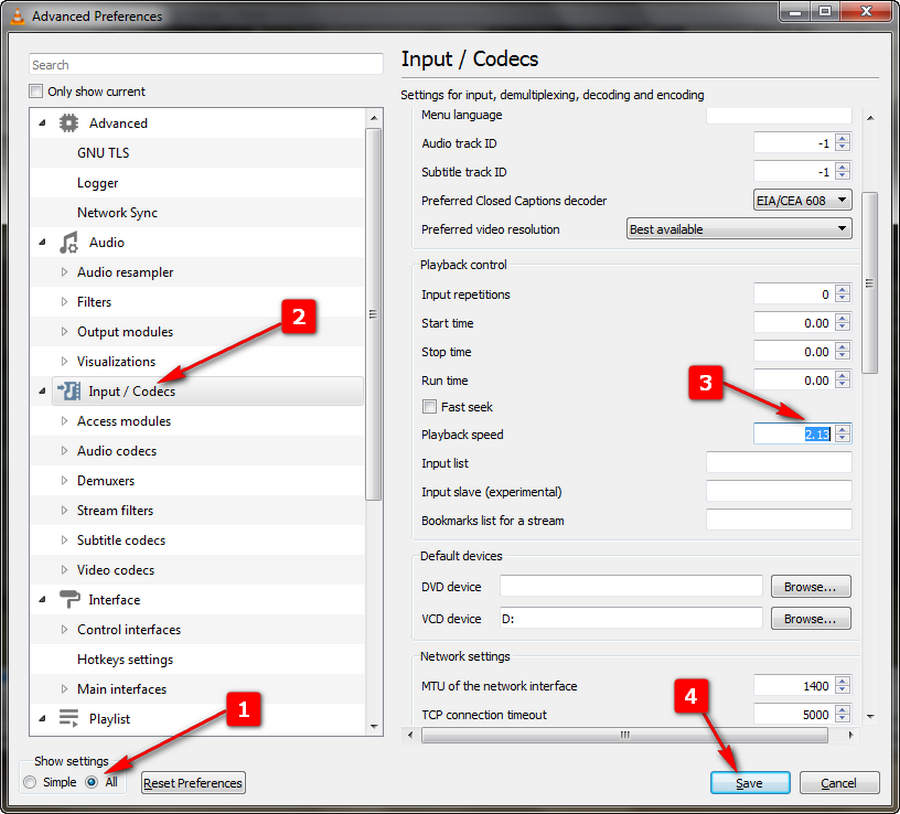
- Open VLC and go to Settings > Preferences.
- Select Interface and click on the “Settings associations” button located at the bottom right corner of the window.
- Check the box beside “Select everything” and click Save.
This will associate VLC with all video and audio file formats by default. If you want to associate VLC with specific file types (e.G., MP4 or AVI), repeat the same process for each type.
Mac: Setting Up Vlc as Default Media Player
If you’re using a Mac, follow these steps to set up VLC:
Step 1: Modify File Association
To modify the association of video and audio files on your Mac, follow these steps:
- Select an MP4 file (or any other format you want to associate with VLC).
- Right-click (or Control + click) on the selected file.
- From the context menu that appears, select “Get Info.”
- Click on the “Open with” dropdown menu and choose VLC from the list of available applications.
Repeat this process for each video or audio format you want to associate with VLC.
Step 2: Set Up Vlc as Default Media Player
Once you’ve associated the desired file types with VLC, follow these steps to set up VLC as your default media player:
- Go to System Preferences.
- Select Applications and then click on VLC from the list of available applications.
- Click on the “Select” button at the bottom right corner of the window.
Now, when you double-click a video or audio file, it will open with VLC by default.
Ubuntu: Setting Up Vlc as Default Media Player
If you’re using Ubuntu, follow these steps to set up VLC:
Step 1: Configure Vlc Settings
To configure VLC settings on your Ubuntu system:
- Go to the Applications menu and select VLC from the list of available applications.
- Click on the icon of the gear located at the top right corner of the window.
- Select “Settings” from the dropdown menu.
Step 2: Set Up Vlc as Default Media Player
Once you’ve configured your VLC settings, follow these steps to set up VLC as your default media player:
- Open the Settings application on your Ubuntu system.
- Select VLC Multimedia Player from the list of available applications.
- Click on the “Select” button at the bottom right corner of the window.
Now, when you double-click a video or audio file, it will open with VLC by default.
Smartphone And Tablet: Setting Up Vlc as Default Media Player
If you’re using an Android device (smartphone or tablet), follow these steps to set up VLC:
- Initiate the Settings application on your device.
- Select “App” from the menu and proceed to “App and notifications.”
- Choose VLC from the list of available applications.
- Tap the “Modify” button located at the bottom right corner of the screen.
This will set VLC as the default media player for your Android device.
Conclusion
In this article, we’ve provided a step-by-step guide on how to set up VLC as your default media player on various devices, including Windows, Mac, Ubuntu, smartphone, and tablet. By following these simple steps, you’ll be able to enjoy seamless video and audio playback with VLC’s robust features and wide compatibility.
Hope this helps!


