
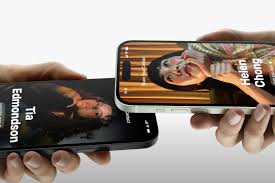
How to Share a Telephone Contact: A Step-by-step Guide
Are you wondering how to share a telephone contact with a friend or colleague? Look no further! In this guide, we’ll show you how to share a phone contact in a simple and swift manner using various platforms and devices.
Sharing a Contact on Android
If you’re using an Android device, sharing a contact is a breeze. Here’s what you need to do:
- Open the Contacts app.
- Search for the contact you want to share.
- Tap on the three dots in the top right corner of the screen.
- Select Share from the menu.
- Choose the type of information you want to share (e.G., Just the phone number).
- Add or remove any additional details as desired.
- Tap on Share.
Alternatively, you can use Quick Share, a feature that allows you to forward contacts in real-time. To enable Quick Share:
- Go to Settings > Connections > Quick Share.
- Turn on the toggle switch next to Who can share with me.
- Select Your devices (if you have multiple devices associated with your Google account).
- Choose Contacts (to select specific contacts) or All (to share with everyone).
Sharing a Contact on Iphone
If you’re using an iPhone, sharing a contact is equally simple:
- Open the Contacts app.
- Search for the contact you want to share.
- Tap on the three dots in the top right corner of the screen.
- Select Share from the menu.
- Choose the type of information you want to share (e.G., Just the phone number).
- Add or remove any additional details as desired.
- Tap on Share.
You can also use AirDrop, Messages, or email to share a contact:
- Use AirDrop: Open Settings > General > AirDrop and turn it on. Then, go to the Share menu in Contacts and select AirDrop.
- Use Messages: Open Messages and tap on the compose button. Select the contact you want to share from your contacts list.
- Use email: Tap on the share icon in Contacts and select Email.
Sharing a Contact on Whatsapp
If you’re using WhatsApp, sharing a contact is straightforward:
- Open WhatsApp and go to Settings > Account > Share my number.
- Choose who you want to share your number with (e.G., Contacts, groups, or all).
- Tap on Save to save your changes.
Alternatively, you can use the WhatsApp web app or desktop version:
- Go to WhatsApp Web or Desktop and sign in with your account.
- Click on the three dots in the top right corner of the screen.
- Select Share contact from the menu.
- Choose who you want to share the contact with (e.G., Contacts, groups, or all).
Sharing a Contact on Telegram
If you’re using Telegram, sharing a contact is easy:
- Open Telegram and go to Settings > My profile.
- Tap on the three dots in the top right corner of the screen.
- Select Share profile photo and details from the menu.
- Choose who you want to share your profile with (e.G., Contacts, groups, or all).
Alternatively, you can use the Telegram web app:
- Go to Telegram Web and sign in with your account.
- Click on the three dots in the top right corner of the screen.
- Select Share contact from the menu.
- Choose who you want to share the contact with (e.G., Contacts, groups, or all).
Sharing a Contact on Messenger
If you’re using Facebook Messenger, sharing a contact is straightforward:
- Open Messenger and go to Settings > Profile.
- Tap on Copy link to copy your profile link.
- Paste the link into the conversation with whom you want to share your contact.
Alternatively, you can use the Messenger web app or desktop version:
- Go to Messenger Web or Desktop and sign in with your account.
- Click on the three dots in the top right corner of the screen.
- Select Add a file from the menu.
- Choose who you want to share the contact with (e.G., Contacts, groups, or all).
Tips And Variations
- When sharing a contact using Quick Share or AirDrop, make sure to select the correct device or person to whom you’re sharing the contact.
- If you want to share multiple contacts at once, simply tap on the + icon next to each contact’s name in the Contacts app.
- To share your personal contact information, go to Settings > Profile and tap on Copy link.
Conclusion
Sharing a telephone contact has never been easier! Whether you’re using an Android or iPhone device, WhatsApp, Telegram, or Messenger, we’ve provided step-by-step guides to help you share contacts with friends, family, or colleagues. Remember to always be mindful of your personal contact information when sharing it with others.
Frequently Asked Questions
- Q: How do I Share a Contact on Android?
A: Open the Contacts app, search for the contact, tap on three dots in the top right corner, and select Share. - Q: Can I Use Quick Share to Forward Contacts?
A: Yes! Go to Settings > Connections > Quick Share and turn on Who can share with me. - Q: How do I Share a Contact on Iphone?
A: Open Contacts, search for the contact, tap on three dots in top right corner, and select Share. - Q: Can I Use Airdrop to Share Contacts?
A: Yes! Enable AirDrop in Settings > General, then go to Share menu in Contacts and select AirDrop. - Q: How do I Share a Contact on Whatsapp?
A: Go to Settings > Account > Share my number, choose who you want to share with, and tap Save. - Q: Can I Use Telegram to Share Contacts?
A: Yes! Open Telegram, go to Settings > My profile, tap on three dots in top right corner, and select Share contact. - Q: How do I Share a Contact on Messenger?
A: Go to Settings > Profile, copy your profile link, paste it into the conversation with whom you want to share your contact. - Q: What if I Need to Forward Multiple Contacts at Once?
A: Simply tap on the + icon next to each contact’s name in the Contacts app.
Note: These FAQs are based on general knowledge and may not be applicable to specific situations or versions of operating systems or apps.


