
How to Share a Video From Facebook to Whatsapp
Are you tired of sharing videos on Facebook only to have them not reach your friends on WhatsApp? Look no further! In this article, we’ll show you how to share a video from Facebook to WhatsApp using various devices.
Sharing Videos on Android Devices
Sharing videos on Android devices is quite straightforward. You can either share the link to the video or download it directly and share it with your contacts. Here’s how:
Sharing Directly
To share a video directly, follow these steps:
- Open Facebook and find the video you want to share.
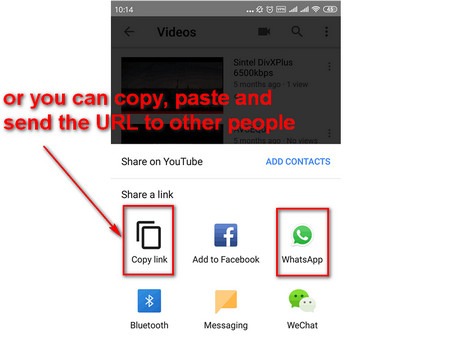
- Tap on the “Share” button located below the video.
- Select WhatsApp from the list of sharing options.
- Choose the contact or group you want to share it with.
- Wait for the video to be shared.
Downloading Videos
To download a video and share it, follow these steps:
- Open Facebook in your browser on your Android device.
- Find the video you want to download.
- Tap on the “Play” button and hold down on it until a menu appears.
- Select “Save Video” from the menu.
- Choose where you want to save the video.
- Once saved, open WhatsApp and share the video as you would any other file.
Sharing Videos on Ios Devices
Sharing videos on iOS devices is also quite straightforward. You can either share the link to the video or download it directly and share it with your contacts. Here’s how:
Sharing Directly
To share a video directly, follow these steps:
- Open Facebook and find the video you want to share.
- Tap on the “Share” button located below the video.
- Select WhatsApp from the list of sharing options.
- Choose the contact or group you want to share it with.
- Wait for the video to be shared.
Downloading Videos
To download a video and share it, follow these steps:
- Open Facebook in your browser on your iOS device.
- Find the video you want to download.
- Tap on the “Play” button and hold down on it until a menu appears.
- Select “Download Video” from the menu.
- Choose where you want to save the video.
- Once saved, open WhatsApp and share the video as you would any other file.
Sharing Videos on Pc
If you’re using your computer to access Facebook, sharing videos is also quite straightforward. You can either share the link to the video or download it directly and share it with your contacts. Here’s how:
Sharing Directly
To share a video directly, follow these steps:
- Open Facebook in your browser.
- Find the video you want to share.
- Click on the “Share” button located below the video.
- Select WhatsApp Web or WhatsApp for Windows/Mac from the list of sharing options.
- Choose the contact or group you want to share it with.
- Wait for the video to be shared.
Downloading Videos
To download a video and share it, follow these steps:
- Open Facebook in your browser.
- Find the video you want to download.
- Click on the “Share” button located below the video.
- Select the “Copy link” option from the menu.
- Open WhatsApp Web or WhatsApp for Windows/Mac and paste the link into a new message.
- Send the message to your contact.
Common Faqs
Here are some common FAQs related to sharing videos on Facebook to WhatsApp:
- What if I want to share multiple videos at once?
You can add multiple videos to a single message by selecting them all before sending it. - Can I edit the video before sharing it?
Yes, you can edit the video using various editing apps available for your device. - Will my contacts be able to play the video directly in WhatsApp?
No, they will need to open Facebook to watch the video. - How do I delete a video that I’ve shared?
You can delete a video by going to your Facebook account settings and finding the “Shared Videos” section.
Sharing videos on Facebook to WhatsApp is quite straightforward. Whether you’re using an Android or iOS device, or even your computer, the process is relatively easy. Just remember to follow the steps outlined above and enjoy sharing those funny cat videos with your friends!


