
How to Share a Video on Facebook: A Comprehensive Guide
Are you looking for ways to share your favorite videos on Facebook? Look no further! In this article, we will guide you through the process of sharing a video on Facebook using various methods, including smartphones, tablets, and computers.
Sharing a Video on Your Profile Facebook
Sharing a video on your profile Facebook is easy and straightforward. Here’s how to do it:
- Download And Install Facebook App: First, download and install the Facebook app on your smartphone or tablet.
- Access Your Account: Log in to your account using your credentials.
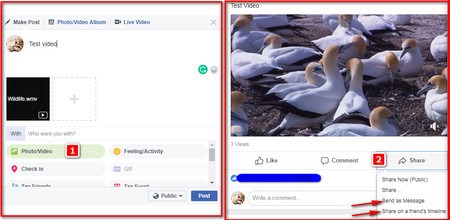
- Choose Photo/video Option: Go to the “Photo/video” option, where you can select a video from your device’s gallery.
- Select Video: Choose the video you want to share and add it to your post.
- Add Personal Touches: You can add effects, stickers, or other personal touches to make your video more engaging.
- Set Privacy Settings: Decide who can see your video by setting the privacy settings accordingly.
Sharing a Video on a Page Facebook
If you want to share a video on a page Facebook that you manage, here’s how to do it:
- Access Your Page: Go to your page Facebook and click on the “Photo/video” option.
- Choose Video: Select the video from your device’s gallery or upload one from your computer.
- Add Personal Touches: Add effects, stickers, or other personal touches to make your video more engaging.
- Set Privacy Settings: Decide who can see your video by setting the privacy settings accordingly.
Sharing a Video on a Cluster Facebook
If you want to share a video on a cluster Facebook, here’s how to do it:
- Access Your Cluster: Go to the cluster Facebook and click on the “Photo/video” option.
- Choose Video: Select the video from your device’s gallery or upload one from your computer.
- Add Personal Touches: Add effects, stickers, or other personal touches to make your video more engaging.
Sharing a Video in a History of Facebook
If you want to share a video in a history of Facebook, here’s how to do it:
- Access Your History: Go to the history of Facebook and click on the “Photo/video” option.
- Choose Video: Select the video from your device’s gallery or upload one from your computer.
- Add Personal Touches: Add effects, stickers, or other personal touches to make your video more engaging.
Sharing a Video in a Reel of Facebook
If you want to share a video in a reel of Facebook, here’s how to do it:
- Access Your Reel: Go to the reel of Facebook and click on the “Add” option.
- Choose Video: Select the video from your device’s gallery or upload one from your computer.
- Add Personal Touches: Add effects, stickers, or other personal touches to make your video more engaging.
Sharing a Video With a Friend
If you want to share a video with a friend on Facebook, here’s how to do it:
- Access Your Friend’s Profile: Go to your friend’s profile and click on the “Photo/video” option.
- Choose Video: Select the video from your device’s gallery or upload one from your computer.
- Add Personal Touches: Add effects, stickers, or other personal touches to make your video more engaging.
Sharing a Youtube Video on Facebook
If you want to share a YouTube video on Facebook, here’s how to do it:
- Access Your Youtube Video: Go to the YouTube video and click on the “Share” option.
- Choose Facebook Option: Select the Facebook option from the list of available options.
- Add Personal Touches: Add effects, stickers, or other personal touches to make your video more engaging.
Sharing a Video on Whatsapp
If you want to share a video on WhatsApp using Facebook, here’s how to do it:
- Access Your Facebook Profile: Go to your Facebook profile and click on the “Photo/video” option.
- Choose Video: Select the video from your device’s gallery or upload one from your computer.
- Share on Whatsapp: Share the video directly with a friend using WhatsApp.
Sharing a Video on Instagram
If you want to share a video on Instagram using Facebook, here’s how to do it:
- Access Your Facebook Profile: Go to your Facebook profile and click on the “Photo/video” option.
- Choose Video: Select the video from your device’s gallery or upload one from your computer.
- Share on Instagram: Share the video directly with friends using Instagram.
Conclusion
Sharing a video on Facebook is easy and straightforward, whether you want to share it on your profile, a page, cluster, history, reel, or with a friend. With these steps, you can easily share your favorite videos with others on Facebook.
Faqs
- Can I Share a Video on Facebook From my Computer?
Yes, you can share a video on Facebook using your computer. - How do I Set The Privacy Settings For my Video on Facebook?
You can set the privacy settings by choosing who can see your video when sharing it on Facebook. - Can I Share a Youtube Video on Facebook?
Yes, you can share a YouTube video directly to your Facebook profile or page. - How do I Share a Video With a Friend on Whatsapp Using Facebook?
You can share a video directly with a friend using WhatsApp by selecting the “Share” option from your Facebook profile. - Can I Share a Video on Instagram Using Facebook?
Yes, you can share a video directly to Instagram using Facebook. - How do I Add Personal Touches to my Video on Facebook?
You can add effects, stickers, or other personal touches by selecting the “Add” option from your Facebook profile. - Can I Edit a Video on Facebook Before Sharing It?
Yes, you can edit a video on Facebook using various editing tools and options available in the app.
Additional Resources
For more information on how to share videos on Facebook, visit:


