
How to Share a Video on Zoom: A Step-by-step Guide
Are you looking for ways to share a video on Zoom, but not sure how to do it? You’re in luck! Sharing videos on Zoom is easier than ever, and with this guide, you’ll be able to do it like a pro.
What You Need to Know Before Sharing a Video on Zoom
Before we dive into the step-by-step guide, there are a few things you need to know before sharing a video on Zoom. Here are some tips to keep in mind:
- Make sure you have the latest version of Zoom installed on your computer or mobile device.
- Ensure that you have a stable internet connection to avoid any technical issues during the sharing process.
- Choose a high-quality video that will be easy for others to see and hear.
Sharing a Video on Zoom From Your Computer
If you’re using a computer, follow these steps:
- Open Zoom: First, open the Zoom app on your computer. If you haven’t downloaded it yet, now is the time.
- Join a Meeting: Join a meeting by clicking on the “New Meeting” button or by joining an existing one.
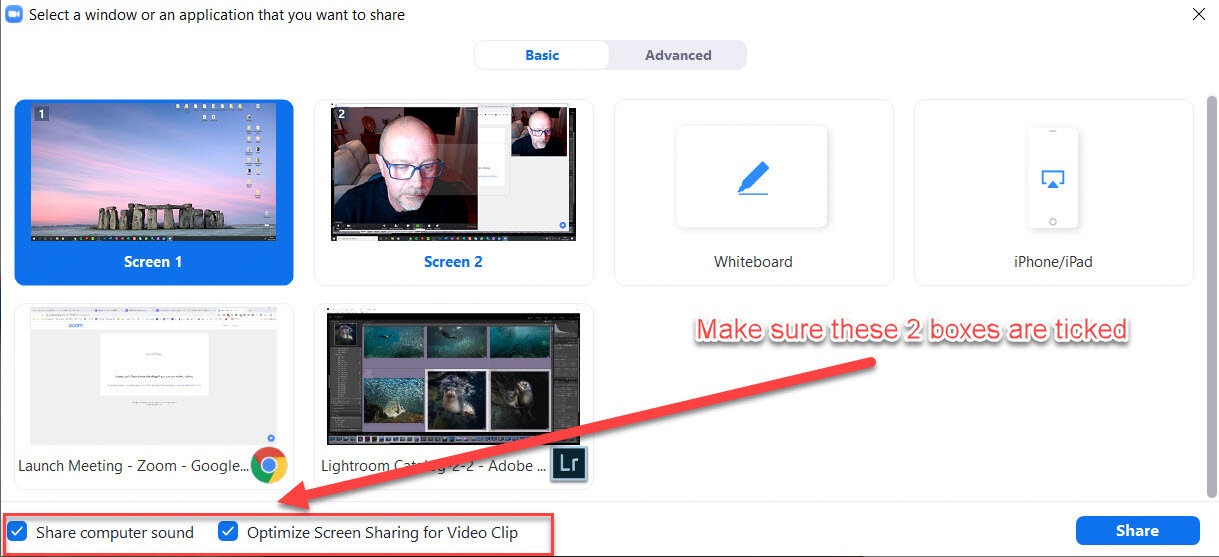
- Share Your Screen: Click on the “Share Screen” button and select the video you want to share from your computer’s screen.
- Optimize Video Settings: Adjust the video settings as needed, such as video quality, resolution, and frame rate.
- Start Sharing: Once you’re ready, click on the “Share” button to start sharing your video.
Sharing a Video on Zoom From Your Mobile Device
If you’re using a mobile device, follow these steps:
- Open Zoom: First, open the Zoom app on your mobile device.
- Join a Meeting: Join a meeting by clicking on the “New Meeting” button or by joining an existing one.
- Share Your Screen: Click on the “Share” button and select the video you want to share from your mobile device’s screen.
- Optimize Video Settings: Adjust the video settings as needed, such as video quality, resolution, and frame rate.
- Start Sharing: Once you’re ready, click on the “Share” button to start sharing your video.
Tips For a Smooth Sharing Experience
Here are some additional tips to ensure a smooth sharing experience:
- Test your video before sharing it to make sure everything is working correctly.
- Use high-quality videos that will be easy for others to see and hear.
- Adjust the video settings as needed to optimize the viewing experience.
Troubleshooting Common Issues
If you encounter any issues while trying to share a video on Zoom, here are some common problems and their solutions:
- Video Not Showing up: Make sure that the video is properly uploaded to your computer or mobile device.
- Poor Video Quality: Adjust the video settings as needed to optimize the viewing experience.
- Technical Issues: Restart the app and try again if you encounter any technical issues.
Conclusion
Sharing a video on Zoom is easier than ever. By following these simple steps, you’ll be able to share your videos with ease and ensure a smooth sharing experience for all participants.
Frequently Asked Questions (FAQs)
Here are some frequently asked questions about sharing a video on Zoom:
Q: What kind of videos can I share on Zoom?
A: You can share any type of video, including movies, TV shows, music videos, and more.
Q: How do I share a video on Zoom from my computer?
A: To share a video on Zoom from your computer, join a meeting, click on the “Share Screen” button, select the video you want to share, and adjust the video settings as needed.
Q: Can I share a video on Zoom from my mobile device?
A: Yes, you can share a video on Zoom from your mobile device. Follow the same steps as for sharing a video on computer, but use the mobile app instead.
Q: What are some common issues that might occur while trying to share a video on Zoom?
A: Some common issues that might occur include poor video quality, technical issues, and the video not showing up at all.
Q: How can I troubleshoot these issues?
A: If you encounter any issues while trying to share a video on Zoom, try restarting the app, adjusting the video settings as needed, or seeking help from the Zoom support team.


