
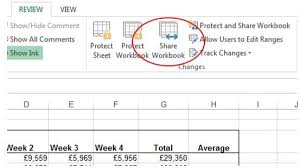
How to Share a File Excel: A Step-by-step Guide
Are you tired of sharing files with colleagues or friends only to have them send back a jumbled mess? Look no further! In this article, we will explore the various ways to share a file in Excel, from collaborating on a spreadsheet to sending it as an attachment.
Sharing Files: Why Bother?
Before we dive into the nitty-gritty of sharing files, let’s talk about why it’s so important. Whether you’re working on a project with colleagues or just want to send a document to a friend, sharing files is essential for collaboration and communication.
Method 1: Sharing Files Using Microsoft Office 365
If you have a Microsoft Office 365 subscription, you can share files directly from the Excel app. Here’s how:
- Open your Excel file and click on the “Share” button in the top right corner.
- Select the person(s) you want to share with and enter their email address(es).
- Choose whether you want them to edit or view-only access to the file.
- Click on the “Send” button.
Method 2: Sharing Files Using Google Drive
If you don’t have a Microsoft Office 365 subscription, you can still share files using Google Drive. Here’s how:
- Open your Google Drive account and click on the “New” button.
- Select “File” and upload your Excel file to Drive.
- Right-click on the file and select “Get link.”
- Copy the link and send it to the person(s) you want to share with.
Method 3: Sharing Files Using Whatsapp
If you’re looking for a more informal way to share files, you can use WhatsApp. Here’s how:
- Open your Excel file and click on the “Share” button.
- Select the person(s) you want to share with and enter their phone number(s).
- Choose whether you want them to edit or view-only access to the file.
- Click on the “Send” button.
Method 4: Sharing Files Using Onedrive
If you’re using a Windows PC, you can also use OneDrive to share files. Here’s how:
- Open your Excel file and click on the “Save As” button.
- Select OneDrive as the location to save the file.
- Right-click on the file and select “Share.”
- Choose whether you want others to edit or view-only access to the file.
- Click on the “Share” button.
Method 5: Sharing Files Using a Network Drive
If you’re working with colleagues in the same office, you can use a network drive to share files. Here’s how:
- Open your Excel file and click on the “File” menu.
- Select “Share” and choose the person(s) you want to share with.
- Choose whether you want them to edit or view-only access to the file.
- Click on the “Save” button.
Tips And Tricks
Here are a few tips and tricks to keep in mind when sharing files:
- Make sure to save your file before sharing it, especially if you’re using a collaborative method.
- Use clear and concise language when describing what’s inside the file.
- Choose the right permission level for each person you’re sharing with.
- Consider adding a password or encryption to protect sensitive information.
Conclusion
Sharing files in Excel doesn’t have to be complicated. Whether you’re using Microsoft Office 365, Google Drive, WhatsApp, OneDrive, or a network drive, there are plenty of options available. Just remember to save your file before sharing it and choose the right permission level for each person you’re sharing with.
Faqs
Here are some frequently asked questions about sharing files in Excel:
- Q: Can I Share Multiple Files at Once?
A: Yes, you can share multiple files at once using most methods. - Q: How do I Know if Someone Has Edited my File?
A: You can use the “Revision History” feature in Excel to see who made changes and when. - Q: Can I Add a Password or Encryption to Protect Sensitive Information?
A: Yes, you can add a password or encryption to protect sensitive information using most methods. - Q: How do I Remove Access to a Shared File?
A: You can use the “Revoke” feature in Excel to remove access to a shared file. - Q: Can I Share Files With People Who Don’t Have Microsoft Office Installed on Their Computer?
A: Yes, you can share files with people who don’t have Microsoft Office installed on their computer using most methods.
Conclusion
Sharing files in Excel is an essential skill for anyone working with spreadsheets. By following these steps and tips, you’ll be able to share your files confidently and efficiently. Don’t forget to save your file before sharing it and choose the right permission level for each person you’re sharing with!


