
Sharing Internet Connection: A Step-by-step Guide
Are you tired of being disconnected from the internet? Do you want to share your mobile data with other devices? Look no further! In this article, we will guide you through the process of sharing your internet connection using your Android or iOS device.
Why Share Your Internet Connection?
Sharing your internet connection can be a lifesaver in many situations. Imagine being on a road trip and needing to navigate through unfamiliar areas. Or picture yourself at a coffee shop with no Wi-Fi, but wanting to stay connected with friends and family. Sharing your mobile data can provide you with peace of mind, knowing that you have access to the internet even when it’s not readily available.
Sharing Internet Connection on Android
To share your internet connection on an Android device, follow these steps:
- Activate Mobile Data: First, ensure that your mobile data is activated on your device. To do this, go to Settings > Wireless and networks > Mobile Networks > Mobile Data (or 4G/LTE).
- Check Speed: Check the speed of your internet connection by going to Settings > Wireless and networks > Mobile Networks > Mobile Network Preferences > Type of network preferred.
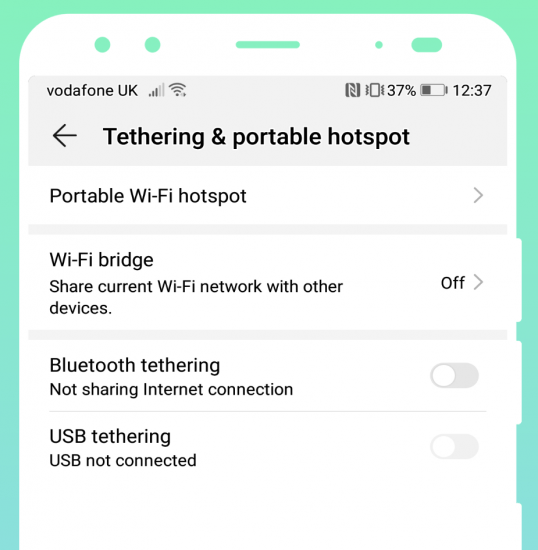
- Enable Hotspot: Enable the hotspot feature by going to Settings > Wireless and networks > Tethering & Portable Wi-Fi Hotspot (or Mobile Hotspot).
- Configure Hotspot: Configure your hotspot settings, including the name and password, by tapping on the “Configure hotspot” option.
- Share Connection: Once configured, you can share your internet connection with other devices by tapping on the “Wi-Fi Hotspot” icon.
Sharing Internet Connection on Ios
To share your internet connection on an iOS device, follow these steps:
- Activate Mobile Data: Ensure that your mobile data is activated on your device by going to Settings > Cellular.
- Check Speed: Check the speed of your internet connection by tapping on “Cellular” and selecting a network type (e.G., LTE).
- Enable Hotspot: Enable the hotspot feature by going to Settings > Cellular > Personal Hotspot.
- Configure Hotspot: Configure your hotspot settings, including the name and password, by tapping on “Wi-Fi Password”.
- Share Connection: Once configured, you can share your internet connection with other devices by tapping on the “Personal Hotspot” icon.
Other Forms of Sharing Internet Connection
If the above methods don’t work for you, there are other ways to share your internet connection:
- Use a Bluetooth tethering feature.
- Utilize a USB tethering feature.
- Use a third-party app to share your mobile data (e.G., TetherMe).
Conclusion
Sharing your internet connection can be a convenient and useful feature, especially when traveling or in situations where Wi-Fi is not available. By following the steps outlined above, you can easily share your mobile data with other devices using your Android or iOS device.
Frequently Asked Questions (FAQs)
Q: Can I share my internet connection on multiple devices at once?
A: Yes, but be aware that sharing your internet connection may incur additional charges from your carrier.
Q: How do I configure the hotspot settings on my device?
A: You can configure the hotspot settings by going to Settings > Wireless and networks > Tethering & Portable Wi-Fi Hotspot (or Mobile Hotspot).
Q: Can I share my mobile data with a PC using USB tethering?
A: Yes, you can use USB tethering to share your mobile data with a PC.
Q: What are the limitations of sharing internet connection?
A: Sharing your internet connection may have limitations imposed by your carrier or device manufacturer.


