
How to Share Files on Dropbox: A Step-by-step Guide
Are you looking for a way to share files with friends, family, or colleagues using the popular cloud storage service Dropbox? Look no further! In this article, we’ll guide you through the process of sharing files on Dropbox, whether you’re using a computer, smartphone, or tablet.
Why Share Files on Dropbox?
Before we dive into the how-to section, let’s quickly discuss why sharing files on Dropbox is a great idea. With Dropbox, you can share large files with others without having to worry about email attachment size limits or file transfer speeds. Plus, you can access your shared files from anywhere, at any time.
Sharing Files on Dropbox: Computer Version
To share files on Dropbox using your computer, follow these steps:
Step 1: Log In to Your Dropbox Account
Open a web browser and navigate to the Dropbox website. Log in to your account using your email address and password.
Click on the “All Files” tab and select the file you want to share. Alternatively, click on the “+” button to upload new files.
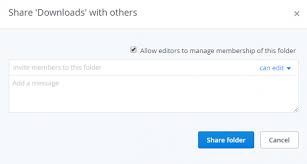
Click on the “Share” button located next to the file name.
Step 4: Select The Sharing Method
Choose how you want to share the file:
- Click on the “Get Link” button to generate a link that can be shared manually.
- Click on the “Add Email” button to share the file with specific users by email.
Step 5: Customize Sharing Settings (Optional)
If you have a Dropbox Essentials subscription, you can customize sharing settings:
- Set a password for access
- Set a deadline for the shared link
- Disable downloads
Sharing Files on Dropbox: Smartphone And Tablet Version
To share files on Dropbox using your smartphone or tablet, follow these steps:
Step 1: Open The Dropbox App
Open the Dropbox app on your device.
Tap on the file you want to share. If it’s not already uploaded, tap the “+” button to upload new files.
Tap on the “Share” button located next to the file name.
Step 4: Select The Sharing Method
Choose how you want to share the file:
- Tap on the “Copy Link” button to generate a link that can be shared manually.
- Tap on the “Add Email” button to share the file with specific users by email.
Step 5: Customize Sharing Settings (Optional)
If you have a Dropbox Essentials subscription, you can customize sharing settings:
- Set a password for access
- Set a deadline for the shared link
- Disable downloads
Sharing Files on Dropbox: Sharing With Multiple Users
To share files with multiple users, follow these steps:
Select the file you want to share.
Click on the “Share” button located next to the file name.
Step 3: Add Multiple Email Addresses
Add multiple email addresses separated by commas.
Step 4: Customize Sharing Settings (Optional)
If you have a Dropbox Essentials subscription, you can customize sharing settings:
- Set a password for access
- Set a deadline for the shared link
- Disable downloads
Sharing Files on Dropbox: How to Cancel Sharing
To cancel sharing of a file or folder, follow these steps:
Access your shared file by navigating to the “Shared” tab.
Step 2: Click on The Gear Icon
Click on the gear icon next to the shared file name.
Step 3: Select Cancel Sharing
Select “Cancel Sharing” from the dropdown menu.
Sharing Files on Dropbox: Tips And Tricks
Here are some additional tips and tricks for sharing files on Dropbox:
- Use the “Get Link” feature to share files without creating a new email address.
- Set a password for access to protect your shared files.
- Customize sharing settings to set a deadline for shared links or disable downloads.
Conclusion
Sharing files on Dropbox is easy and convenient. Whether you’re using a computer, smartphone, or tablet, the process is similar. By following these steps, you can share files with friends, family, or colleagues without worrying about file size limits or transfer speeds. Happy sharing!


