
Sharing Google Calendar: A Step-by-step Guide
Are you looking for a way to share your Google calendar with others? Look no further! In this article, we will guide you through the process of sharing your Google calendar with individuals or groups.
Why Share Your Google Calendar?
Sharing your Google calendar can be incredibly useful in various situations. For example, if you’re planning an event and want to keep track of RSVPs, you can share the calendar with invited guests. If you’re a team leader, you can share your calendar with colleagues to ensure everyone is on the same page.
How to Share Your Google Calendar
Sharing your Google calendar is a straightforward process that can be done from within the Google Calendar app or website.
Step 1: Open Your Google Calendar
First, open your Google Calendar by visiting calendar.Google.Com.
Select the calendar you want to share. If you have multiple calendars, make sure to choose the one you want to share.
Step 3: Click on The Three Vertical Dots
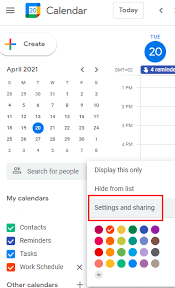
Click on the three vertical dots beside the calendar name.
Step 4: Choose “Settings And Sharing”
Choose “Settings and sharing” from the dropdown menu.
Step 5: Select “Add People or Groups”
Select “Add people or groups” to add individuals or groups you want to share with.
Step 6: Enter Email Addresses or Names
Enter the email addresses or names of the individuals or groups you want to share with.
Step 7: Set Permissions
Set permissions for the shared calendar. You can choose from:
- See only available/occupied
- See all details of the event
- Transfer modifications to events
- Do modifications and manage sharing options
How to Share an Existing Calendar
To share an existing calendar, follow these steps:
- Open your Google Calendar.
- Select the calendar you want to share.
- Click on the three vertical dots beside the calendar name.
- Choose “Settings and sharing.”
- Select “Add people or groups” to add individuals or groups you want to share with.
How to Share a New Calendar
To share a new calendar, follow these steps:
- Open your Google Calendar.
- Click on the “+” button in the top right corner.
- Choose “Create new calendar.”
- Set permissions for the shared calendar.
- Select “Add people or groups” to add individuals or groups you want to share with.
Sharing a Calendar With Non-google Users
If you want to share your Google calendar with non-Google users, follow these steps:
- Open your Google Calendar.
- Select the calendar you want to share.
- Click on the three vertical dots beside the calendar name.
- Choose “Settings and sharing.”
- Select “Add people or groups” to add individuals or groups you want to share with.
Sharing a Calendar on Whatsapp
To share your Google calendar on WhatsApp, follow these steps:
- Open your Google Calendar.
- Select the calendar you want to share.
- Click on the three vertical dots beside the calendar name.
- Choose “Settings and sharing.”
- Select “Add people or groups” to add individuals or groups you want to share with.
Sharing a Calendar on Outlook
To share your Google calendar on Outlook, follow these steps:
- Open your Outlook account.
- Go to the calendar settings.
- Choose “Shared calendars.”
- Select the calendar you want to share.
- Set permissions for the shared calendar.
Sharing a Calendar With Iphone
To share your Google calendar with an iPhone, follow these steps:
- Open your Google Calendar.
- Select the calendar you want to share.
- Click on the three vertical dots beside the calendar name.
- Choose “Settings and sharing.”
- Select “Add people or groups” to add individuals or groups you want to share with.
Frequently Asked Questions (FAQs)
Here are some frequently asked questions related to sharing your Google calendar:
- Q: How do I share my Google calendar with others?
- A: You can share your Google calendar by following the steps outlined in this article.
- Q: Can I share my Google calendar with non-Google users?
- A: Yes, you can share your Google calendar with non-Google users by making it public and sharing the link.
- Q: How do I revoke permissions for a shared calendar?
- A: You can revoke permissions for a shared calendar by going to the settings of that calendar and removing the permissions.
In conclusion, sharing your Google calendar is a straightforward process that can be done from within the Google Calendar app or website. By following these steps, you can share your calendar with individuals or groups, making it easier to collaborate and stay organized.


