
How to Share a Google Calendar: A Step-by-step Guide
Are you tired of juggling multiple calendars and schedules? Do you want to share your Google calendar with colleagues, friends, or family members? Look no further! In this article, we’ll guide you through the process of sharing a Google calendar on PC, smartphone, Outlook, and more.
Why Share a Google Calendar?
Sharing a Google calendar is an excellent way to collaborate with others, whether it’s for work, personal projects, or social events. By sharing your calendar, you can:
- Keep everyone on the same page
- Avoid conflicts and overlapping events
- Easily share updates and changes
How to Share a Google Calendar on PC
Sharing a Google calendar on PC is a straightforward process. Follow these steps:
- Access Google Calendar: Log in to your Google account using your browser.
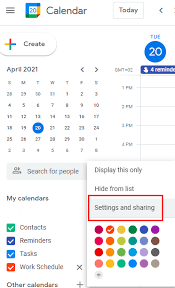
- Go to My Calendars: Click on the “My calendars” section in the left-hand menu.
- Select The Calendar: Choose the calendar you want to share by clicking on its name.
- Click on Settings And Sharing: A drop-down menu will appear; click on “Settings and sharing.”
- Add Persons or Specific Groups: Click on “Add persons or specific groups” and enter the email addresses of those you want to share with.
- Choose Permissions: Select the level of access you want to grant:
- Seeing only available/occupied (conceal details)
- See all the details of the event
- Transfer modifications to events
- Do modifications and manage sharing options
- Click Add: Click on the “Add” button to share the calendar.
- Confirm: A confirmation email will be sent to those you’ve shared with; they’ll need to accept the invitation.
How to Cancel Sharing a Google Calendar
If you want to cancel sharing a Google calendar, follow these steps:
- Access Google Calendar: Log in to your Google account using your browser.
- Go to My Calendars: Click on the “My calendars” section in the left-hand menu.
- Select The Calendar: Choose the calendar you want to cancel sharing by clicking on its name.
- Click on Settings And Sharing: A drop-down menu will appear; click on “Settings and sharing.”
- Cancel Sharing: If it was shared publicly, remove the checkmark from the “@Rendere available publicly” box. If it was shared with specific users, click on the trash icon next to their name.
How to Share a Google Calendar on Smartphone
Unfortunately, you cannot share a Google calendar directly from the Google Calendar app on your smartphone. However, you can use the browser to access Google Calendar and follow the same steps as above.
How to Share a Google Calendar With Outlook
Sharing a Google calendar with Outlook is possible in two ways:
- Sync The Calendar: Synchronize your Google calendar with Outlook using the iCal format.
- Access Google Calendar on PC
- Go to Settings and sharing
- Click on Integrate calendar
- Copy the URL in iCal format
- Open Outlook, click on Add a calendar, and paste the URL
- Export The Calendar: Export your Google calendar as an ICS file.
- Access Google Calendar on PC
- Go to Settings and sharing
- Click on Export calendar
- Download the ICS file
- Open Outlook, click on Add a calendar, and import the ICS file
Conclusion
Sharing a Google calendar is a simple process that can be completed in just a few steps. By following this guide, you’ll be able to share your calendar with colleagues, friends, or family members, making it easier to collaborate and avoid conflicts.
Frequently Asked Questions (FAQs)
- Q: Can I Share a Google Calendar Directly From The Google Calendar App on my Smartphone?
A: Unfortunately, no. - Q: How do I Cancel Sharing a Google Calendar?
A: Access Google Calendar on PC, go to My Calendars, select the calendar, click on Settings and sharing, and cancel sharing by removing checkmarks or clicking on the trash icon. - Q: Can I Share a Google Calendar With Outlook?
A: Yes, you can synchronize your Google calendar with Outlook using iCal format or export it as an ICS file. - Q: What Are The Permissions I Can Grant When Sharing a Google Calendar?
A: You can grant seeing only available/occupied (conceal details), see all the details of the event, transfer modifications to events, do modifications and manage sharing options. - Q: Can I Share my Google Calendar Publicly?
A: Yes, you can make your calendar public by clicking on the “@Rendere available publicly” box in Settings and sharing. - Q: How do I Export a Google Calendar as an Ics File?
A: Access Google Calendar on PC, go to Settings and sharing, click on Export calendar, download the ICS file, and import it into Outlook.
By following this guide and understanding how to share a Google calendar, you’ll be able to collaborate with others more effectively and avoid conflicts.


