
How to Share Internet Connection: A Step-by-step Guide
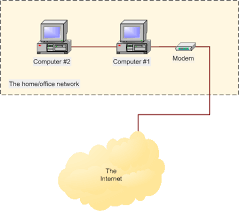
Are you tired of dealing with slow internet speeds or limited Wi-Fi coverage in your home? Do you want to share your internet connection with other devices, such as laptops, smartphones, or tablets? Look no further! In this article, we’ll show you how to share your internet connection using your PC, smartphone, or tablet.
Sharing Internet Connection From Your PC
If you’re looking to share your internet connection from your PC, there are a few options available. Here’s what you need to do:
Windows 11/10: Sharing Internet Connection Via Wi-fi Hotspot
To share your internet connection using Windows 11 or 10, follow these steps:
- Open the Settings app on your PC.
- Click on “Network & Internet.”
- Select “Wi-Fi” from the left menu.
- Click on the “Hotspot” option.
- Select the type of network you want to share (Wi-Fi or Ethernet).
- Choose a name for your Wi-Fi hotspot and set a password.
- Turn on the “Share my internet connection with other devices” toggle switch.
That’s it! You’ve now created a Wi-Fi hotspot using Windows 11/10, allowing other devices to connect to your shared internet connection.
Windows 8.1: Using Virtual Router
If you’re running an older version of Windows (Windows 8.1 Or earlier), you’ll need to use a third-party software called Virtual Router. Here’s how:
- Download and install Virtual Router from the official website.
- Run the program and select the type of network you want to share (Wi-Fi or Ethernet).
- Set up your Wi-Fi hotspot by choosing a name, password, and channel.
- Click “Start” to begin sharing your internet connection.
Sharing Internet Connection From Your Smartphone/tablet
If you’re looking to share your internet connection from your smartphone or tablet, here are the steps:
Android: Sharing Internet Connection Via Hotspot
To share your internet connection using Android, follow these steps:
- Open the Settings app on your device.
- Click on “Connections.”
- Select “Hotspot & tethering.”
- Choose “Wi-Fi hotspot” and set up your network by choosing a name, password, and channel.
- Turn on the toggle switch to begin sharing your internet connection.
Ios: Sharing Internet Connection Via Personal Hotspot
To share your internet connection using iOS, follow these steps:
- Open the Settings app on your device.
- Click on “Cellular.”
- Select “Personal Hotspot.”
- Set up your Wi-Fi hotspot by choosing a name and password.
- Turn on the toggle switch to begin sharing your internet connection.
Benefits of Sharing Internet Connection
Sharing your internet connection can have several benefits, including:
- Increased Productivity: By sharing your internet connection, multiple devices can connect simultaneously, allowing you to work or browse online without interruptions.
- Cost-effective: Sharing your internet connection can be more cost-effective than purchasing separate plans for each device.
- Convenience: Sharing your internet connection eliminates the need to constantly switch between devices or worry about data usage.
Common Issues And Solutions
When sharing your internet connection, you may encounter some common issues. Here are a few solutions:
Slow Internet Speeds
If you’re experiencing slow internet speeds when sharing your connection, try the following:
- Restart your router or modem.
- Check for software updates on your devices.
- Ensure that all devices are connected to the same network.
Connection Drops
If your internet connection drops frequently, try the following:
- Check for loose connections or faulty cables.
- Update your device’s drivers and firmware.
- Consider upgrading your router or modem.
Conclusion
Sharing your internet connection can be a great way to increase productivity, save costs, and make life easier. By following the steps outlined in this article, you can share your internet connection using Windows 11/10, Virtual Router (for older versions of Windows), Android, iOS, and other devices. Remember to troubleshoot common issues and take advantage of the benefits of sharing your internet connection.
Frequently Asked Questions
Here are some frequently asked questions about sharing internet connections:
- Q: Can I Share my Internet Connection With Multiple Devices?
A: Yes, you can share your internet connection with multiple devices, but be aware that excessive usage may affect speeds. - Q: How do I Troubleshoot Common Issues When Sharing my Internet Connection?
A: Check for loose connections, update software and firmware, and consider upgrading your router or modem. - Q: Can I Share my Internet Connection With a Smartphone or Tablet?
A: Yes, you can share your internet connection using Android, iOS, or other devices.
Additional Resources
For more information on sharing internet connections, check out these resources:
- Windows 11/10 documentation
- Virtual Router official website
- Android and iOS settings guides
By following the steps outlined in this article and utilizing additional resources, you can share your internet connection safely and efficiently.


