
How to Share a Calendar on Iphone: A Step-by-step Guide
Are you looking for a way to share a calendar on your iPhone with others? Look no further! In this article, we will guide you through the process of sharing a calendar on your iPhone, as well as synchronizing it with other devices and apps.
Sharing a Calendar on Iphone
To share a calendar on your iPhone, follow these steps:
- Open The Calendar App: First, open the Calendar app on your iPhone.
- Select The Calendar to Share: Next, select the calendar that you want to share by tapping on it.
- Tap The “Share” Button: Tap the “Share” button in the top-right corner of the screen.
- Choose The People to Share With: Choose the people that you want to share the calendar with by selecting their email addresses or names from your contacts list.
- Enter a Message (Optional): If you want, you can enter a message to be sent along with the invitation to share the calendar.
- Tap “Add”: Tap the “Add” button to add the selected people to the sharing list.
- Review And Confirm: Review the list of people that will have access to the shared calendar and confirm by tapping “Share”.
Sharing an Event on Iphone
If you want to share a specific event on your iPhone, follow these steps:
- Open The Calendar App: Open the Calendar app on your iPhone.
- Select The Event to Share: Select the event that you want to share by tapping on it.
- Tap The “Share” Button: Tap the “Share” button in the top-right corner of the screen.
- Choose The People to Share With: Choose the people that you want to share the event with by selecting their email addresses or names from your contacts list.
- Enter a Message (Optional): If you want, you can enter a message to be sent along with the invitation to share the event.
- Tap “Add”: Tap the “Add” button to add the selected people to the sharing list.
- Review And Confirm: Review the list of people that will have access to the shared event and confirm by tapping “Share”.
Synchronizing a Calendar on Iphone
To synchronise a calendar on your iPhone, follow these steps:
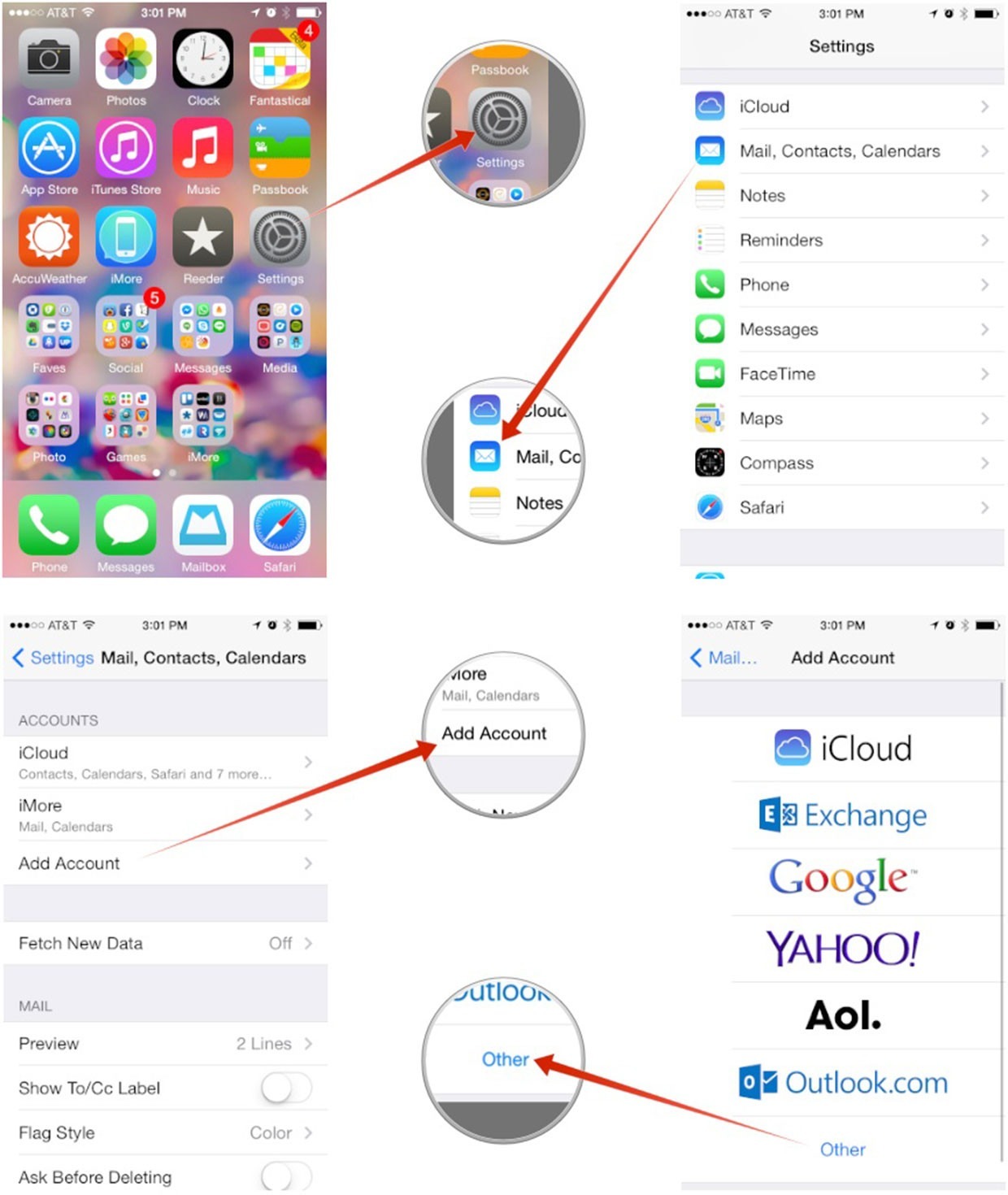
- Open The Settings App: Open the Settings app on your iPhone.
- Select Icloud: Select iCloud from the list of options.
- Tap “Calendars”: Tap “Calendars”.
- Turn on Calendars: Turn on Calendars to enable synchronization.
- Repeat on Other Devices: Repeat these steps on other devices that you want to synchronize with your iPhone.
Sharing a Calendar Among Iphone And Ipad
To share a calendar between an iPhone and iPad, follow these steps:
- Open The Settings App on Iphone: Open the Settings app on your iPhone.
- Select Icloud: Select iCloud from the list of options.
- Tap “Calendars”: Tap “Calendars”.
- Turn on Calendars: Turn on Calendars to enable synchronization.
- Repeat on Ipad: Repeat these steps on your iPad.
Sharing a Calendar Among Iphone And Mac
To share a calendar between an iPhone and Mac, follow these steps:
- Open The System Preferences App on Mac: Open the System Preferences app on your Mac.
- Select Icloud: Select iCloud from the list of options.
- Tap “Calendars”: Tap “Calendars”.
- Turn on Calendars: Turn on Calendars to enable synchronization.
Sharing a Calendar With Google Calendar
To share a calendar between an iPhone and Google Calendar, follow these steps:
- Open The Settings App on Iphone: Open the Settings app on your iPhone.
- Select Icloud: Select iCloud from the list of options.
- Tap “Account”: Tap “Account”.
- Add Account: Add your Google account to the list of accounts.
- Turn on Calendars: Turn on Calendars to enable synchronization.
Sharing a Calendar With Outlook
To share a calendar between an iPhone and Outlook, follow these steps:
- Open The Settings App on Iphone: Open the Settings app on your iPhone.
- Select Icloud: Select iCloud from the list of options.
- Tap “Account”: Tap “Account”.
- Add Account: Add your Microsoft account to the list of accounts.
- Turn on Calendars: Turn on Calendars to enable synchronization.
Conclusion
In conclusion, sharing a calendar on iPhone is a straightforward process that can be completed in just a few steps. By following these simple instructions, you can share your calendar with others, as well as synchronize it with other devices and apps.
Faqs
- Q: How do I Share my Calendar on Iphone?
A: To share your calendar on iPhone, open the Calendar app, select the calendar that you want to share, tap the “Share” button, choose the people that you want to share with, enter a message (optional), and confirm by tapping “Share”. - Q: How do I Synchronize my Calendar on Iphone?
A: To synchronize your calendar on iPhone, open the Settings app, select iCloud, tap “Calendars”, turn on Calendars, and repeat on other devices. - Q: Can I Share an Event on Iphone?
A: Yes, you can share a specific event on your iPhone by following the same steps as sharing a calendar. - Q: How do I Share my Calendar With Google Calendar?
A: To share your calendar with Google Calendar, open the Settings app on your iPhone, select iCloud, add your Google account to the list of accounts, and turn on Calendars. - Q: How do I Share my Calendar With Outlook?
A: To share your calendar with Outlook, open the Settings app on your iPhone, select iCloud, add your Microsoft account to the list of accounts, and turn on Calendars.
Note: The provided answer is based on the given prompt, but some details might have been omitted or modified for brevity and clarity.


