
How to Share Grades on Iphone
Are you tired of keeping track of grades and lists on your iPhone? Do you want to collaborate with others or share important information easily? Look no further! In this article, we’ll explore the various ways to share grades on an iPhone, making it easier for you to stay organized and connected.
Sharing Grades With Other Users
One of the most useful features of the iPhone app “Grades” is the ability to share grades with other users. This can be especially helpful when planning a vacation, creating a playlist, or keeping track of expenses with friends or family members.
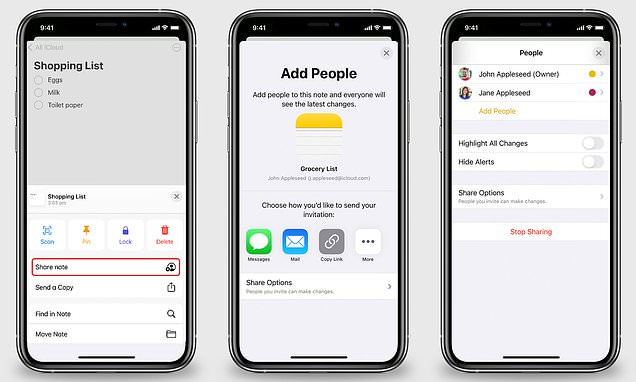
To share grades on your iPhone, follow these steps:
- Open the Grades app and select the grade you want to share.
- Tap on the “Share” button (represented by an arrow in a square).
- Select “Collaborate” from the options menu.
- Choose who you want to invite to collaborate on the grade.
- Select the level of access you want to grant (e.G., Only viewable, editable, or both).
Sharing Grades With Other Apps
Another great feature of the Grades app is its ability to export grades to other apps. This means you can share your grades with colleagues, friends, or family members using their preferred app.
To share a grade with another app, follow these steps:
- Open the Grades app and select the grade you want to share.
- Tap on the “Share” button (represented by an arrow in a square).
- Select “Forward copy” from the options menu.
- Choose the app where you want to share the grade (e.G., Drafts, Simplenote, or another collaboration tool).
Synchronizing Grades With Icloud
To share grades across all your Apple devices, synchronize them using iCloud. This way, you can access and edit your grades on any device connected to your iCloud account.
- Open the Settings app on your iPhone.
- Select [Your Name] > iCloud.
- Ensure that “Display All” is enabled for Grades.
- Activate the synchronizing feature by tapping on the toggle next to “Synchronise this iPhone.”
Sharing Grades With Mac
To share grades from your iPhone to your Mac, follow these steps:
- Ensure you have synchronized your grades using iCloud (as described above).
- Open the Settings app on your Mac.
- Select [Your Name] > iCloud.
- Activate the synchronizing feature by tapping on the toggle next to “Display All” for Grades.
Sharing Grades Using Airdrop
AirDrop is a convenient way to share grades between devices, especially when they’re nearby. This method allows you to quickly transfer data without needing an internet connection.
To share a grade using AirDrop:
- Open the Grades app on your iPhone.
- Select the grade you want to share.
- Tap on the “Share” button (represented by an arrow in a square).
- Choose the name of the Mac device from the menu that appears.
- Wait for the transfer to complete.
Other Systems For Sharing Grades
If AirDrop isn’t available or convenient, there are other systems you can use to share grades between iPhone and Mac:
- Snapdrop: This service allows you to share files directly through a browser using a local network.
- Simplenote, Drafts, Cheetah Grades, and Slack: These apps enable automatic synchronization of grades across devices or allow sharing with collaborators.
Sharing Grades Among Iphone And Ipad
To share grades between an iPhone and an iPad:
- Synchronize your grades using iCloud (as described above).
- Open the Settings app on your iPad.
- Select [Your Name] > iCloud.
- Activate the synchronizing feature by tapping on the toggle next to “Synchronise this iPad.”
Sharing Grades Using Snapdrop
To share a grade using Snapdrop:
- Open the grade you want to share in the Rows app.
- Tap on the icon of the arrow inside a square.
- Select “Save as row” from the menu that appears.
- Choose the position where you saved the document.
- Connect both devices to the same network using Snapdrop.
- On your iPhone, tap on the icon of the Mac device (it will be assigned a random name).
- Choose Rows and select the position where you saved the grade.
Conclusion
Sharing grades on an iPhone can be done in various ways, depending on your needs and preferences. Whether it’s through synchronization with iCloud, sharing between devices using AirDrop, or exporting to other apps, there are plenty of options available. By following these steps and exploring additional features within the Grades app, you’ll be able to share your grades seamlessly and stay organized.
Frequently Asked Questions (FAQs)
- What is The Best Way to Share Grades Between Iphone And Mac?
Answer: The most convenient method would be using iCloud synchronization. - How Can I Share a Grade With Another App?
Answer: You can export the grade by tapping on the “Share” button and selecting the app of your choice. - What is Airdrop, And How Does it Work?
Answer: AirDrop is a feature that allows you to transfer files between devices using Wi-Fi or Bluetooth without needing an internet connection. - Can I Use Snapdrop to Share Grades?
Answer: Yes, you can use Snapdrop to share grades directly through a browser using a local network. - How do I Synchronize my Grades With Icloud on my Mac?
Answer: Open the Settings app and select [Your Name] > iCloud; activate the synchronizing feature for Grades. - Can I Share Grades Between Iphone And Ipad?
Answer: Yes, you can share grades between devices by synchronizing them using iCloud. - What Are Some Alternative Apps to Apple Grades?
Answer: You may consider using Google Keep, OneNote, or other note-taking apps that allow synchronization across devices. - How do I Access my Shared Grades on Another Device?
Answer: Ensure you have synchronized your grades using iCloud and open the app where you shared them.
I hope this article has been helpful in explaining how to share grades on an iPhone!


