
How to Share on Facebook: A Step-by-step Guide
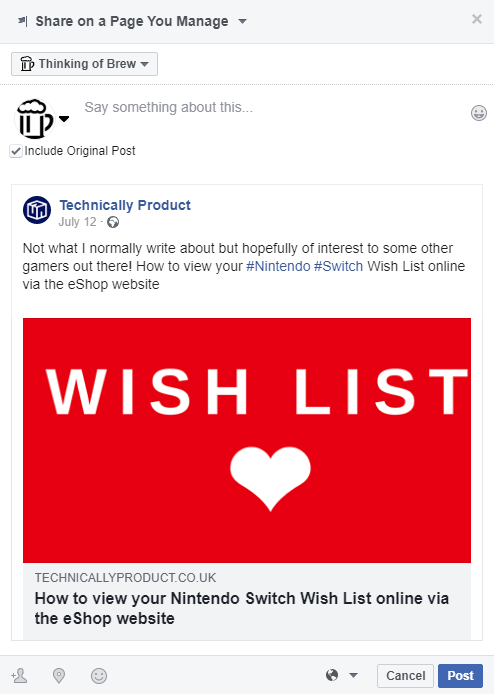
Are you looking for a way to share your favorite photos, videos, or updates with friends and family on Facebook? Look no further! In this article, we will guide you through the process of sharing content on Facebook, including how to share posts from other users, share pages, and even share files.
What is Sharing on Facebook?
Before we dive into the nitty-gritty of sharing on Facebook, let’s first understand what it means. Sharing on Facebook refers to the act of displaying content from other users on your own profile or timeline. This can include photos, videos, posts, and more.
Why Share on Facebook?
Sharing on Facebook is a great way to stay connected with friends and family who live far away. It’s also a good way to share your interests and hobbies with others. By sharing content on Facebook, you can:
- Stay up-to-date with the latest news and events
- Share photos and videos of special moments
- Connect with friends and family who live far away
- Join online communities and groups that align with your interests
How to Share Posts From Other Users
Want to share a post from another user on Facebook? It’s easy! Here’s how:
- Access the post you want to share by clicking on it.
- Click on the “Share” button located below the post.
- Choose who you want to share the post with (e.G., Friends, followers, or a specific group).
- Add any additional comments or tags if desired.
- Click “Post” to share the content.
How to Share Pages
Want to share a page on Facebook? Here’s how:
- Access the page you want to share by clicking on it.
- Click on the three dots located in the top right corner of the page.
- Select “Share” from the dropdown menu.
- Choose who you want to share the page with (e.G., Friends, followers, or a specific group).
- Add any additional comments or tags if desired.
- Click “Post” to share the content.
How to Share Reels on Facebook
Want to share a Reel from another user on Facebook? Here’s how:
- Access the Reel you want to share by clicking on it.
- Tap on the three dots located in the top right corner of the Reel.
- Select “Share” from the dropdown menu.
- Choose who you want to share the Reel with (e.G., Friends, followers, or a specific group).
- Add any additional comments or tags if desired.
- Click “Post” to share the content.
How to Share Photos on Facebook
Want to share a photo from your album on Facebook? Here’s how:
- Access the photo you want to share by clicking on it.
- Tap on the three dots located in the top right corner of the photo.
- Select “Share” from the dropdown menu.
- Choose who you want to share the photo with (e.G., Friends, followers, or a specific group).
- Add any additional comments or tags if desired.
- Click “Post” to share the content.
How to Share Videos on Facebook
Want to share a video from YouTube on Facebook? Here’s how:
- Access the video you want to share by clicking on it.
- Tap on the three dots located in the top right corner of the video.
- Select “Share” from the dropdown menu.
- Choose who you want to share the video with (e.G., Friends, followers, or a specific group).
- Add any additional comments or tags if desired.
- Click “Post” to share the content.
How to Share Files on Facebook
Want to share a file on Facebook? Here’s how:
- Access the file you want to share by clicking on it.
- Tap on the three dots located in the top right corner of the file.
- Select “Share” from the dropdown menu.
- Choose who you want to share the file with (e.G., Friends, followers, or a specific group).
- Add any additional comments or tags if desired.
- Click “Post” to share the content.
How to Share Content on Facebook From Instagram
Want to share content from Instagram on Facebook? Here’s how:
- Access the post you want to share by clicking on it.
- Tap on the three dots located in the top right corner of the post.
- Select “Share” from the dropdown menu.
- Choose who you want to share the post with (e.G., Friends, followers, or a specific group).
- Add any additional comments or tags if desired.
- Click “Post” to share the content.
Tips And Tricks
- Make sure to choose the correct settings when sharing content on Facebook to ensure that it reaches the right audience.
- Consider adding a caption or description to your shared content to give context and provide more information.
- Use hashtags to make your shared content more discoverable by others.
- Share content regularly to keep your friends and family engaged and interested.
Conclusion
Sharing on Facebook is a great way to connect with friends and family, share interests and hobbies, and stay up-to-date with the latest news and events. By following these simple steps, you can share posts from other users, share pages, Reels, photos, videos, files, and even content from Instagram. Remember to choose the correct settings, add context, use hashtags, and share regularly to get the most out of sharing on Facebook.
Frequently Asked Questions
- Q: How do I Share a Post From Another User on Facebook?
A: To share a post from another user, click on the “Share” button located below the post. - Q: How do I Share a Page on Facebook?
A: To share a page, click on the three dots located in the top right corner of the page and select “Share”. - Q: How do I Share a Reel From Another User on Facebook?
A: To share a Reel, tap on the three dots located in the top right corner of the Reel and select “Share”. - Q: How do I Share a Photo From my Album on Facebook?
A: To share a photo, tap on the three dots located in the top right corner of the photo and select “Share”. - Q: How do I Share a Video From Youtube on Facebook?
A: To share a video, tap on the three dots located in the top right corner of the video and select “Share”. - Q: How do I Share a File on Facebook?
A: To share a file, tap on the three dots located in the top right corner of the file and select “Share”. - Q: How do I Share Content From Instagram on Facebook?
A: To share content from Instagram, tap on the three dots located in the top right corner of the post and select “Share”.
Note: The above FAQs are based on the provided text and might not be exhaustive or up-to-date. For more information, please refer to the official Facebook documentation.


