
How to Share Your Microsoft Outlook Calendar With Others
Are you tired of juggling multiple calendars and reminders? Do you need to share your schedule with colleagues, family members, or friends? Look no further! In this article, we’ll guide you through the steps to share your Microsoft Outlook calendar with others.
Sharing Your Outlook Calendar: Why Bother?
Sharing your calendar can be incredibly helpful in various situations. For example, if you’re working on a project with team members, sharing your calendar can ensure everyone is on the same page and aware of each other’s availability. Similarly, if you’re coordinating events or appointments with family members or friends, sharing your calendar can help avoid scheduling conflicts.
Sharing Your Outlook Calendar: How to Do It
There are several ways to share your Microsoft Outlook calendar with others, depending on your platform (Windows, Mac, Android, iOS) and the version of Outlook you’re using. Here’s a step-by-step guide:
Sharing Your Outlook Calendar on Windows
- Open Outlook and click on the calendar icon in the lower left corner.
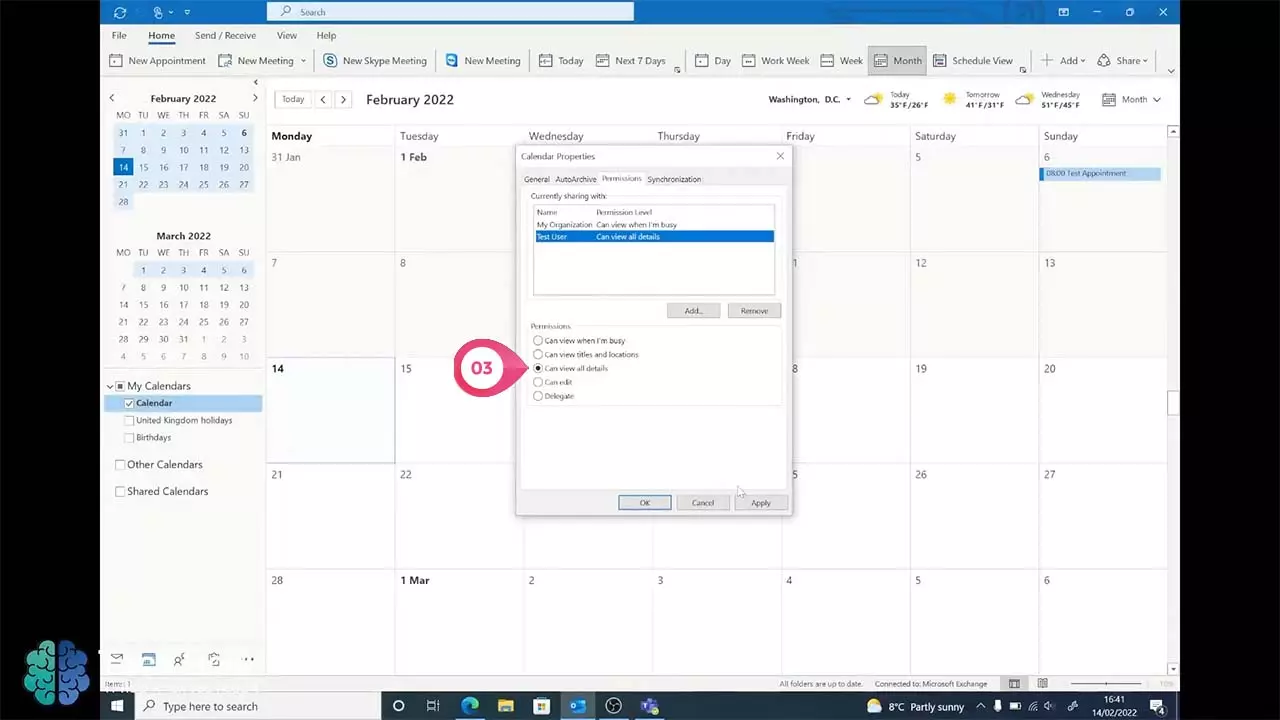
- Click on the “Share” button next to the calendar name.
- Select “Share calendar” from the dropdown menu.
- Enter the email address of the person you want to share with.
- Choose the level of access (Can View, Can Edit) and any additional settings as needed.
- Click “OK” to confirm.
Sharing Your Outlook Calendar on Mac
- Open Outlook and click on the calendar icon in the top left corner.
- Select the calendar you want to share from the sidebar.
- Right-click (or Control-click) on the calendar name and select “Share”.
- Enter the email address of the person you want to share with.
- Choose the level of access (Can View, Can Edit) and any additional settings as needed.
- Click “OK” to confirm.
Sharing Your Outlook Calendar on Android
- Open the Outlook app and tap on the calendar icon at the bottom.
- Tap on your profile picture in the top right corner.
- Select the calendar you want to share from the list.
- Tap on the “Add person” button.
- Enter the email address of the person you want to share with.
- Choose the level of access (Can View, Can Edit) and any additional settings as needed.
- Tap “Save” to confirm.
Sharing Your Outlook Calendar on Ios
- Open the Outlook app and tap on the calendar icon at the bottom.
- Tap on your profile picture in the top right corner.
- Select the calendar you want to share from the list.
- Tap on the “Add person” button.
- Enter the email address of the person you want to share with.
- Choose the level of access (Can View, Can Edit) and any additional settings as needed.
- Tap “Save” to confirm.
Sharing Your Outlook Calendar Online
If you don’t have access to the desktop or mobile app, you can also share your calendar online through the Outlook web version.
- Log in to your Outlook account online.
- Click on the calendar icon in the top right corner.
- Select the calendar you want to share from the sidebar.
- Right-click (or Control-click) on the calendar name and select “Share”.
- Enter the email address of the person you want to share with.
- Choose the level of access (Can View, Can Edit) and any additional settings as needed.
- Click “OK” to confirm.
Sharing Your Outlook Calendar With Google Calendar
If you’re using Google Calendar and want to share your Outlook calendar with it, you can export your Outlook calendar data in ICS format and import it into Google Calendar.
- Open Outlook on Windows or Mac and click on the calendar icon.
- Click on “Save calendar” from the menu.
- Choose the folder where you want to save the ICS file.
- Select the dates range for export and click “OK”.
-
Save the ICS file to your computer.
-
Log in to your Google Calendar account online.
- Click on the “+” button next to the calendar name.
- Select “Import” from the dropdown menu.
- Upload the ICS file you saved earlier.
- Follow the prompts to import the data into Google Calendar.
Conclusion
Sharing your Microsoft Outlook calendar with others can be a great way to stay organized and coordinate events or projects. By following these steps, you can share your calendar across various platforms, including Windows, Mac, Android, iOS, and online through the Outlook web version.
Remember to always request permission from the person you’re sharing with before sending them access to your calendar. With this guide, you should be able to easily share your Microsoft Outlook calendar with others!
Frequently Asked Questions
-
How do I Stop Sharing my Outlook Calendar?
- To stop sharing your calendar, log in to your Outlook account online and click on the calendar icon.
- Select the calendar you want to unshare from the sidebar and right-click (or Control-click) on the calendar name.
- Choose “Unshare” from the dropdown menu.
-
Can I Share my Outlook Calendar With Non-outlook Users?
- Yes, you can share your Outlook calendar with non-Outlook users by exporting your calendar data in ICS format and sharing it with them directly.
-
How do I Edit Permissions For a Shared Calendar?
- To edit permissions for a shared calendar, log in to your Outlook account online and click on the calendar icon.
- Select the calendar you want to edit from the sidebar and right-click (or Control-click) on the calendar name.
- Choose “Share” from the dropdown menu and edit the permissions as needed.
-
Can I Share Multiple Calendars at Once?
- Yes, you can share multiple calendars at once by selecting them all in the sidebar before sharing.
-
How do I Recover Shared Access to a Calendar?
- If you’ve accidentally removed someone’s access to your shared calendar, log in to your Outlook account online and click on the calendar icon.
- Select the calendar you want to restore from the sidebar and right-click (or Control-click) on the calendar name.
- Choose “Share” from the dropdown menu and add back the person who lost access.
-
Can I Share a Shared Calendar With Others?
- Yes, you can share a shared calendar with others by adding them as co-editors or viewers.
-
How do I Remove Someone’s Access to my Shared Calendar?
- To remove someone’s access to your shared calendar, log in to your Outlook account online and click on the calendar icon.
- Select the calendar you want to edit from the sidebar and right-click (or Control-click) on the calendar name.
- Choose “Share” from the dropdown menu and remove their access.
-
Can I Use Another Email Client With my Shared Calendar?
- Yes, you can use another email client like Google Calendar or Apple Calendar to view your shared calendar.
Note: The steps may vary slightly depending on the version of Outlook you’re using.


