
How to Share Your Monitor on Facetime: A Step-by-step Guide
Are you aware that FaceTime allows you to share your monitor with others during a video call? This feature, known as SharePlay, has been available since iOS 15.1 And macOS Monterey 12.1 (Beta version). In this article, we will guide you on how to share your monitor on FaceTime on both iPhone and iPad, as well as Mac.
Informazioni Preliminari
Before diving into the details of sharing your monitor on FaceTime, let’s provide some preliminary information. The sharing of monitors during a video call is a feature introduced by Apple in iOS 15.1 And macOS Monterey 12.1 (Beta version). This allows all participants to share their monitor and see each other’s activities, including browsing the web, watching videos, or listening to music.
Sharing Your Monitor on Facetime Iphone And Ipad
To share your monitor on FaceTime on an iPhone or iPad:
- Initiate a new call by tapping on the FaceTime icon (white video camera on green background).
- Select the “New” option from the menu.
- Choose the contact you want to add to the call from the advised list or manually enter their name, phone number, or email address.
- When prompted, tap the “FaceTime” button and wait for the recipient to answer.
- To share your monitor, tap on the icon of a person and a rectangle (visible in tall on iPhone and low left on iPad).
- Select the option “Share my monitor” from the menu.
Sharing Your Monitor on Facetime Mac
To share your monitor on FaceTime on a Mac:
- Initiate a new call by tapping on the FaceTime icon.
- Select the contact you want to add to the call from the advised list or manually enter their name, phone number, or email address.
- When prompted, tap the “FaceTime” button and wait for the recipient to answer.
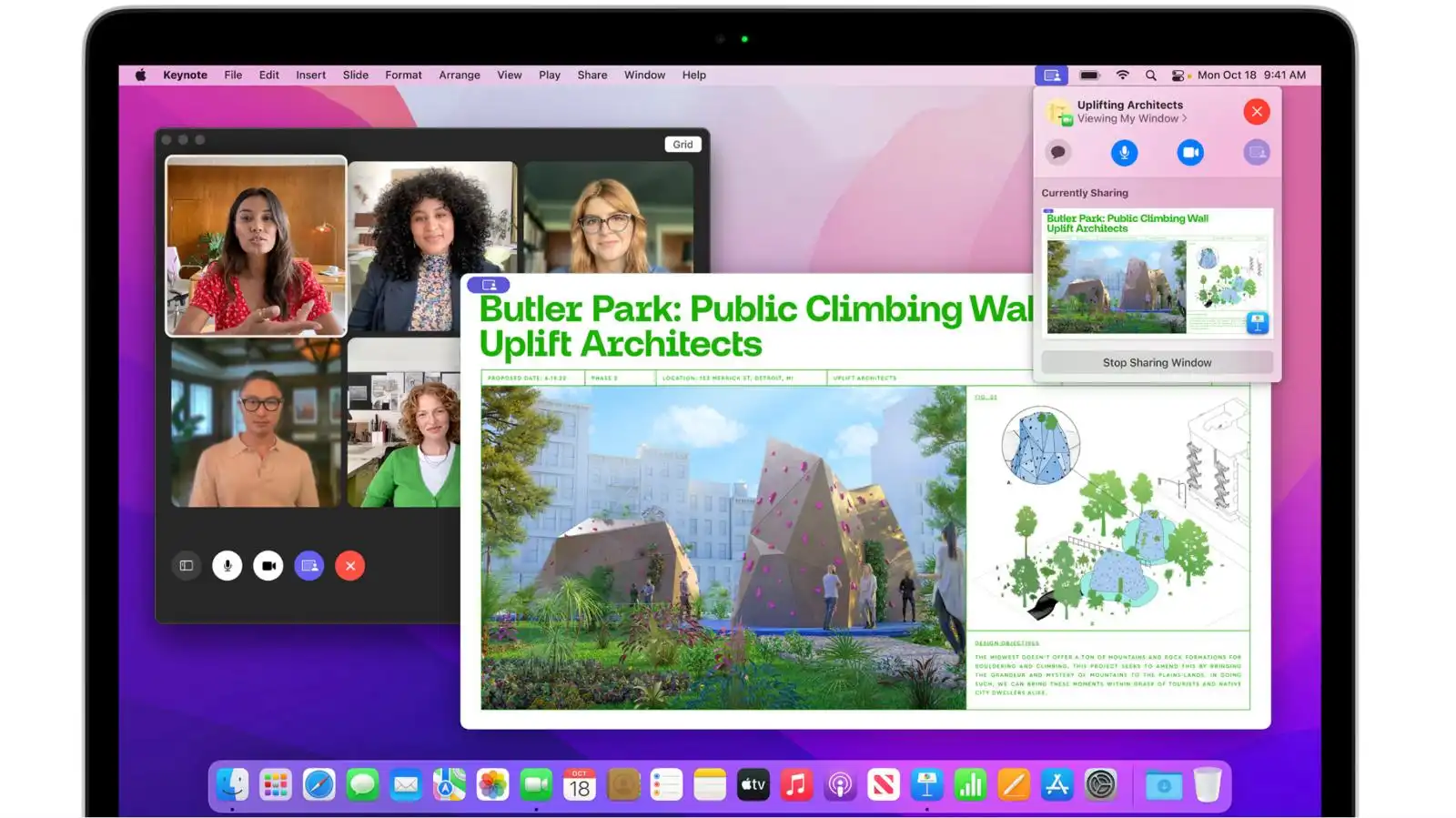
- To share your monitor, click on the icon of a person and a rectangle (visible in the top menu bar).
- Select the option “Share my monitor” from the menu.
Shareplay: Sharing Contents With Others
SharePlay is another feature introduced by Apple that allows you to share contents, such as videos or music, with others during a FaceTime call. To initiate SharePlay:
- Open an app that supports SharePlay (e.G., Apple TV+).
- Tap on the content you want to share and select the option “Share” from the menu.
- Choose the contact(s) you want to share with from your contacts list.
Discontinuing Sharing
To discontinue sharing, simply tap on the icon of a person and a rectangle (visible in tall on iPhone and low left on iPad) or click on it (on Mac). If initiated by another participant, you can also block the call or end the FaceTime session.
Tips And Tricks
- SharePlay allows all participants to control the playback of shared content.
- Some apps might not support SharePlay. In this case, recipients will see a message asking them to install the app.
- Sharing your monitor automatically ends if another participant initiates sharing.
Conclusion
Sharing your monitor on FaceTime is a convenient feature that enables seamless collaboration and entertainment with friends or colleagues. With this guide, you should now be able to initiate SharePlay and share your monitor on both iPhone, iPad, and Mac.


