
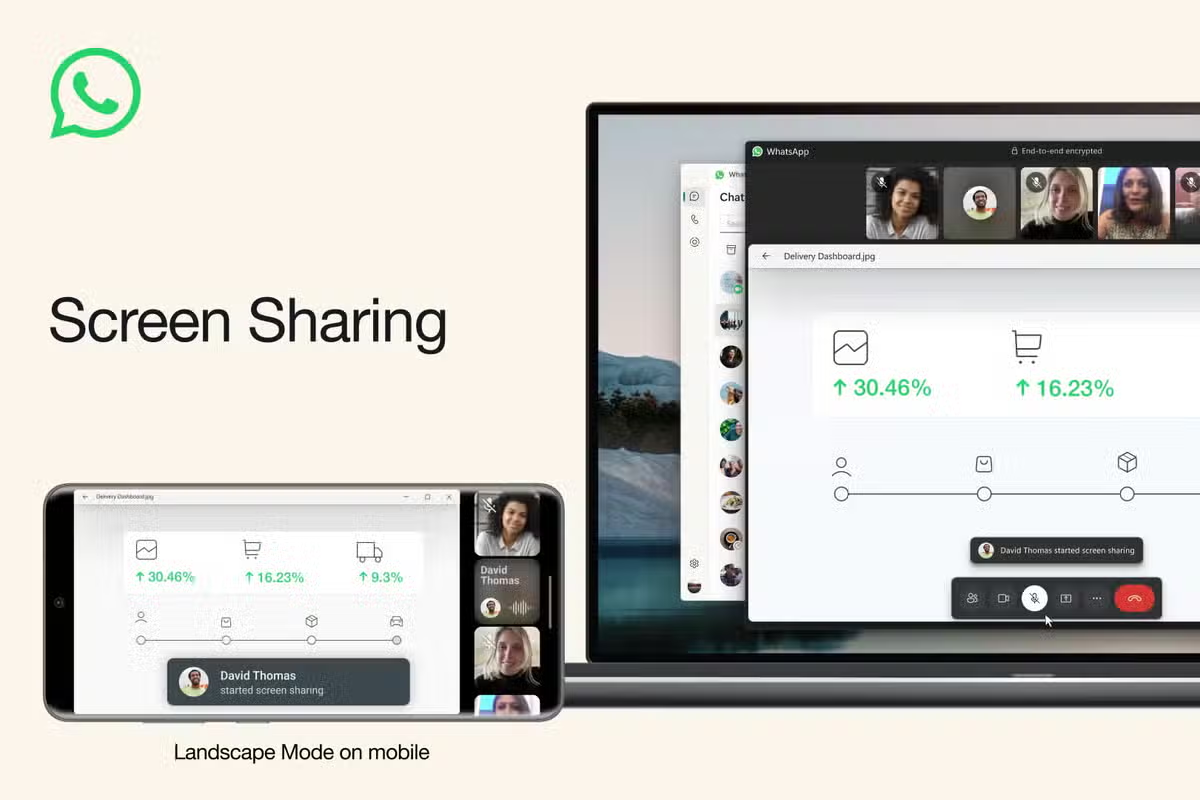
How to Share Your Monitor on Whatsapp
Are you tired of only being able to share a video call or voice message on WhatsApp? Do you want to show your friends exactly what’s on your screen? Look no further! In this article, we’ll guide you through the steps to share your monitor on WhatsApp.
Why Share Your Monitor on Whatsapp?
Sharing your monitor on WhatsApp is a great way to collaborate with friends or family members on projects. Whether it’s showing someone how to use an app or walking them through a tutorial, sharing your screen can make communication much easier and more effective.
Sharing Your Monitor on Android
To share your monitor on WhatsApp using an Android device:
- Initiate a Video Call: Open WhatsApp and navigate to the conversation with the person you want to call.
- Tap on The Camera Icon: Tap on the camera icon in the top right corner of the screen to initiate a video call.
- Wait For The Other Person to Answer: Wait for the other person to answer the call.
- Tap on The Share Screen Button: While on the call, tap on the share screen button (looks like an arrow inside a rectangle) in the bottom left corner of the screen.
- Select “Share Now”: Select “Share Now” from the menu that appears.
Sharing Your Monitor on Iphone
To share your monitor on WhatsApp using an iPhone:
- Open Whatsapp And Navigate to The Conversation: Open WhatsApp and navigate to the conversation with the person you want to call.
- Tap on The Chat Icon: Tap on the chat icon in the bottom center of the screen to initiate a video call.
- Wait For The Other Person to Answer: Wait for the other person to answer the call.
- Tap on The Share Screen Button: While on the call, tap on the share screen button (looks like an arrow inside a rectangle) in the bottom left corner of the screen.
- Select “Start Broadcasting”: Select “Start Broadcasting” from the menu that appears.
Sharing Your Monitor on PC
To share your monitor on WhatsApp using a PC:
- Open Whatsapp And Navigate to The Conversation: Open WhatsApp and navigate to the conversation with the person you want to call.
- Tap on The Video Call Button: Tap on the video call button in the top right corner of the screen to initiate a video call.
- Wait For The Other Person to Answer: Wait for the other person to answer the call.
- Click on The Share Screen Button: While on the call, click on the share screen button (looks like an arrow inside a rectangle) in the bottom left corner of the screen.
- Select “Share Window” or “Share Monitor”: Select either “Share Window” or “Share Monitor” from the menu that appears.
Sharing Your Monitor on Mac
To share your monitor on WhatsApp using a Mac:
Unfortunately, it is not currently possible to share your monitor on WhatsApp using a Mac. However, you can still use other methods to collaborate with friends and family members.
Why Can’t I Share My Monitor on Whatsapp Web?
It’s not currently possible to share your monitor on WhatsApp Web. However, you can still use the desktop version of WhatsApp to share your screen.
Conclusion
Sharing your monitor on WhatsApp is a great way to collaborate with friends or family members on projects. Whether you’re using an Android device, iPhone, PC, or Mac, following these steps will allow you to easily share your screen with others.
Faqs
- Q: Why Can’t I Share my Monitor on Whatsapp Web?
A: It’s not currently possible to share your monitor on WhatsApp Web. - Q: Can I Share my Monitor on Whatsapp Using a Mac?
A: Unfortunately, it is not currently possible to share your monitor on WhatsApp using a Mac. - Q: How do I End The Sharing of my Monitor on Whatsapp?
A: To end the sharing of your monitor on WhatsApp, simply tap or click on the “End Sharing” button. - Q: Can I Share Multiple Windows at Once on Whatsapp?
A: Yes, you can share multiple windows at once on WhatsApp by selecting the “Share Multiple Windows” option from the menu. - Q: Is it Possible to Record a Video Call or Screen Sharing Session on Whatsapp?
A: Unfortunately, it is not currently possible to record a video call or screen sharing session on WhatsApp.
I hope this article has been helpful in explaining how to share your monitor on WhatsApp!


