
How to Share Spotify on Instagram: A Step-by-step Guide
Are you a music lover who wants to share their favorite songs or playlists with friends and family on social media? Look no further! In this article, we’ll show you how to easily share Spotify content on Instagram.
Why Share Spotify on Instagram?
Spotify is one of the most popular music streaming services out there, and sharing your favorite tunes on Instagram can be a great way to connect with friends and family who also enjoy music. Plus, it’s a fun way to discover new artists and songs!
Sharing Spotify Content on Instagram: The Basics
To share Spotify content on Instagram, you’ll need to have the Spotify app installed on your smartphone or tablet. If you don’t already have Spotify, download it from the App Store (for iOS devices) or Google Play Store (for Android devices).
Sharing a Song or Playlist on Instagram: A Step-by-step Guide
- Open The Spotify App: Launch the Spotify app and navigate to the song or playlist you want to share.
- Tap The Share Button: Tap the share button on the top right corner of the screen.
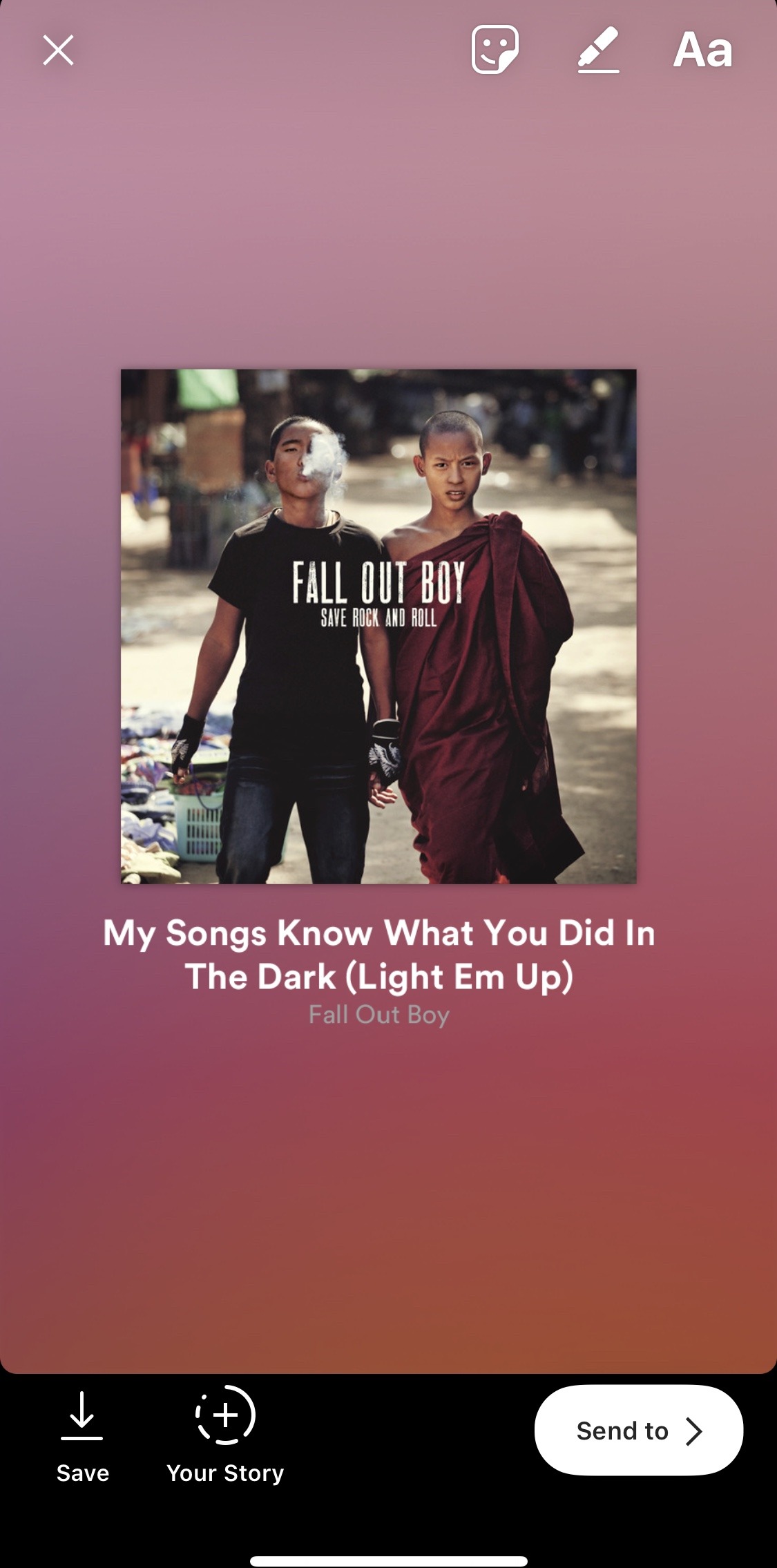
- Choose Instagram: Select Instagram from the list of available sharing options.
- Add a Caption (Optional): If you want to add a caption to your post, tap the text box and type away!
- Share Your Post: Tap “Post” to share your Spotify content on Instagram.
Tips For Sharing Spotify Content on Instagram
- Make sure you’re connected to Wi-Fi before sharing your Spotify content.
- Use relevant hashtags to reach a wider audience.
- Tag friends or family members who might enjoy the song or playlist.
- Experiment with different caption styles to add some personality to your post!
Sharing a Wrapped Playlist on Instagram
If you’ve created a Wrapped playlist, which showcases your listening habits for the year, sharing it on Instagram is a great way to share your musical journey. Here’s how:
- Open Spotify: Launch the Spotify app and navigate to your profile.
- Tap on Your Profile Picture: Tap on your profile picture in the top left corner of the screen.
- Select “Your Wrapped”: Select “Your Wrapped” from the dropdown menu.
- Choose a Playlist: Choose the playlist you want to share.
- Share on Instagram: Share the playlist on Instagram by tapping the share button and selecting Instagram.
Sharing Your Spotify Profile on Instagram
Want to share your entire Spotify profile with friends and family? Here’s how:
- Open Spotify: Launch the Spotify app and navigate to your profile.
- Tap on Your Profile Picture: Tap on your profile picture in the top left corner of the screen.
- Select “Your Name”: Select “Your Name” from the dropdown menu.
- Choose “Share”: Choose “Share” from the bottom navigation bar.
- Select Instagram: Select Instagram as your sharing platform.
Sharing Spotify Content on Instagram: A Final Tip
When sharing Spotify content on Instagram, remember to keep it fun and engaging! Use relevant hashtags, tag friends or family members, and add a caption that adds some personality to your post.
Faqs
- Can I Share Individual Songs From Spotify on Instagram?
Yes, you can share individual songs from Spotify on Instagram by tapping the share button on the song’s page. - How do I Share a Wrapped Playlist on Instagram?
To share a Wrapped playlist on Instagram, follow the steps outlined above under “Sharing a Wrapped Playlist on Instagram.” - Can I Share my Entire Spotify Profile on Instagram?
Yes, you can share your entire Spotify profile on Instagram by following the steps outlined above under “Sharing Your Spotify Profile on Instagram.” - How do I Add a Caption to my Spotify Post on Instagram?
To add a caption to your Spotify post on Instagram, tap the text box and type away! - Can I Tag Friends or Family Members in my Spotify Post on Instagram?
Yes, you can tag friends or family members in your Spotify post on Instagram by typing their handle in the caption. - How do I Share a Video of a Song From Spotify on Instagram?
To share a video of a song from Spotify on Instagram, record the video using a third-party app and then share it on Instagram. - Can I Share a Playlist From Spotify on Instagram?
Yes, you can share a playlist from Spotify on Instagram by tapping the share button on the playlist’s page.
Conclusion
Sharing Spotify content on Instagram is easy and fun! By following these simple steps, you can share your favorite songs, playlists, or Wrapped profiles with friends and family. Don’t forget to keep it engaging and use relevant hashtags to reach a wider audience. Happy sharing!


