
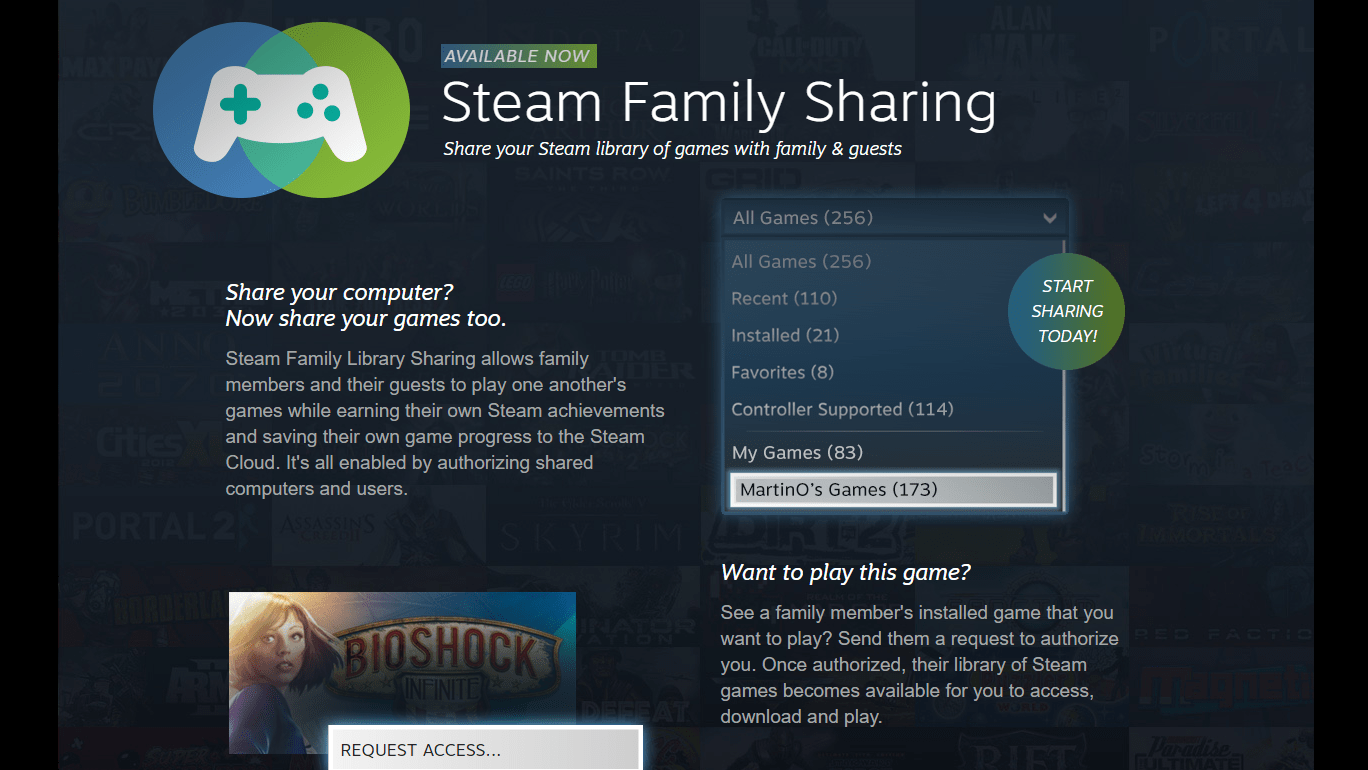
Sharing Your Steam Library: A Guide
Are you a gamer who loves sharing your passion with family and friends? Do you have a vast collection of games on Steam that you’d like to share with others? Look no further! In this article, we’ll guide you through the process of sharing your Steam library with loved ones.
What is Family Sharing on Steam?
Family Sharing is a feature on Steam that allows you to share your library with family members or friends. This means that they can access and play games from your library without having to purchase them separately. It’s a great way to share the gaming experience with others while also saving money.
How Does Family Sharing Work?
To enable Family Sharing, you’ll need to set up a shared Steam account. This will allow multiple users to access and play games from your library. Here’s a step-by-step guide:
- Initiate Steam: Open Steam on the device you want to share with.
- Authorize Access: Have the person you want to share with log in to their Steam account on that device.
- Access Shared Library: Once authorized, they’ll have access to your shared library.
Limitations And Exceptions
While Family Sharing is a great feature, there are some limitations and exceptions to be aware of:
- Number of Users: You can share your library with up to 5 other users at any given time.
- Device Limitations: You can authorize sharing on up to 10 devices within a 90-day period.
- Game Availability: Not all Steam games are eligible for Family Sharing. Games that require a separate purchase or subscription won’t be shared.
How to Share Your Steam Library on PC
Sharing your Steam library on PC is a straightforward process:
- Launch Steam: Open Steam and log in with your account credentials.
- Access Settings: Go to Settings > Family, then toggle the switch next to “Authorize sharing on this device.”
- Add Authorized Users: Add the users you want to share with by selecting their names from the list.
How to Share Your Steam Library Online
Unfortunately, it’s not currently possible to share your Steam library online using the web version of Steam. However, you can manage your shared library and revoke authorizations remotely through the Steam website.
- Access Steam Website: Log in to your Steam account on the official website.
- Manage Shared Library: Go to your profile page and select “Manage Family Library Sharing.”
- Revoke Authorizations: Click on the “Revoke” button next to the user’s name to remove their access.
How to Share Your Steam Library on Mobile Devices
While you can’t share your library on mobile devices directly, you can revoke authorizations for those devices remotely:
- Launch Steam App: Open the Steam app on your mobile device.
- Log In: Log in with your account credentials and PIN (if required).
- Manage Shared Library: Go to Account Details > Family Settings and select “Manage Family Library Sharing.”
- Revoke Authorizations: Click on the “Revoke” button next to the user’s name to remove their access.
Conclusion
Sharing your Steam library with loved ones is a great way to share the gaming experience while saving money. By following these steps, you can enable Family Sharing and enjoy games together without having to purchase them separately. Remember to be aware of limitations and exceptions when sharing your library.
Frequently Asked Questions (FAQs)
- Q: Can I Share my Steam Library With Anyone?
A: No, you can only share with family members or friends who have a valid Steam account. - Q: How Many Users Can I Share With at Once?
A: Up to 5 users at any given time. - Q: Can I Revoke Authorizations Remotely?
A: Yes, you can manage your shared library and revoke authorizations through the Steam website or mobile app. - Q: What Games Are Not Eligible For Family Sharing?
A: Games that require a separate purchase or subscription won’t be shared. - Q: Can I Share my Steam Library With Users Who Don’t Live With Me?
A: No, Family Sharing is only available for users who live with you and have access to your device. - Q: How do I Manage my Shared Library Remotely?
A: Go to the Steam website or mobile app and select “Manage Family Library Sharing” from your profile page. - Q: Can I Revoke Authorizations on a Specific Device?
A: Yes, you can revoke authorizations for individual devices through the Steam website or mobile app. - Q: What Happens if I Revoke an Authorization?
A: The user will lose access to your shared library and won’t be able to play games from it.
I hope this article has been informative and helpful in sharing your Steam library with loved ones!


