
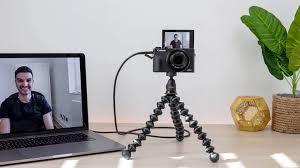
Recording a Video With Your Webcam: A Step-by-step Guide
Are you looking to record a video with your webcam, but not sure where to start? Look no further! In this article, we will guide you through the process of recording a video with your webcam on both Windows and Mac operating systems.
Why Record a Video With Your Webcam?
Recording a video with your webcam can be useful for various purposes. You might want to record a video message for a friend or family member, create content for your YouTube channel, or participate in an online talent show. Whatever the reason, recording a video with your webcam is a straightforward process that requires minimal equipment.
Recording a Video With Your Webcam on Windows
If you’re using a Windows operating system, you can record a video with your webcam using the built-in Camera app. Here’s how:
- Open The Camera App: Click on the Start button and type “Camera” in the search bar. Select the Camera app from the list of results.
- Switch to Video Mode: In the Camera app, click on the Video button at the top of the window to switch to video mode.
- Start Recording: Click on the Record button to start recording your video. A red circle will appear around the record button to indicate that you’re recording.
- Stop Recording: To stop recording, click on the Stop button.
Recording a Video With Your Webcam on Mac
If you’re using a Mac operating system, you can record a video with your webcam using the QuickTime Player app or Photo Booth app. Here’s how:
- Open Quicktime Player: Click on the Launchpad icon in the dock and select QuickTime Player from the list of apps.
- Create a New Recording: In the menu bar, click on File > New Recording to create a new recording.
- Switch to Video Mode: In the QuickTime Player window, click on the Record button to switch to video mode.
- Start Recording: Click on the Record button to start recording your video. A red circle will appear around the record button to indicate that you’re recording.
- Stop Recording: To stop recording, click on the Stop button.
Alternative Software For Recording a Video With Your Webcam
If you want to use alternative software to record a video with your webcam, here are some options:
- OBS (Open Broadcaster Software): A free and open-source software that allows you to record and stream video.
- Splitcam: A free program that allows you to record video from your webcam and stream it online.
- Debut Video Capture: A paid software that allows you to record video from your webcam, as well as other external devices.
Tips And Tricks
Here are some tips and tricks to keep in mind when recording a video with your webcam:
- Use Good Lighting: Make sure the room is well-lit and there’s no harsh light shining directly on your face.
- Adjust The Camera Settings: Experiment with different camera settings, such as resolution and frame rate, to find what works best for you.
- Practice Makes Perfect: Don’t be discouraged if your first few recordings aren’t perfect. Practice makes perfect!
Conclusion
Recording a video with your webcam is a straightforward process that requires minimal equipment. Whether you’re using a Windows or Mac operating system, there are various software options available to help you record high-quality video. Remember to follow the tips and tricks outlined above to ensure the best possible results.
Frequently Asked Questions (FAQs)
- Q: What is The Best Software For Recording a Video With my Webcam?
A: The best software for recording a video with your webcam depends on your specific needs and preferences. OBS, Splitcam, and Debut Video Capture are all popular options. - Q: How do I Improve The Quality of my Recorded Video?
A: To improve the quality of your recorded video, make sure to use good lighting, adjust the camera settings to suit your needs, and practice makes perfect! - Q: Can I Record a Video With my Webcam on my Phone?
A: Yes, you can record a video with your webcam using your phone’s built-in Camera app. - Q: How do I Share my Recorded Video Online?
A: You can share your recorded video online by uploading it to YouTube, Vimeo, or other video sharing platforms. - Q: Can I Use my Webcam to Stream Live Video Online?
A: Yes, you can use your webcam to stream live video online using software like OBS or Splitcam. - Q: How do I Record a Video With my Webcam on Multiple Devices at Once?
A: To record a video with your webcam on multiple devices at once, you’ll need to use specialized software that allows for multi-camera recording. - Q: Can I Edit And Enhance my Recorded Video Using Software Like Adobe Premiere Pro or Final Cut Pro?
A: Yes, you can edit and enhance your recorded video using software like Adobe Premiere Pro or Final Cut Pro.
Additional Resources


