
Displaying a Preferred Bar in Google Chrome
Are you tired of Google Chrome’s minimalist interface? Do you want to bring back the classic bookmark bar like in older versions of Internet Explorer and Firefox? Look no further! In this guide, we’ll show you how to display a preferred bar in Google Chrome on PC, smartphone, and tablet.
Why Display a Preferred Bar?
The preferred bar allows you to access your bookmarks without having to type out the addresses. It’s a convenient feature that can save you time and effort when navigating through the web. By displaying a preferred bar, you can:
- Quickly access your favorite websites
- Save time by avoiding typing long URLs
- Improve your browsing experience
How to Display a Preferred Bar in Google Chrome on PC
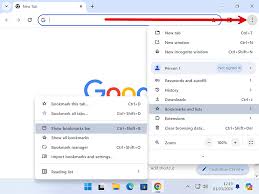
To display a preferred bar in Google Chrome on PC, follow these steps:
- Open Google Chrome: Click on the Google Chrome icon on your desktop or start menu.
- Click on The Three Vertical Dots: In the top-right corner of the browser window, click on the three vertical dots ⁝.
- Select “Display Bookmarks Bar”: From the dropdown menu, select “Display bookmarks bar”.
- Enable The Preferred Bar: A new bar will appear under the address bar with your bookmarks.
Alternatively, you can press the combination of keys Ctrl+Shift+B to enable the preferred bar.
How to Customize The Preferred Bar
Once you’ve enabled the preferred bar, you can customize it by:
- Deleting a Bookmark: Click on the three vertical dots ⁝ next to the bookmark you want to delete.
- Disabling a Bookmark: Right-click on the bookmark and select “Remove from bookmarks”.
- Modifying a Bookmark: Left-click on the bookmark and modify its name or URL.
How to Display a Preferred Bar in Google Chrome on Mac
If you’re using Google Chrome on a Mac, follow these steps:
- Open Google Chrome: Click on the Google Chrome icon in the dock.
- Click on The Three Vertical Dots: In the top-right corner of the browser window, click on the three vertical dots ⁝.
- Select “Always Show Bookmarks Bar”: From the dropdown menu, select “Always show bookmarks bar”.
- Enable The Preferred Bar: A new bar will appear under the address bar with your bookmarks.
Alternatively, you can press the combination of keys cmd+shift+b to enable the preferred bar.
How to Display a Preferred Bar in Google Chrome on Android
Unfortunately, it’s not possible to display a preferred bar in Google Chrome on Android devices. The visual interface is designed differently for mobile devices, and a separate bookmarks menu is provided.
However, you can still access your bookmarks by:
- Tapping The Three Vertical Dots: In the top-right corner of the browser window, tap the three vertical dots ⁝.
- Selecting “Bookmarks”: From the dropdown menu, select “Bookmarks”.
- Accessing Your Bookmarks: A new page will appear with your bookmarks.
How to Display a Preferred Bar in Google Chrome on Iphone
If you’re using Google Chrome on an iPhone or iPad, follow these steps:
- Open Google Chrome: Tap the Google Chrome icon on your home screen.
- Tap The Three Vertical Dots: In the top-right corner of the browser window, tap the three vertical dots ⁝.
- Select “Bookmarks”: From the dropdown menu, select “Bookmarks”.
- Access Your Bookmarks: A new page will appear with your bookmarks.
Conclusion
Displaying a preferred bar in Google Chrome is a simple process that can improve your browsing experience. Whether you’re using a PC, Mac, or mobile device, follow our guide to enable this feature and enjoy faster access to your favorite websites!
Frequently Asked Questions
Q: Can I display a preferred bar on my Android device?
A: Unfortunately, it’s not possible to display a preferred bar in Google Chrome on Android devices.
Q: How do I customize the preferred bar?
A: You can delete, disable, or modify bookmarks by clicking on the three vertical dots ⁝ next to each bookmark.
Q: Can I display a preferred bar on my iPhone or iPad?
A: Yes, follow our guide to access your bookmarks on your iPhone or iPad device.


