
How to Display Hidden Folders on Your Computer: A Step-by-step Guide
Are you wondering how to display hidden folders on your computer? Look no further! In this article, we’ll take a deep dive into the world of hidden folders and provide you with a comprehensive guide on how to access them on various operating systems, including Windows, macOS, Android, iPhone, and more.
What Are Hidden Folders?
Before we begin, let’s quickly define what hidden folders are. In simple terms, hidden folders are files or directories that are not visible by default in your computer’s file explorer or file manager. These folders can be used to store sensitive data, such as confidential documents, financial information, or personal photos.
Why Display Hidden Folders?
Displaying hidden folders can be useful for several reasons:
- Data Recovery: If you’ve accidentally deleted important files, displaying hidden folders can help you recover them.
- Organization: Hidden folders can become disorganized over time. By displaying them, you can better manage your digital clutter and keep your computer organized.
- Security: Displaying hidden folders can also help you identify potential security threats, such as malware or viruses that may be hiding in these folders.
How to Display Hidden Folders on Windows
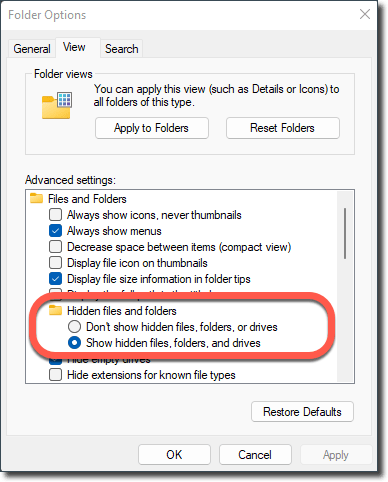
If you’re using a Windows operating system (Windows 8.X, Windows 10), displaying hidden folders is relatively straightforward:
- Open File Explorer: Press the Windows key + E to open File Explorer.
- Click on “Explore”: In the top-left corner of the window, click on the “Explore” button (represented by a yellow folder icon).
- Select “Show Hidden Files And Folders”: In the menu that appears, select “Show hidden files and folders.”
How to Display Hidden Folders on Macos
If you’re using a Mac, displaying hidden folders is slightly more involved:
- Open Finder: Click on the Finder icon in your Dock or use Spotlight to search for it.
- Click on “Go”: In the menu bar at the top of the screen, click on “Go.”
- Select “Utilities”: From the drop-down menu, select “Utilities.”
- Open Terminal: Double-click on the Terminal icon in Utilities to open a new window.
- Type
defaults Write Com.Apple.Finder Appleshowallfiles TrueAnd Press Enter: This command will display hidden folders in Finder.
How to Display Hidden Folders on Android
If you’re using an Android device, displaying hidden folders can be done through the Settings app:
- Open Settings: Swipe down from the top of the screen or click on the gear icon to open the Settings app.
- Select “Storage”: Scroll down and select “Storage.”
- Click on The Three Dots: In the bottom-right corner of the window, click on the three dots (⋯).
- Select “Show Hidden Files”: From the drop-down menu, select “Show hidden files.”
How to Display Hidden Folders on Iphone
If you’re using an iPhone, displaying hidden folders can be done through the Files app:
- Open Files: Tap on the Files icon (represented by a folder) to open the Files app.
- Click on The Three Dots: In the bottom-right corner of the window, click on the three dots (⋯).
- Select “Show Hidden Files”: From the drop-down menu, select “Show hidden files.”
Conclusion
In conclusion, displaying hidden folders can be a useful tool for managing your digital clutter, recovering deleted files, and identifying potential security threats. By following these step-by-step guides, you should now have a comprehensive understanding of how to display hidden folders on various operating systems.
Frequently Asked Questions (FAQs)
Here are some frequently asked questions related to displaying hidden folders:
- Q: What Happens if I Display Hidden Folders?
A: Displaying hidden folders will make them visible in your file explorer or file manager. - Q: Will Displaying Hidden Folders Compromise my Security?
A: No, displaying hidden folders is a safe operation and won’t compromise your security. -
Q: Can I Hide Folders Again After Displaying Them?
Yes, you can easily hide folders again by following the same steps as before.
By understanding how to display hidden folders on various operating systems, you’ll be better equipped to manage your digital clutter and keep your computer organized.


