
Displaying Notifications on Samsung Smartphones: A Step-by-step Guide
Are you tired of missing important notifications on your Samsung smartphone? Do you want to stay up-to-date with the latest updates from your favorite apps without having to constantly check your screen? Look no further! In this article, we will guide you through the process of displaying notifications on your Samsung device.
Table 1: Preliminary Steps
| Step | Description |
|---|---|
| 1. Enable Notifications | Go to Settings > Notifications and enable notifications for each app that interests you. |
| 2. Check App Settings | Some apps may require you to enable notifications within their own settings, not just in the phone’s settings. |
How to Display Notifications on Samsung Smartphones
If you’re wondering how to display notifications on your Samsung smartphone, it’s quite straightforward. To do this, follow these steps:
- Open The Settings App: Go to your phone’s Settings app.
- Scroll Down to “Screen”: Look for the “Screen” option and tap on it.
- Select “Lock Screen”: Choose the “Lock screen” option from within the Screen menu.
- Enable Notifications: Enable notifications by tapping on the switch next to “Notifications”.
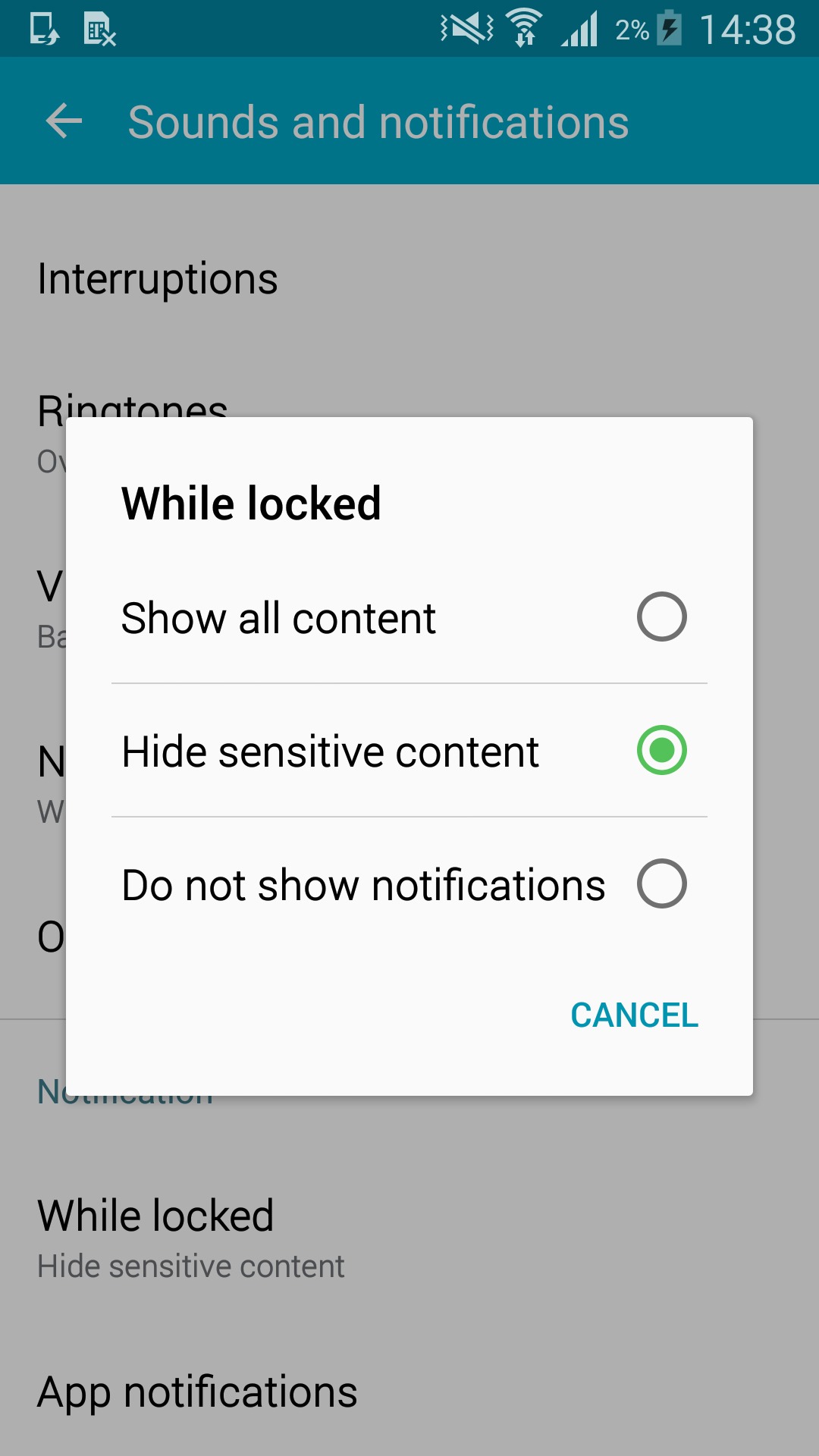
- Choose Notification Type: You can choose whether you want to display only icons, details, or both.
How to Display Notifications on Always On Display (AOD)
If your Samsung device is equipped with the AOD feature, you can also display notifications while the screen is off. Here’s how:
- Enable Aod: Go to Settings > Lock screen and choose “Always on” display.
- Tap on The Three Dots (…): Tap on the three dots at the top-right corner of the screen.
- Select “Notification Panel”: Choose “Notification panel” from the dropdown menu.
- Enable Notifications: Enable notifications by tapping on the switch next to “Notifications”.
Tips And Tricks
- To prevent excessive transparency, avoid setting the notification background too transparent, as it may interfere with reading the content of notifications.
- To conceal notification contents, enable the “Conceal” option, which will display only icons or app names on the lock screen.
Conclusion
Displaying notifications on your Samsung smartphone is a straightforward process that can be customized to suit your preferences. By following these steps and tips, you’ll be able to stay up-to-date with important updates from your favorite apps without having to constantly check your screen.
Frequently Asked Questions (FAQs)
- Q: Why do I Need to Enable Notifications For Each App Separately?
A: Each app has its own settings for notifications, so it’s essential to enable them individually. - Q: Can I Customize Notification Types on Always On Display (AOD)?
A: Yes, you can choose whether to display icons or details, but keep in mind that excessive transparency may interfere with reading the content of notifications. - Q: How do I Conceal Notification Contents?
A: To conceal notification contents, enable the “Conceal” option, which will display only icons or app names on the lock screen. - Q: Can I Disable Notifications For Individual Apps?
A: Yes, you can disable notifications for specific apps by going to Settings > Notifications and turning off notifications for that particular app. - Q: Why do Some Apps Require me to Enable Notifications Within Their Own Settings?
A: Some apps have unique requirements for notifications, so it’s essential to check their individual settings. - Q: Can I Customize The Appearance of Always On Display (AOD)?
A: Yes, you can personalize AOD by selecting different themes and styles. - Q: Why do I Need to Enable Always On Display (AOD) For Notifications?
A: Enabling AOD allows you to display notifications while the screen is off, making it a convenient feature.
I hope this article has helped you understand how to display notifications on your Samsung smartphone!


