
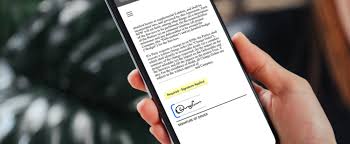
Signing a Pdf on Your Mobile: A Guide
Are you tired of printing out documents only to sign them with a pen, then scanning the signed copy? There’s a better way! With your mobile device, you can sign PDFs digitally using various apps and tools. In this article, we’ll explore the different options available for signing a PDF on your Android or iOS device.
Understanding Digital Signatures
Before we dive into the how-to section, it’s essential to understand what digital signatures are and their legal implications. A digital signature is an electronic equivalent of a handwritten signature. It uses encryption technology to ensure that the document has not been tampered with during transmission. In terms of legality, digital signatures are considered valid in most countries, including Italy.
Types of Digital Signatures
There are several types of digital signatures, each with its own level of security and legal validity:
- Facile Electronic Signature: This is the type of digital signature used in this article. It’s a simple and widely accepted method for signing documents.
- Advanced Electronic Signature: This type of signature uses more advanced encryption methods to ensure the integrity and authenticity of the document.
- Qualified Electronic Signature: This type of signature is created using specialized software and is considered more secure than facile electronic signatures.
Adobe Fill & Sign
The first app we’ll explore is Adobe Fill & Sign, available for both Android and iOS devices. This app allows you to sign PDFs digitally using your device’s touchscreen or a camera to capture an image of your signature. Here’s how to use it:
- Download and install the Adobe Fill & Sign app from the Google Play Store (Android) or the App Store (iOS).
- Open the app and select the “Fill & Sign” option.
- Choose the document you want to sign, or create a new one using the app’s built-in tools.
- Select the signature tool and choose how you want to add your signature: By drawing it on the touchscreen or uploading an image of your signature from your camera roll.
- Once you’ve added your signature, review the document and make any necessary changes.
- Save the signed document to your device or share it via email or other methods.
Adobe Acrobat Reader
Another app developed by Adobe is Acrobat Reader, available for both Android and iOS devices. This app allows you to sign PDFs digitally using your device’s touchscreen or a camera to capture an image of your signature. Here’s how to use it:
- Download and install the Adobe Acrobat Reader app from the Google Play Store (Android) or the App Store (iOS).
- Open the app and select the “Fill & Sign” option.
- Choose the document you want to sign, or create a new one using the app’s built-in tools.
- Select the signature tool and choose how you want to add your signature: By drawing it on the touchscreen or uploading an image of your signature from your camera roll.
- Once you’ve added your signature, review the document and make any necessary changes.
- Save the signed document to your device or share it via email or other methods.
Pdf Extra
The PDF Extra app is available for both Android and iOS devices. This app allows you to sign PDFs digitally using your device’s touchscreen or a camera to capture an image of your signature. Here’s how to use it:
- Download and install the PDF Extra app from the Google Play Store (Android) or the App Store (iOS).
- Open the app and select the “Fill & Sign” option.
- Choose the document you want to sign, or create a new one using the app’s built-in tools.
- Select the signature tool and choose how you want to add your signature: By drawing it on the touchscreen or uploading an image of your signature from your camera roll.
- Once you’ve added your signature, review the document and make any necessary changes.
- Save the signed document to your device or share it via email or other methods.
Atre Solutions
There are several other solutions available for signing PDFs digitally on your mobile device. Some of these include:
- Docusign: This app allows you to sign documents digitally using your device’s touchscreen or a camera to capture an image of your signature.
- Sejda: This online service allows you to sign PDFs digitally using your web browser. You can upload a document, add a signature, and save the signed document.
- Jet Sign: This app allows you to sign documents digitally using your device’s touchscreen or a camera to capture an image of your signature.
Conclusion
Signing a PDF on your mobile device is a convenient and efficient way to manage digital documents. With various apps and tools available for both Android and iOS devices, you can choose the method that best suits your needs. Whether you prefer Adobe Fill & Sign, Acrobat Reader, PDF Extra, or one of the other solutions, you’ll be able to sign PDFs digitally with ease.
Faqs
Here are some frequently asked questions related to signing PDFs on mobile devices:
- What is a Digital Signature?
A digital signature is an electronic equivalent of a handwritten signature. - How do I Add a Digital Signature to a Pdf?
You can use various apps, such as Adobe Fill & Sign, Acrobat Reader, or PDF Extra, to add a digital signature to a PDF. - What Types of Digital Signatures Are Available?
There are several types of digital signatures, including facile electronic signatures, advanced electronic signatures, and qualified electronic signatures. - Can I Sign a Pdf on my Mobile Device Using Adobe Acrobat Reader?
Yes, you can use Adobe Acrobat Reader to sign a PDF on your mobile device. - How do I Save a Signed Pdf on my Mobile Device?
You can save a signed PDF on your mobile device by sharing it via email or saving it to your device’s storage.
Conclusion
Signing a PDF on your mobile device is a convenient and efficient way to manage digital documents. With various apps and tools available for both Android and iOS devices, you can choose the method that best suits your needs. Whether you prefer Adobe Fill & Sign, Acrobat Reader, PDF Extra, or one of the other solutions, you’ll be able to sign PDFs digitally with ease.
Additional Tips
Here are some additional tips related to signing PDFs on mobile devices:
- Use a Secure Password: Make sure to use a strong and unique password for your mobile device to prevent unauthorized access.
- Keep Your Apps Updated: Regularly update your apps, including those used for digital signatures, to ensure you have the latest security patches and features.
- Be Cautious With Public Wi-fi: Avoid using public Wi-Fi networks when accessing sensitive documents or signing PDFs digitally.
By following these tips and using the right tools, you’ll be able to sign PDFs digitally on your mobile device with confidence.


