
How to Enroll on Linkedin: A Step-by-step Guide
Are you looking to join the world’s largest professional networking platform? Look no further! In this article, we’ll guide you through the process of enrolling on LinkedIn, from desktop computers to smartphones and tablets.
Why Join Linkedin?
LinkedIn is more than just a social media platform. It’s a powerful tool for professionals to connect, network, and find new opportunities. With over 700 million users worldwide, it’s an ideal place to build your online presence, showcase your skills, and stay up-to-date with industry news.
Enrolling on Linkedin: Desktop Computers
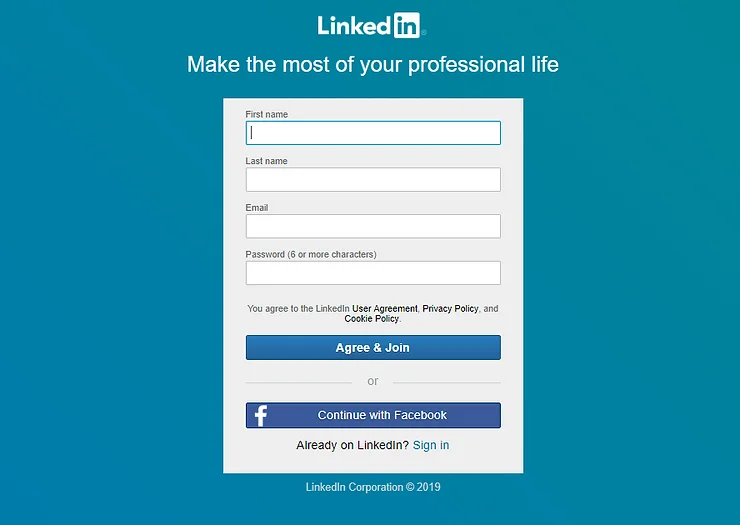
To enroll on LinkedIn using a desktop computer, follow these steps:
- Access The Linkedin Website: Open your web browser and go to www.Linkedin.Com.
- Click on “Join Now”: Look for the “Join Now” button at the top right corner of the page.
- Enter Your Email Address: Fill in your email address and choose a password.
- Verify Your Email Address: Check your inbox for a verification email from LinkedIn and click on the link to confirm.
- Complete Your Profile: Fill out your profile information, including your name, location, industry, and work experience.
- Add Your Education: Add your educational background, including your school and degree.
- Upload a Profile Picture: Upload a professional photo to represent yourself.
Enrolling on Linkedin: Smartphones And Tablets
If you don’t have access to a desktop computer, you can still enroll on LinkedIn using your smartphone or tablet:
- Download The Linkedin App: Get the LinkedIn app from the App Store (for iOS devices) or Google Play Store (for Android devices).
- Open The App: Open the app and tap on “Join Now”.
- Enter Your Email Address: Fill in your email address and choose a password.
- Verify Your Email Address: Check your inbox for a verification email from LinkedIn and tap on the link to confirm.
- Complete Your Profile: Fill out your profile information, including your name, location, industry, and work experience.
Enrolling on Linkedin as an Employee
If you’re enrolling on LinkedIn as an employee of a company, follow these steps:
- Access The Company’s Linkedin Page: Find the company’s LinkedIn page and click on “Create a Page” button.
- Fill Out Your Company Information: Complete your company profile information, including your name, location, industry, and work experience.
- Add Your Employees: Add your employees to the company page.
Accessing Linkedin as a Recruiter
If you’re looking to use LinkedIn for recruiting purposes, follow these steps:
- Contact Linkedin Sales Team: Reach out to the LinkedIn sales team to discuss your recruitment needs.
- Get Access to Recruiting Tools: Get access to LinkedIn’s recruiting tools, including Work and Recruiter.
Canceling Your Linkedin Account
If you no longer want to use LinkedIn or have encountered issues with the platform, you can cancel your account:
- Go to Settings And Privacy: Click on “Settings and Privacy” and scroll down to “Close account”.
- Choose a Reason For Closing: Select a reason why you’re closing your account.
- Confirm Your Password: Enter your password to confirm.
Conclusion
Enrolling on LinkedIn is a simple process that can help you connect with professionals, build your online presence, and stay up-to-date with industry news. Whether you’re enrolling as an individual or an employee, following these steps will guide you through the process. If you have any issues or need further assistance, don’t hesitate to contact LinkedIn’s support team.
Frequently Asked Questions
- Q: How do I Enroll on Linkedin?
A: To enroll on LinkedIn, go to www.Linkedin.Com and click on “Join Now”. - Q: Can I Use Linkedin For Recruiting Purposes?
A: Yes, you can use LinkedIn for recruiting purposes by contacting the LinkedIn sales team. - Q: How do I Cancel my Linkedin Account?
A: To cancel your LinkedIn account, go to Settings and Privacy and scroll down to “Close account”. - Q: What Are The Benefits of Joining Linkedin?
A: Joining LinkedIn can help you connect with professionals, build your online presence, and stay up-to-date with industry news. - Q: Is Linkedin Free to Use?
A: Yes, LinkedIn is free to use for individuals. However, some features may require a premium subscription.


