
How to Silence Notifications on Android, Iphone, Whatsapp, Facebook, Messenger, Instagram, And Telegram
Are you tired of being bombarded with notifications from various apps on your smartphone? Do you want to silence them without completely turning off your phone’s alerts? You’ve come to the right place! In this article, we’ll guide you through the step-by-step process of silencing notifications on Android, iPhone, WhatsApp, Facebook, Messenger, Instagram, and Telegram.
Table 1: Silencing Notifications on Android
| App | Steps to Silence Notifications |
|---|---|
| All Apps | Go to Settings > Sound & Vibration > Do Not Disturb |
| Specific Apps | Go to Settings > Apps > [App Name] > Notifications > Block |
Silencing Notifications on Android
If you’re using an Android device, silencing notifications is a straightforward process. To silence all apps at once:
- Go to Settings
- Scroll down and select Sound & Vibration
- Tap on Do Not Disturb
To silence specific apps:
- Go to Settings > Apps
- Select the app you want to silence (e.G., WhatsApp, Facebook)
- Tap on Notifications
- Select Block to disable notifications for that app
Table 2: Silencing Notifications on Iphone
| App | Steps to Silence Notifications |
|---|---|
| All Apps | Go to Settings > Sounds & Haptics > Do Not Disturb |
| Specific Apps | Go to Settings > Notifications > [App Name] > Allow Notifications |
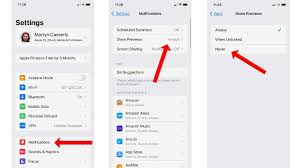
Silencing Notifications on Iphone
If you’re using an iPhone, silencing notifications is equally easy. To silence all apps at once:
- Go to Settings
- Scroll down and select Sounds & Haptics
- Tap on Do Not Disturb
To silence specific apps:
- Go to Settings > Notifications
- Select the app you want to silence (e.G., WhatsApp, Facebook)
- Tap on Allow Notifications
- Select None or Specific Alerts to disable notifications for that app
How to Silence Notifications on Apple Watch
If you’re using an Apple Watch and want to silence notifications from your iPhone:
- Open the Watch app on your iPhone
- Go to Settings > Notifications
- Select the app you want to silence (e.G., WhatsApp, Facebook)
- Tap on Allow Notifications
- Select None or Specific Alerts to disable notifications for that app
Table 3: Silencing Notifications on Whatsapp
| Platform | Steps to Silence Notifications |
|---|---|
| Android | Go to Settings > Notifications > Conversations > Toni conversations of OFF to ON |
| IPhone/iPadOS | Go to Settings > Notifications > [App Name] > Allow Notifications |
Silencing Notifications on Whatsapp
To silence notifications on WhatsApp:
- Open the app and go to Settings
- Scroll down and select Notifications
- On Android, tap on Conversations and toggle off Toni conversations
- On iPhone/iPadOS, tap on the app name (e.G., WhatsApp) and toggle off Allow Notifications
Table 4: Silencing Notifications on Facebook
| Platform | Steps to Silence Notifications |
|---|---|
| Android | Go to Settings > Account Settings > Notifications > Disattiva notifications of OFF to ON |
| IPhone/iPadOS | Go to Settings > Notifications > [App Name] > Allow Notifications |
Silencing Notifications on Facebook
To silence notifications on Facebook:
- Open the app and go to Settings
- Scroll down and select Account Settings
- Tap on Notifications
- On Android, toggle off Disattiva notifications
- On iPhone/iPadOS, tap on the app name (e.G., Facebook) and toggle off Allow Notifications
Table 5: Silencing Notifications on Messenger
| Platform | Steps to Silence Notifications |
|---|---|
| Android | Go to Settings > Notifications > Conversations > Toni conversations of OFF to ON |
| IPhone/iPadOS | Go to Settings > Notifications > [App Name] > Allow Notifications |
Silencing Notifications on Messenger
To silence notifications on Messenger:
- Open the app and go to Settings
- Scroll down and select Notifications
- On Android, tap on Conversations and toggle off Toni conversations
- On iPhone/iPadOS, tap on the app name (e.G., Messenger) and toggle off Allow Notifications
Table 6: Silencing Notifications on Instagram
| Platform | Steps to Silence Notifications |
|---|---|
| Android | Go to Settings > Account > Notifications > Contact #all in pause of OFF to ON |
| IPhone/iPadOS | Go to Settings > Notifications > [App Name] > Allow Notifications |
Silencing Notifications on Instagram
To silence notifications on Instagram:
- Open the app and go to Settings
- Scroll down and select Account
- Tap on Notifications
- On Android, toggle off Contact #all in pause
- On iPhone/iPadOS, tap on the app name (e.G., Instagram) and toggle off Allow Notifications
Table 7: Silencing Notifications on Telegram
| Platform | Steps to Silence Notifications |
|---|---|
| Android | Go to Settings > Notifications > Conversations > Toni conversations of OFF to ON |
| IPhone/iPadOS | Go to Settings > Notifications > [App Name] > Allow Notifications |
Silencing Notifications on Telegram
To silence notifications on Telegram:
- Open the app and go to Settings
- Scroll down and select Notifications
- On Android, tap on Conversations and toggle off Toni conversations
- On iPhone/iPadOS, tap on the app name (e.G., Telegram) and toggle off Allow Notifications
Conclusion
In this article, we’ve covered how to silence notifications on various platforms, including Android, iPhone, WhatsApp, Facebook, Messenger, Instagram, and Telegram. By following these step-by-step guides, you can customize your notification preferences and reduce distractions.
Faqs
Q: How do I silence all notifications at once?
A: To silence all notifications at once, go to Settings > Sound & Vibration (on Android) or Sounds & Haptics (on iPhone).
Q: Can I silence specific app notifications?
A: Yes, you can silence specific app notifications by going to Settings > Notifications and selecting the app name.
Q: How do I disable notifications on Apple Watch?
A: To disable notifications on Apple Watch, go to Settings > Notifications and toggle off Allow Notifications for the desired app.
Q: Can I silence WhatsApp notifications?
A: Yes, you can silence WhatsApp notifications by going to Settings > Notifications and toggling off Toni conversations (on Android) or Allow Notifications (on iPhone).
Q: How do I disable Facebook notifications?
A: To disable Facebook notifications, go to Settings > Account Settings > Notifications and toggle off Disattiva notifications (on Android) or Allow Notifications (on iPhone).
Q: Can I silence Messenger notifications?
A: Yes, you can silence Messenger notifications by going to Settings > Notifications and toggling off Toni conversations (on Android) or Allow Notifications (on iPhone).
Q: How do I disable Instagram notifications?
A: To disable Instagram notifications, go to Settings > Account > Notifications and toggle off Contact #all in pause (on Android) or Allow Notifications (on iPhone).
Q: Can I silence Telegram notifications?
A: Yes, you can silence Telegram notifications by going to Settings > Notifications and toggling off Toni conversations (on Android) or Allow Notifications (on iPhone).


