
How to Jump The Queue on Geforce Now: A Step-by-step Guide
Are you tired of waiting in line to play your favorite games on GeForce NOW? Look no further! In this article, we’ll show you a simple trick to reduce wait times and get back to gaming faster.
What is Geforce Now?
GeForce NOW is a cloud gaming service developed by NVIDIA. It allows users to play high-quality PC games on various devices, including Windows PCs, Macs, Android devices, iOS devices, and more. The service offers a vast library of games, including titles from popular platforms like Steam, Epic Games, and Ubisoft Connect.
Why Does Waiting Time Matter?
Waiting time is an essential aspect of the GeForce NOW experience. When you join a queue to play a game, your position in the queue determines how long you’ll wait before starting the game. The longer the queue, the more time you’ll spend waiting. This can be frustrating, especially when you’re eager to dive into a new game or continue playing a favorite title.
Understanding Queue Dynamics
GeForce NOW’s queue system works by matching players with available servers based on their geographic location. This means that players in the same region are connected to the same server, which can lead to longer wait times for popular games. The queue is dynamic and changes as players join or leave the queue.
The Simple Trick: Changing Your Server Location
To reduce waiting time, you can try changing your server location. This trick works on both PC and mobile devices.
Geforce Now Queue Hacking: A Step-by-step Guide For PC Users
- Open GeForce NOW on your Windows PC.
- Log in to your account (if you haven’t already).
- Click on the menu icon (☰) located at the top-right corner of the window.
- Select “Settings” from the dropdown menu.
- In the settings panel, click on “Server Seat.”
- Choose either “US Midwest” or “US Northwest” as your preferred server location.
- Search for a game and start playing.
Geforce Now Queue Hacking: A Step-by-step Guide For Mobile Users
- Open GeForce NOW on your Android device (or iOS device).
- Log in to your account (if you haven’t already).
- Tap on the menu icon (≡) located at the top-left corner of the screen.
- Select “Settings” from the dropdown menu.
- In the settings panel, tap on “Server Seat.”
- Choose either “US Midwest” or “US Northwest” as your preferred server location.
- Search for a game and start playing.
Tips And Variations
- You can experiment with different server locations to find the one with the shortest wait times.
- Keep in mind that changing your server location may not always result in immediate access, but it should help reduce waiting time.
- GeForce NOW’s queue system is dynamic, so the effectiveness of this trick may vary depending on the game and server activity.
Conclusion
By following these simple steps, you can significantly reduce wait times on GeForce NOW. Remember to experiment with different server locations to find the one that works best for you. Happy gaming!
Frequently Asked Questions (FAQs)
- Q: What is The Minimum Internet Speed Required For Geforce Now?
A: The minimum internet speed required for GeForce NOW is 15 Mbps for 720p and 60 FPS, while 25 Mbps or more is recommended for 1080p and 60 FPS. - Q: Can I Play Games on Geforce Now Without a Subscription?
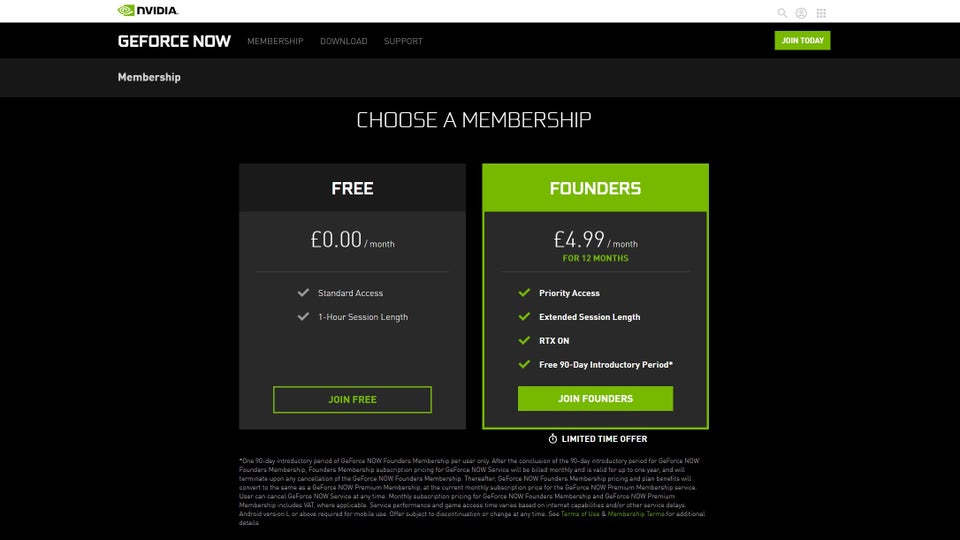
A: Yes, you can play games on GeForce NOW with a free subscription, but you’ll have limited access to features and may experience longer wait times. - Q: How do I Change my Server Location on Geforce Now?
A: To change your server location, follow the step-by-step guide provided above for PC or mobile users. - Q: Will Changing my Server Location Always Result in Immediate Access?
A: No, the effectiveness of this trick may vary depending on the game and server activity. - Q: Can I Use Geforce Now on Multiple Devices at Once?
A: Yes, you can use GeForce NOW on multiple devices at once, but be aware that your usage will be counted towards your subscription or free tier limits. - Q: How do I Report Issues or Provide Feedback on Geforce Now?
A: You can report issues or provide feedback by visiting the GeForce NOW website and submitting a support ticket or contacting their customer service team directly. - Q: Are There Any Age Restrictions For Using Geforce Now?
A: Yes, GeForce NOW is intended for users aged 13 and above. If you’re under 18, please ask your parent or guardian to assist with the sign-up process. - Q: Can I Use Geforce Now on my Tablet or Smartphone?
A: Yes, GeForce NOW is available on Android devices and iOS devices (via Safari browser).


