
How to Slow Down a Video on Youtube: A Step-by-step Guide
Are you tired of watching videos on YouTube that are too fast or too slow? Do you wish you could speed up or slow down a video to make it more enjoyable? Look no further! In this article, we’ll show you how to slow down a video on YouTube using your computer, smartphone, or tablet.
Why Slow Down a Video on Youtube?
There are several reasons why you might want to slow down a video on YouTube. Maybe the speaker is speaking too quickly and you’re having trouble understanding what they’re saying. Or perhaps the video is an instructional tutorial and you need to see the steps being taken in more detail. Whatever your reason, we’ve got you covered.
Slow Down a Video on Youtube With Your Computer
To slow down a video on YouTube using your computer, follow these simple steps:
- Open Youtube: Go to youtube.Com and sign in to your account.
- Search For The Video: Type the title of the video you want to slow down in the search bar and press Enter.
- Play The Video: Click on the video’s thumbnail or title to play it.
- Go to Settings: Click on the gear icon in the bottom right corner of the player to open the settings menu.
- Select Speed: Choose the speed you want from the dropdown menu. You can select 0.25, 0.5, Or 0.75 Times normal speed.
Slow Down a Video on Youtube With Your Smartphone or Tablet
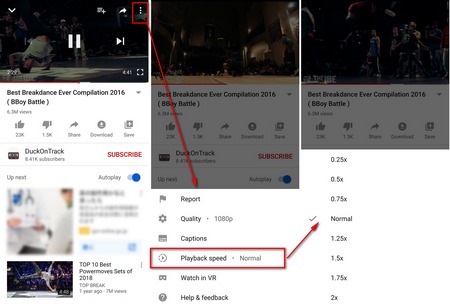
To slow down a video on YouTube using your smartphone or tablet, follow these steps:
- Open Youtube: Open the YouTube app on your device and sign in to your account.
- Search For The Video: Type the title of the video you want to slow down in the search bar and press Enter.
- Play The Video: Click on the video’s thumbnail or title to play it.
- Tap The Three Dots: Tap the three dots icon in the top right corner of the player to open the menu.
- Select Speed: Choose the speed you want from the dropdown menu. You can select 0.25, 0.5, Or 0.75 Times normal speed.
Other Solutions to Slow Down a Video on Youtube
If the built-in speed control feature in YouTube’s player doesn’t meet your needs, there are other solutions available. One such solution is YouTube Slow Player, an external website that allows you to slow down videos by choosing customized percentaged speeds (and not just 25, 50, and 75% like on YouTube).
To use YouTube Slow Player, follow these steps:
- Copy The Video Url: Copy the URL of the video you want to slow down from the YouTube address bar.
- Go to Youtube Slow Player: Open the YouTube Slow Player website in your browser and paste the URL into the input field.
- Select Speed: Use the slider to adjust the speed of the video. You can choose any percentage speed between 25% and 100%.
- Start Playing: Click on the play button to start playing the slowed-down video.
Conclusion
In conclusion, slowing down a video on YouTube is a straightforward process that can be done using your computer, smartphone, or tablet. Whether you need to slow down a video for educational purposes, or simply because it’s too fast, we’ve provided you with step-by-step guides on how to do it. Don’t forget to try out other solutions like YouTube Slow Player if the built-in feature doesn’t meet your needs.
Frequently Asked Questions (FAQs)
- Can I Slow Down Any Video on Youtube?
Yes, you can slow down any public video on YouTube. - How do I Speed up a Video on Youtube?
To speed up a video on YouTube, simply select the desired speed from the dropdown menu in the player settings. - Can I Slow Down a Private Video on Youtube?
No, you cannot slow down a private video on YouTube unless the owner of the video has shared it with you explicitly. - How do I Revert to Normal Speed After Slowing Down a Video?
To revert to normal speed, simply select the “Normal” option from the dropdown menu in the player settings. - Can I Slow Down Live Videos on Youtube?
No, live videos on YouTube cannot be slowed down or sped up. - Is There a Limit to How Slow I Can Make a Video?
Yes, the minimum speed you can choose is 25% of normal speed. - How do I Close The Youtube App if It’s Freezing?
To close the YouTube app, simply force quit the app on your device or wait for it to recover from any freezes.
Resources
- YouTube Slow Player website: Https://Www.Youtube.Com/slowplayer
- YouTube Help Center: Https://Support.Google.Com/youtube/answer/60646


