
The Ultimate Guide to Smoothing Angles in Adobe Illustrator
As a digital cartoonist, you’re probably familiar with the frustration of trying to smooth out angles in Adobe Illustrator. It’s a common problem that can be tricky to solve, especially for those who are new to the program. But don’t worry, we’ve got you covered! In this comprehensive guide, we’ll show you how to smooth out angles like a pro using various methods and tools available in Adobe Illustrator.
What is Smoothing Angles?
Smoothing angles refers to the process of modifying the corners or edges of a shape or object to make them look more rounded or curved. This can be useful for creating realistic and visually appealing designs, especially when working with complex shapes or objects.
Why is Smoothing Angles Important in Adobe Illustrator?
Smoothing angles is an essential skill to have when working with Adobe Illustrator, as it allows you to create smooth and seamless transitions between different parts of a design. This can be particularly useful for creating realistic textures, patterns, and shapes that require a high level of precision.
Method 1: Smoothing Angles Directly From The Design Table
One of the simplest ways to smooth out angles in Adobe Illustrator is by using the “Smoothen” option directly from the design table. To do this:
- Select the shape or object you want to modify
- Go to the top menu bar and select Object > Transform > Smoothen
- Adjust the smoothing settings as desired
This method is great for simple shapes and objects, but may not be suitable for more complex designs.
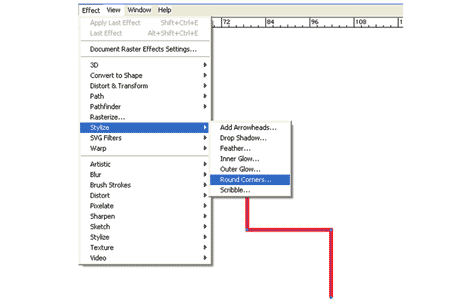
Method 2: Smoothing Angles From The Effect Menu
Another way to smooth out angles in Adobe Illustrator is by using the “Effect” menu. To do this:
- Select the shape or object you want to modify
- Go to the top menu bar and select Effects > Stylize > Round Corners
- Adjust the settings as desired
This method provides more control over the smoothing process, but may require some experimentation to get the desired result.
Method 3: Smoothing Angles From The Transform Menu
The third way to smooth out angles in Adobe Illustrator is by using the “Transform” menu. To do this:
- Select the shape or object you want to modify
- Go to the top menu bar and select Object > Transform > Rounding
- Adjust the settings as desired
This method provides even more control over the smoothing process, but may require some practice to get used to.
Tips And Tricks
Here are a few tips and tricks to keep in mind when smoothing out angles in Adobe Illustrator:
- Always select the shape or object you want to modify before attempting to smooth out its angles.
- Use the “Smoothen” option directly from the design table for simple shapes and objects.
- Use the “Effect” menu for more complex designs that require a high level of precision.
- Experiment with different settings and options to achieve the desired result.
Conclusion
Smoothing out angles in Adobe Illustrator is an essential skill to have, especially when working with complex shapes or objects. With these three methods and tips, you’ll be able to smooth out angles like a pro and create realistic and visually appealing designs.
Frequently Asked Questions (FAQs)
- What is The Difference Between Smoothing Angles And Rounding Corners?
Smoothing angles refers to the process of modifying the edges or corners of a shape or object to make them look more curved or rounded, while rounding corners specifically refers to the process of creating rounded corners on an object.
- Can I Smooth Out Angles in Adobe Illustrator Without Affecting Other Parts of my Design?
Yes, you can smooth out angles in Adobe Illustrator without affecting other parts of your design by using the “Smoothen” option directly from the design table or by selecting specific parts of the shape or object to modify.
- How do I Save a Smooth Angle Effect in Adobe Illustrator?
To save a smooth angle effect in Adobe Illustrator, select the affected shape or object and go to File > Save As. Choose the desired file format and location to save your design.
- Can I Use Smoothing Angles to Create Realistic Textures or Patterns?
Yes, you can use smoothing angles to create realistic textures or patterns by applying it to specific parts of a shape or object. Experiment with different settings and options to achieve the desired result.
- How do I Undo a Smooth Angle Effect in Adobe Illustrator?
To undo a smooth angle effect in Adobe Illustrator, select the affected shape or object and go to Edit > Undo. You can also use the shortcut key Command + Z (Mac) or Control + Z (Windows).


